Outlier analysis
Outlier analysis
An outlier is a data point that stands out from the others in a group, usually because it’s very different. Statistical outliers might happen due to errors or unusual situations in the data. These can greatly affect analyses, so it’s crucial to find and deal with them correctly.
Overview
Diverse outlier detection methods cater to various scenarios in Lumenore. These methods include the Z-Score or Modified Z-Score method, employed for identifying outliers in a single Key Performance Indicator (KPI) or variable (one-dimensional outlier detection), the Density-based method for detecting outliers using two KPIs (two-dimensional outlier detection), and Time Series Anomaly detection for a single KPI concerning date or time.
Outlier Detection Methods
Z-Score:
The Z-Score, a statistical metric gauging the number of standard deviations an observation deviates from the mean, designates an observation with a Z-Score exceeding 3 or falling below -3 as an outlier. For instance, months with exceptionally high Z-scores can be considered outliers in monthly sales data.
Modified Z-Score:
The Modified Z-Score method replaces “mean” and “standard deviation” with “median” and “median absolute deviation from the median.” Unlike the traditional Z-Score, based on the mean and standard deviation, the modified Z-Score employs the median and median absolute deviation (MAD). Its advantage lies in being less sensitive to outliers, enhancing robustness.
Time Series Anomaly:
A time series anomaly detection is a data point significantly diverging from the entire time series trend, seasonality, or cyclic pattern. In Lumenore, coupled with the Z-Score, the moving window threshold method identifies outliers at each window position, denoting anomalies after traversing the entire time series.
Steps to perform outlier analysis in Lumenore:
Step 1: After accessing “Do You Know,” select “Outliers.”
Step 2: Choose a Schema and click “Next.”
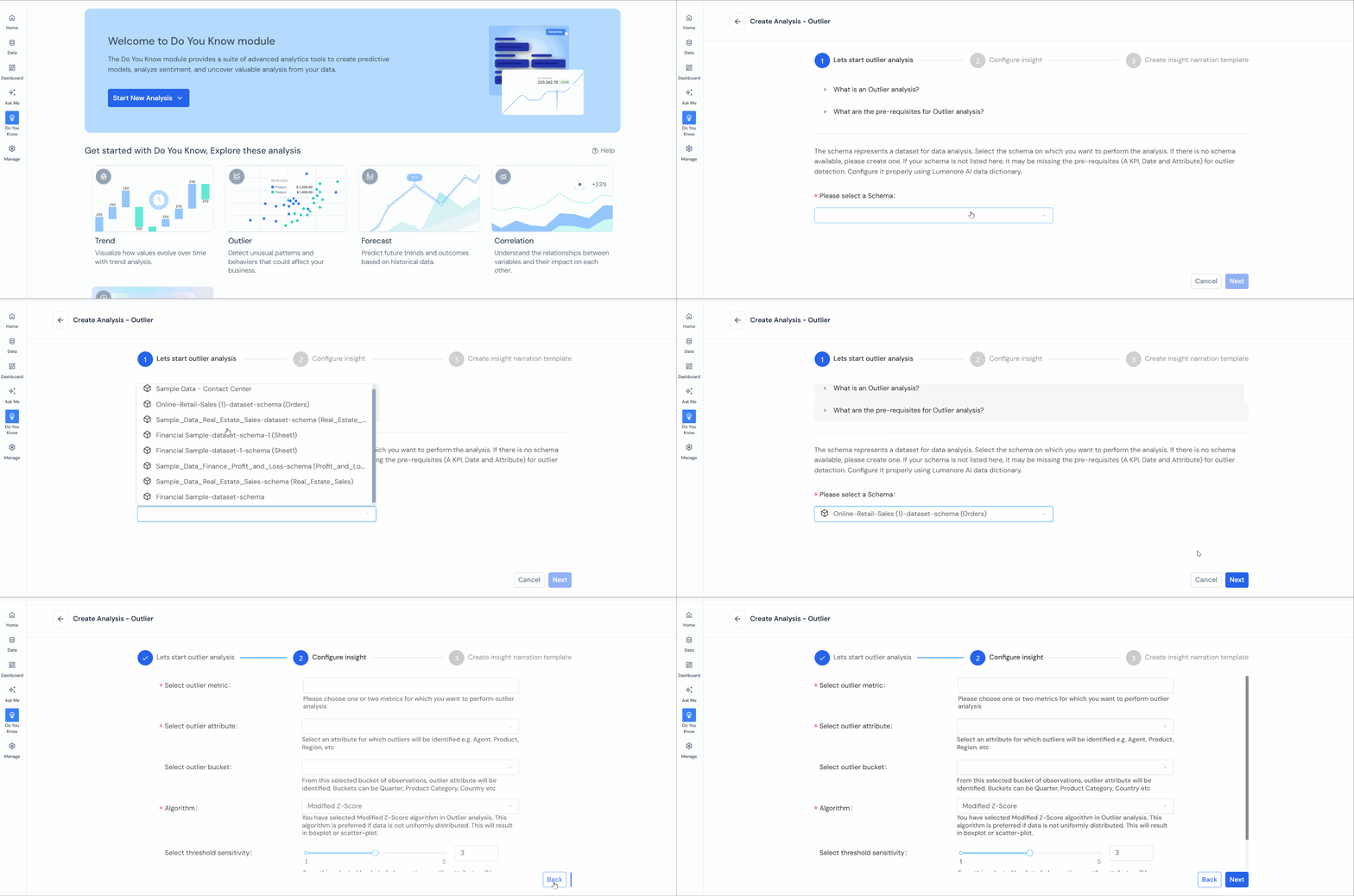
Note: Ensure prerequisites (A KPI, a Date, and an Attribute) for outlier analysis are met.
Step 3: Select the following to configure:
- Select outlier metric: Choose one or two metrics (KPI) for outlier analysis.
- Select outlier attribute: Identify an attribute for outlier identification (e.g., Product, Region, Customer Segment).
- Select outlier bucket: Choose a bucket of observations (e.g., Quarter, Product Category, Country).
- Select algorithm: Pick the appropriate method (Modified Z-Score, Time-Series Anomaly, or Density-Based).
- Select threshold sensitivity: Create a limit to decide when data points are outliers. You’ll find more outliers if you set the limit to be less strict. When setting limits to identify outliers, the choice of values like 1 and 5 or 1 and 100% varies depending on the statistical method or technique. These values indicate the boundaries or thresholds for determining outliers.
- Optionally add filters based on conditions.
Click “Next” after filling in the required details.
Step 4: Customize the insights narration to define the variables used and click “Save” to proceed.
Step 5: Name the insight for future access (default suggestion provided).
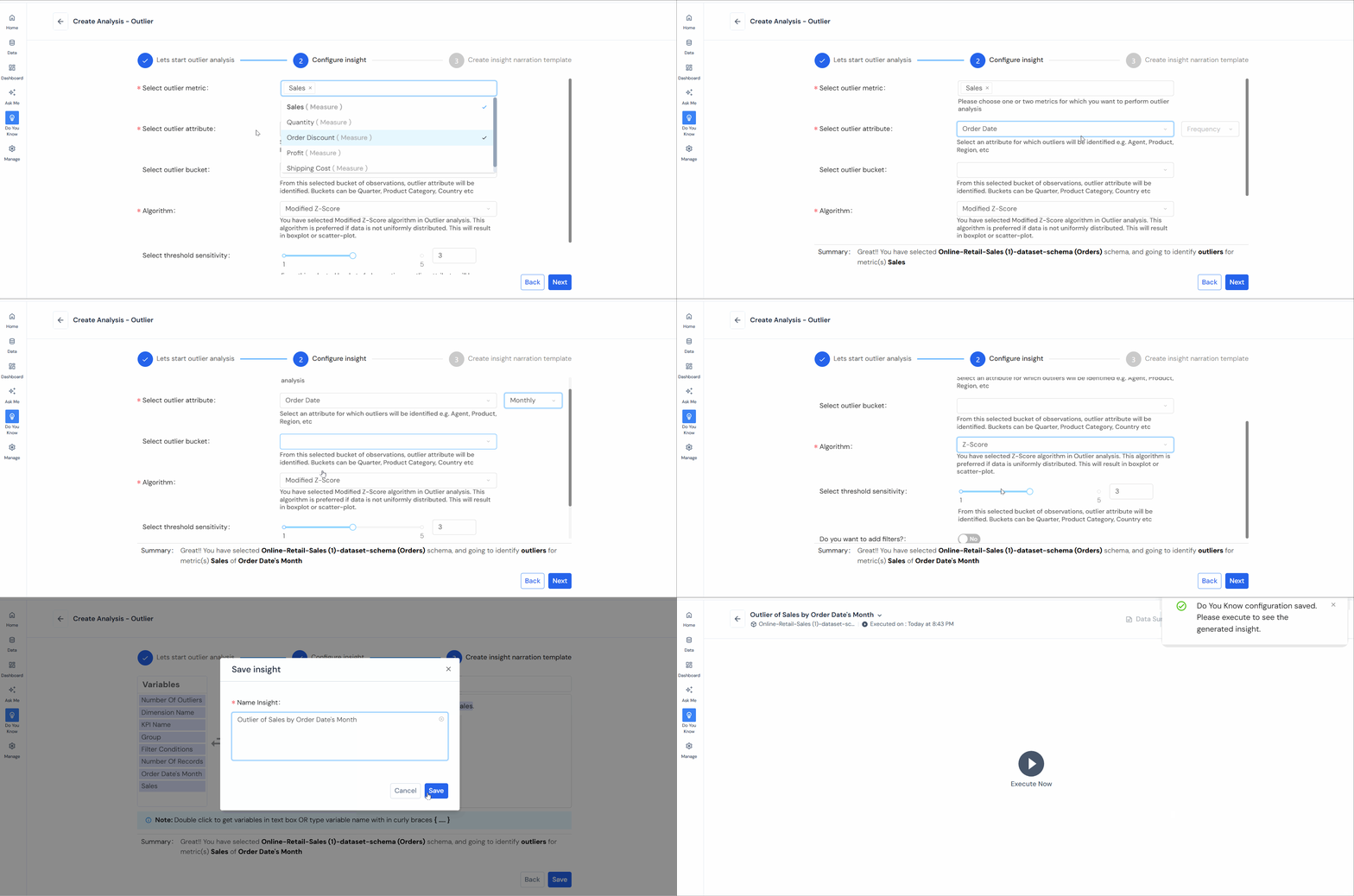
Note: If you wish to apply a filter, a window for creating filters will appear. As shown in the Trend Analysis, establish filters by groups or conditions as needed.
Step 6: After saving, select “Execute.”
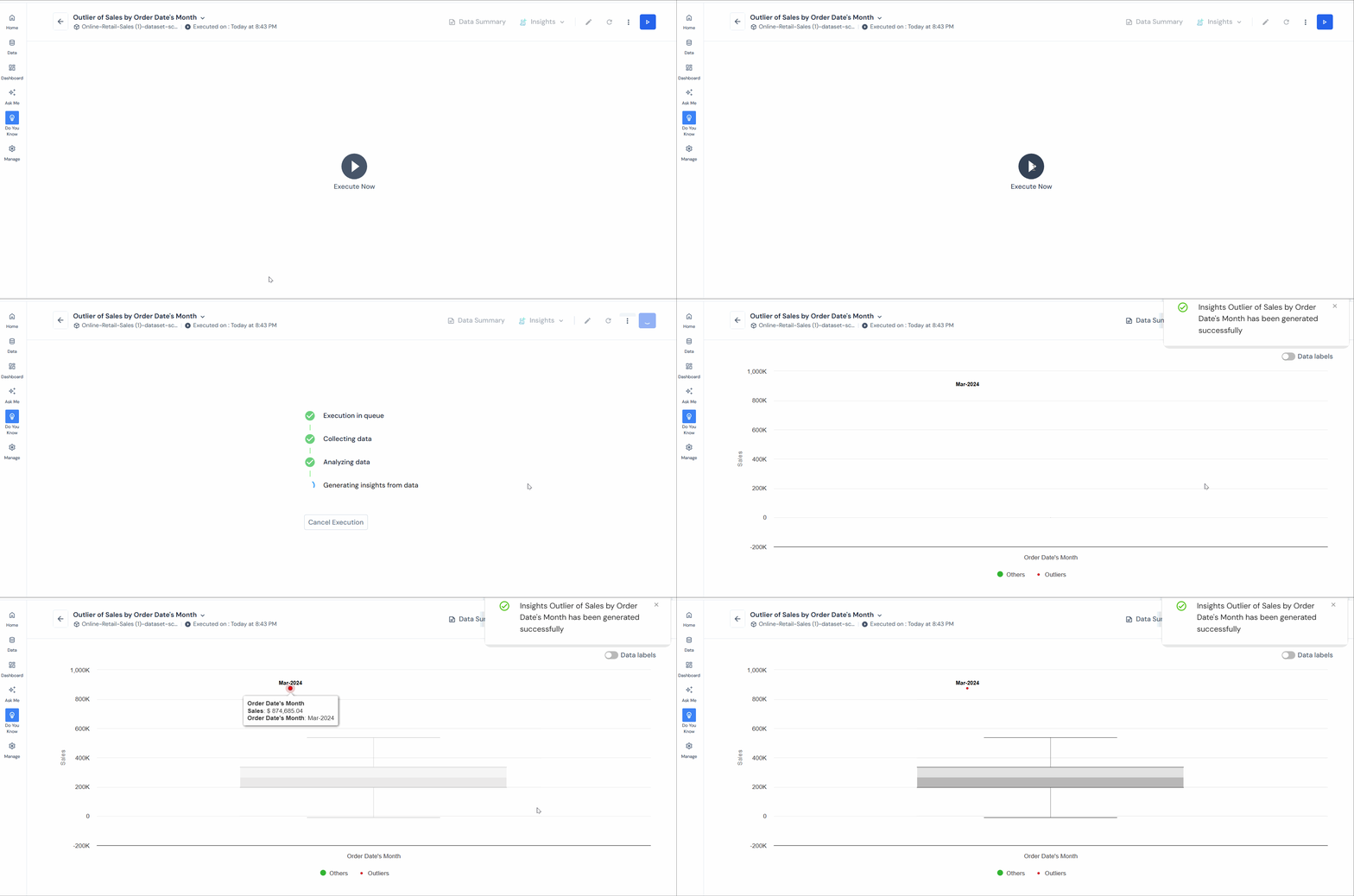
Upon initiation of execution, the system will undergo four background processes. You can also terminate the execution at any point before its completion.
For clarity, an insight into outlier analysis has been created using sales (outlier metric), product (outlier attribute), and the Z-score algorithm. The red dots in the chart represent outliers.