String
UPPER
To convert all the characters in a specified string to uppercase. This is particularly useful when you want to perform case-insensitive comparisons.
Syntax – UPPER(attribute name)
Example Queries:
- Convert Customer Name to Uppercase:
UPPER([Retail].[Customer Name]) - Convert City Name to Uppercase:
UPPER([Retail].[City]) - Convert Product Name to Uppercase:
UPPER([Retail].[Product]) - Convert Customer Segment to Uppercase:
UPPER([Retail].[Customer Segment])
- Convert Order Priority to Uppercase:
UPPER([Retail].[Order Priority])
LOWER
To convert all the characters in a specified string to lowercase.
Syntax – Lower(attribute name)
Example: Applying lower and upper functions to the city.

Example Queries:
- Convert Customer Name to Lowercase:
LOWER([Retail].[Customer Name]) - Convert City Name to Lowercase:
LOWER([Retail].[City]) - Convert Product Name to Lowercase:
LOWER([Retail].[Product]) - Convert Customer Segment to Lowercase:
LOWER([Retail].[Customer Segment]) - Convert Order Priority to Lowercase:
LOWER([Retail].[Order Priority])
STRING (Alias – to_char)
This function is employed to convert numbers into characters. For instance, it can transform ’03’ representing a month into the actual month name, such as March. When the user inputs ‘mon,’ it will display as ‘sep.’
Syntax – STRING(Measure name)
Continuing with the same example, when the user inputs ‘month,’ the result will be displayed as ‘September.’
Example: Converting the date into month-yyyy format.
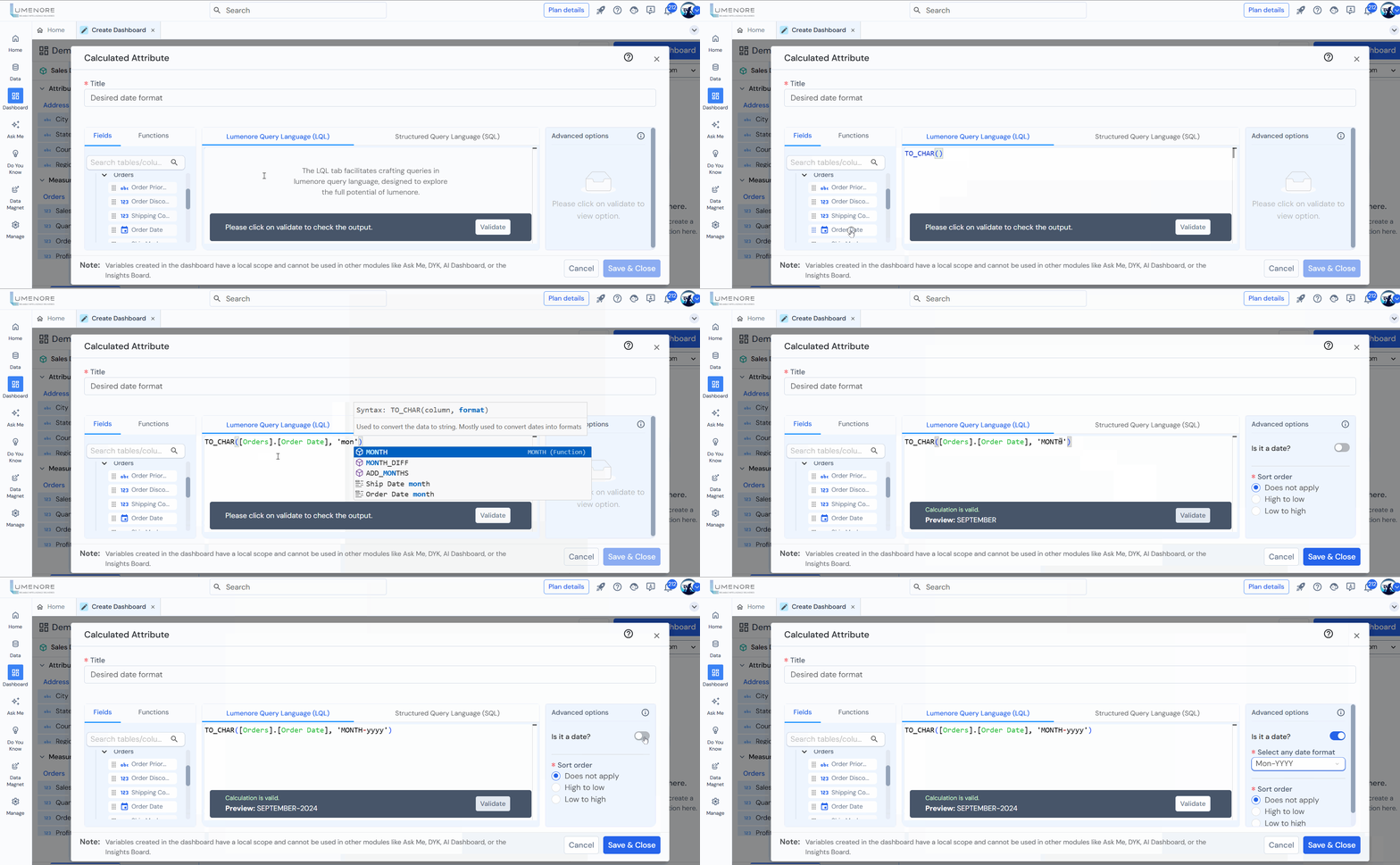
Example Queries:
- STRING([Orders].[Ship Date],’dd-mm-yyyy’)
- STRING([Orders].[Order Date],’mm-dd-yyyy’)
- STRING([Orders].[Ship Date],’yyyy/dd/mm’)
- STRING(STRING([Orders].[Sales], ‘#,##0.00’))
- STRING([Orders].[Order Date],’yyyy/dd/mm’)
REPLACE
This function is used to replace occurrences of a specific substring within a string.
Syntax – REPLACE(attribute, string, string)
Example: REPLACE(email,’.com”.in’), here we are replacing ‘.com’ with ‘.in’
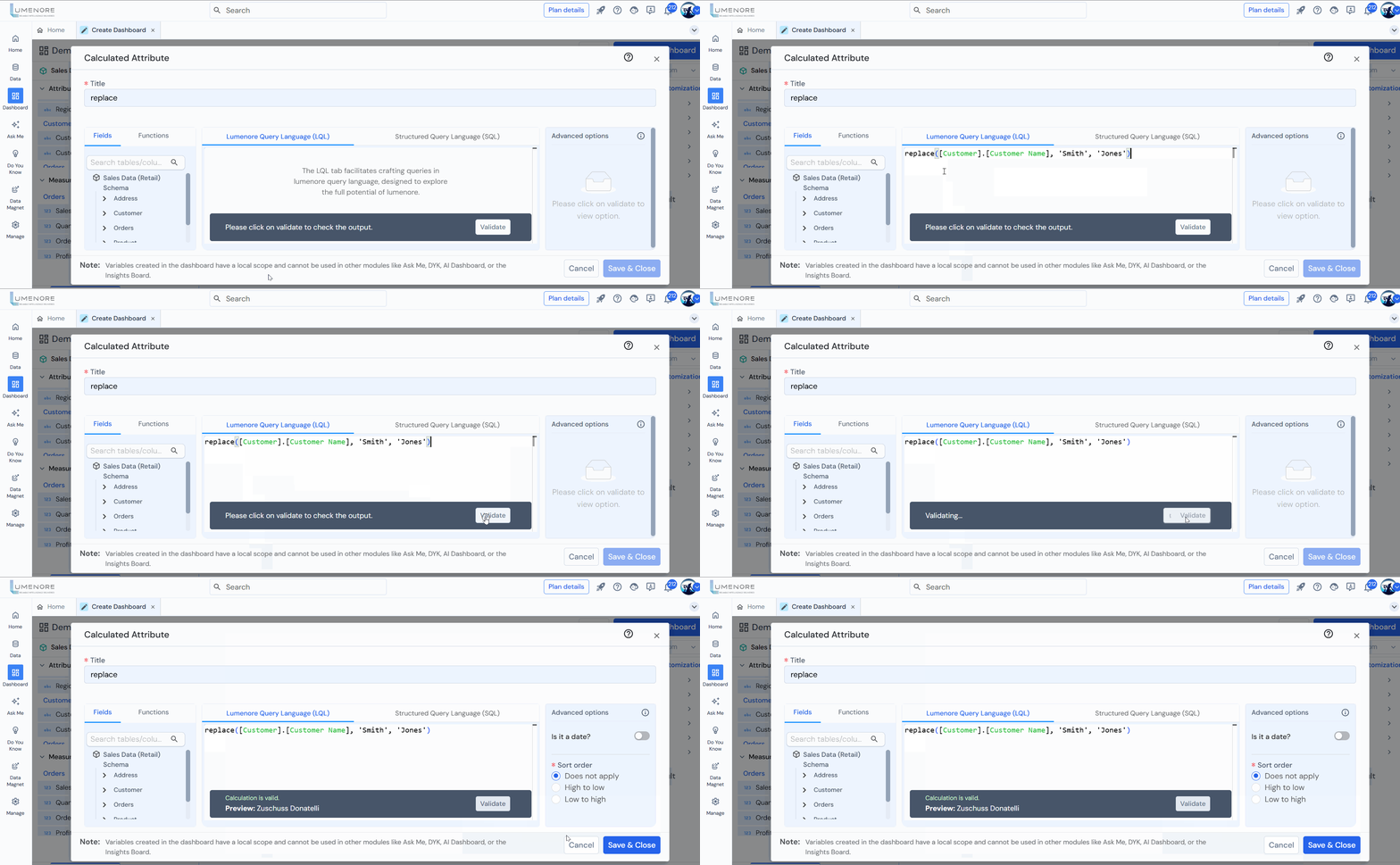
Example Queries:
- Replace ‘Street’ with ‘St.’ in the Address column:
REPLACE([Address].[Address], ‘Street’, ‘St.’)
- Replace ‘Old’ with ‘New’ in the City column:
REPLACE([Address].[City], ‘Old’, ‘New’)
- Replace ‘Critical’ with ‘High Priority’ in the Order Priority column:
REPLACE([Order].[Order Priority], ‘Critical’, ‘High Priority’)
- Replace ‘Express’ with ‘Fast Delivery’ in the Ship Mode column:
REPLACE([Order].[Ship Mode], ‘Express’, ‘Fast Delivery’)
- Replace ‘Laptop’ with ‘Notebook’ in the Product column:
REPLACE([Product].[Product], ‘Laptop’, ‘Notebook’)
SUBSTR
This function is used to extract a substring from a string.
Syntax – SUBSTR(string, integer [, integer])
Example: Here we are extracting the top 8 characters of the string.
- substr(email,1,8)

Example Queries:
- Extract the first 5 characters from Customer Name:
SUBSTR([Customer].[Customer Name], 1, 5) - Extract characters from the 4th position onward from Order ID:
SUBSTR([Order].[Order ID], 4) - Extract the first 3 characters from Start:
SUBSTR([Address].[State], 1, 3) - Extract 6 characters starting from the second position in Product ID:
SUBSTR([Product].[Product ID], 2, 6) - Extract the last 4 characters from Order Date (assuming format YYYY-MM-DD):
SUBSTR([Order].[Order Date], -4,4)
LPAD
It is a left-pad string with a specific set of characters (usually spaces) up to a specified length. This is often used to format strings to a certain width, aligning them to the left.
Syntax – LPAD(Dimension column name, length [, string])
Example: Here we are padding from the left hand.
- LPAD(Region, 15, ‘abc’)
- LPAD(Current_email,15,’xyz’)

Example Queries:
- Pad Customer ID with leading zeros to make it 10 characters long:
LPAD([Customer].[Customer ID], 10, ‘0’)
- Pad Order ID with leading ‘X’ to make it 12 characters long:
LPAD([Order].[Order ID], 12, ‘X’)
- Pad Product ID with spaces to make it 15 characters long:
LPAD([Product].[Product ID], 15, ‘ ‘)
- Pad Quantity with leading asterisks (*) to make it 5 characters long:
LPAD([Order].[Quantity], 5, ‘*’)
- Pad Region with hyphens (-) to make it 10 characters long:
LPAD([Address].[Region], 10, ‘-‘)
RPAD
It is used to right-pad a string with a specified set of characters (usually spaces) until the resulting string reaches a specified length.
Syntax – RPAD(Dimension column name, length [, string])
Example: We are padding from the right hand.
- RPAD(Region, 15, ‘abs’)
- RPAD(Current_email,15,’xyz’)

TRIM
It is used to remove specified characters (or spaces) from the beginning, end, or both ends of a string. It is commonly used to clean up and standardize data by removing unnecessary leading or trailing characters.
Syntax – TRIM([[ LEADING | TRAILING | BOTH] string FROM] expression)
Example: We are eliminating the ‘x’ from the start of a string.

Example Queries:
- Remove leading spaces from Customer Name:
TRIM(LEADING ‘ ‘ FROM [Customer].[Customer Name])
- Remove trailing spaces from Product Name:
TRIM(TRAILING ‘ ‘ FROM [Product].[Product])
- Remove both leading and trailing spaces from State:
TRIM(BOTH ‘ ‘ FROM [Address].[State])
- Remove leading zeros from Order ID:
TRIM(LEADING ‘0’ FROM [Order].[Order ID])
- Remove trailing hyphens from Region:
TRIM(TRAILING ‘-‘ FROM [Address].[Region])
