Dynamic header
A dynamic header enables the header text (displayed at the top or above a section) to change or update automatically based on specific conditions or user interactions. A dynamic header in data visualization or dashboards can include text that adapts and modifies its content based on applied filters, selected data points, or changing conditions. This capability enables the header to provide real-time context and information relevant to the displayed data, offering users enhanced clarity and flexibility in understanding the visualized information.
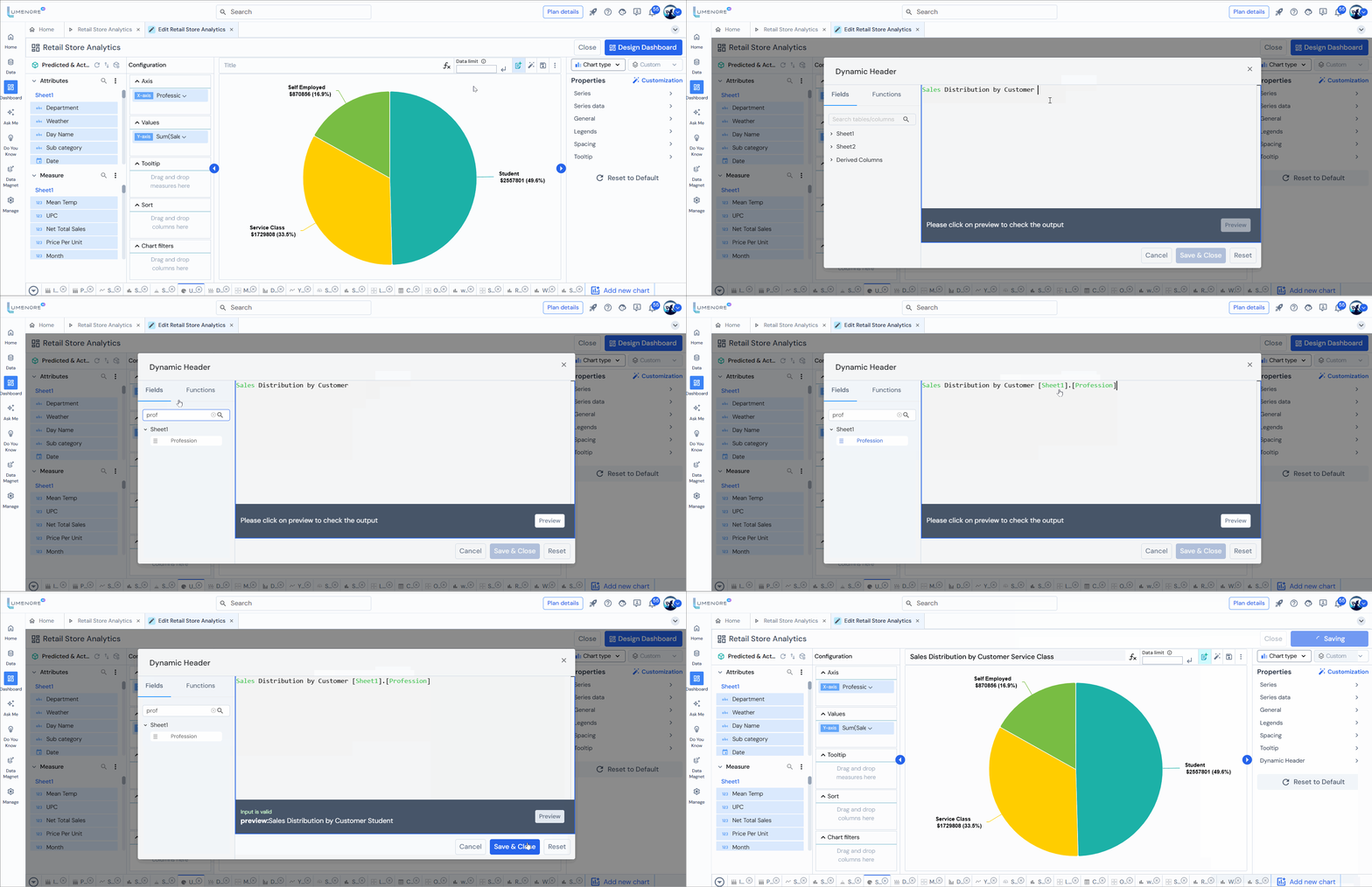
Steps for using the dynamic header:
Step 1: Create a heading using the measure option after selecting an attribute and measure.
Step 2: Incorporate attributes and a measure to generate a heading. Then, click on “Validate” to verify the calculation’s validity. If it is valid, click “Save & Close.”
Step 3: Select “Advanced Properties” to customize the header style.
Step 4: Select “Dynamic Header” to explore the available styling options for the header.
Step 5: On the left side, you’ll find various editing options such as font size, color, text alignment, and more.
Once the modifications are completed, select “Apply.”

Note: The dynamic header feature is accessible only when a header is created using a measure, not with a simple heading.
