Aggregator
All aggregation operations like MAX, MIN, AVG, COUNT, SUM, PROFIT, etc. are performed in the aggregator stage.
How to use an aggregator?
The Aggregator function is used to perform summary calculations on your data. It helps you group and analyze values by applying operations like:
- MAX – Find the highest value
- MIN – Find the lowest value
- AVG – Calculate the average
- COUNT – Count the number of records
- SUM – Add up all values
- PROFIT – Calculate profit-related metrics
This function is useful when you want to summarize large datasets and generate meaningful insights for reporting or analysis.
How to use an aggregator?
Step 1: To use the aggregator function, select the user input data source. In this example, we will use an Excel file as a source. We will import the data from this Excel file and then apply the aggregator function to perform the desired task.
Step 2: Open the aggregator function. In the “Group” field, select the column/s the user wants to group to perform the aggregator function on that data set.
Step 3: Now, click the “+” icon to add the columns where you want to apply aggregation functions.
Step 4: For the “Source Column,” choose the column where the user wants to apply the aggregate function. In the “Aggregation type,” decide on the specific type of aggregation the user needs, such as SUM, MAX, MIN, etc. In the “Output Column,” name the resulting column according to the user’s preference.
Note: Users can delete any unnecessary column by clicking the corresponding “trash” icon.
Step 5: Finally, click the “Save” button.
For example:
- For the “Group” field, we chose to group “Ship_Mode” and “Order_priority.”
- In the “Source Column” field, we selected “Sales,” set the Aggregation Type to “Average,” and named the Output Column “Average Sales.”

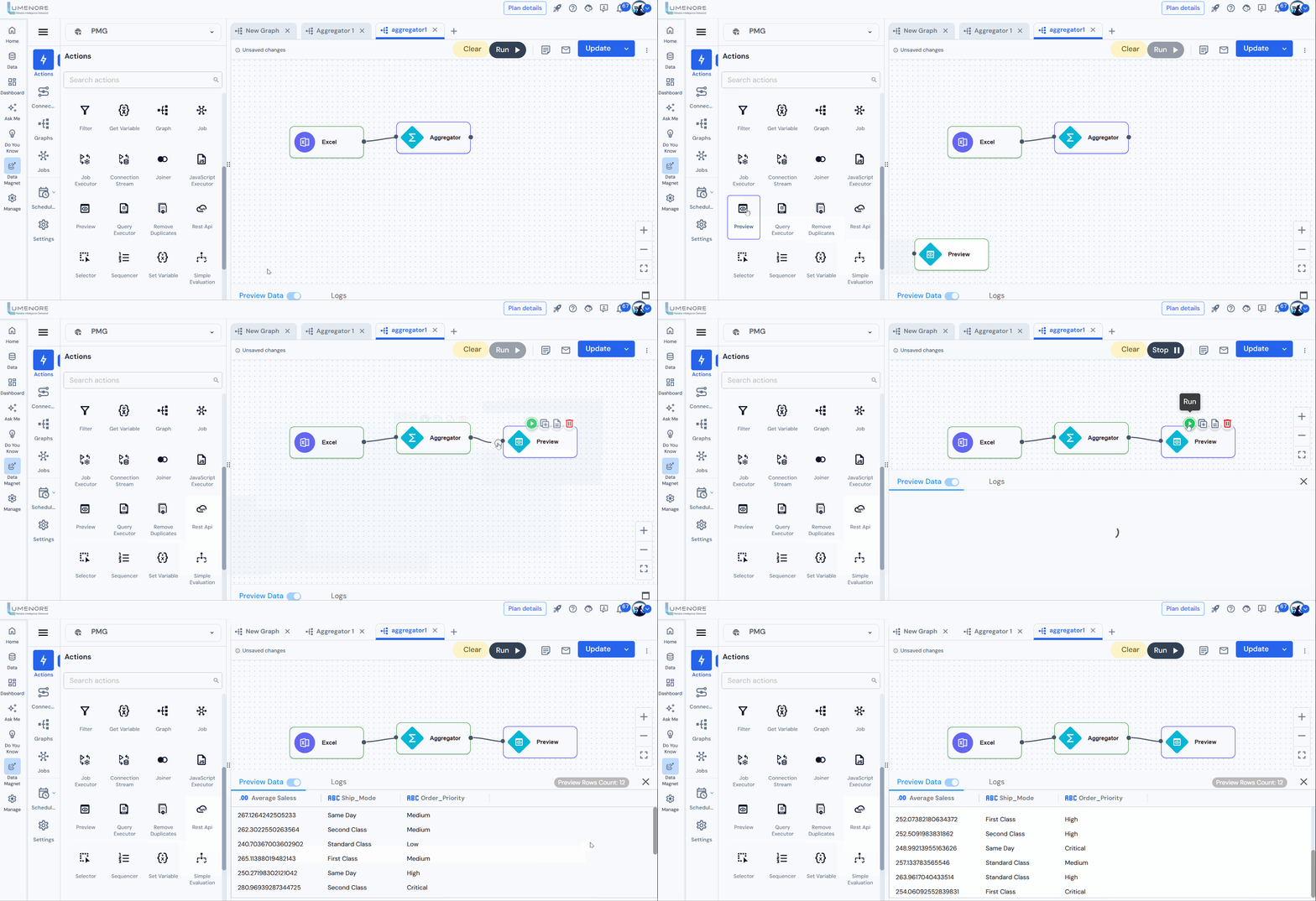
Preview