Filter
The Filter function selects specific columns or rows based on a condition or expression. It helps you narrow down your data so that only the information that meets your criteria is passed to the next step.
For example, you can use it to:
- Show only rows where sales > 1000
- Exclude columns you don’t need
- Keep records that match a specific value or pattern

This function helps focus on the most relevant data in your workflow.
How to use Filter?
Step 1: Connect the Filter component to the desired step in your workflow.
Step 2: Click the “+” icon to create a new derived filter expression.
Step 3: Enter a name for the Derived Expression.
Step 4: From the Output Data dropdown, select the required filter condition.
Step 5: Choose the appropriate column(s) and apply relevant function(s) to define your filter logic in the expression editor.
Step 6: Validate to ensure the correct expression and add to the derived column.
Step 7: Users can edit, update, and delete the expression of the derived column.
Then click “OK.”
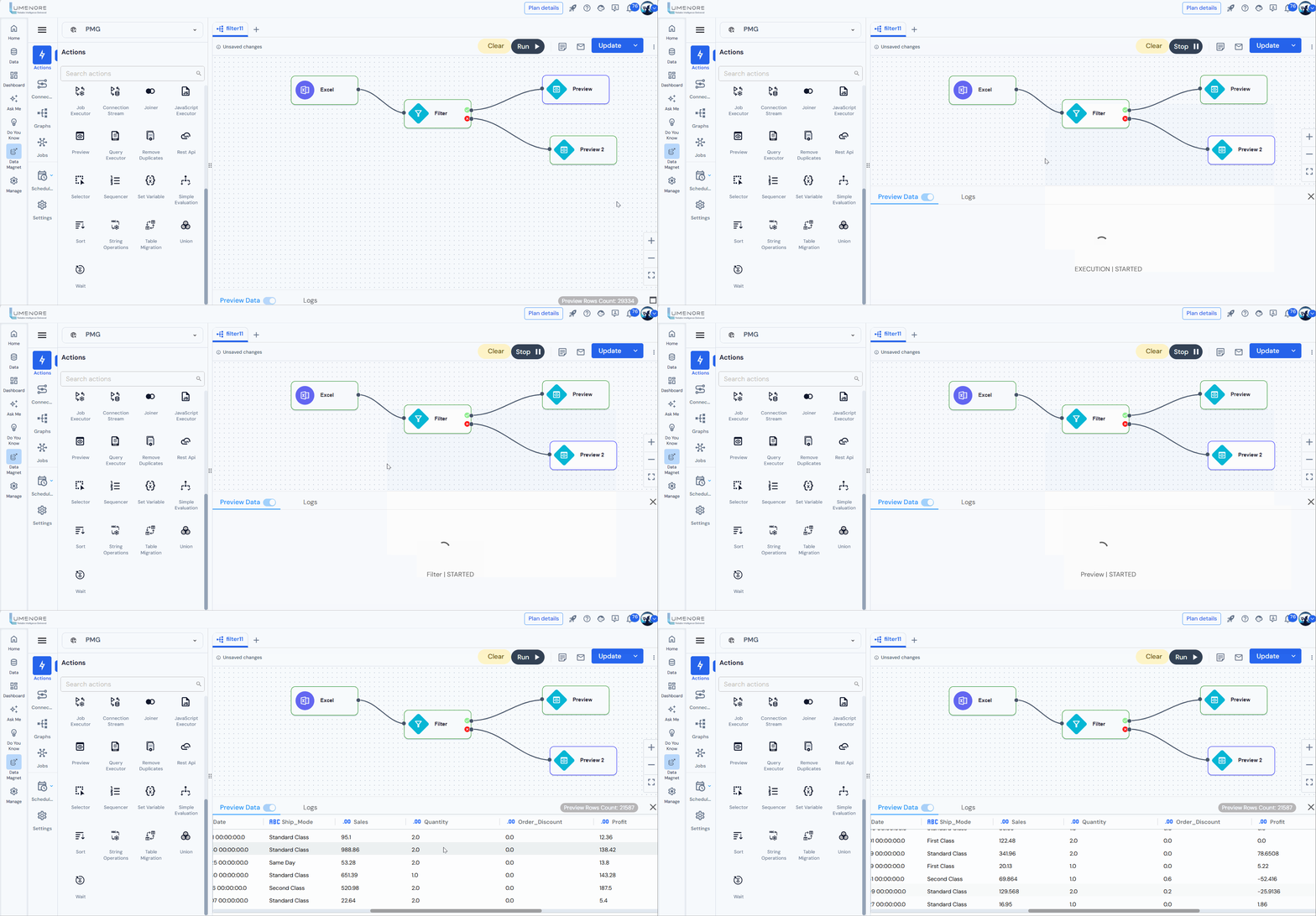
As observed, the filter consists of two nodes: one is green, and the other is red.
- Green indicates that the expression evaluates to true.
- Conversely, red indicates when the expression evaluates to be false.
For example:
- We labeled the derived expression column as “Greater_Quality.”
- Choose the output data as “Both.”
- In this instance, we aimed to view data where the Quantity is greater than 2.
- Green node– when it evaluates to be true. It shows all the entries where the Amount is greater than 2.
- Red node– when it evaluates to false. It shows all the entries where the Amount is less than 20.

- To view the records that meet the condition “Quantity > 2” (i.e., True), run Preview 1.

- To view the records that do not meet the condition “Quantity < 2” (i.e., False), run Preview 2.