Creating knowledge-base for RAG
Steps to create a new knowledge base folder
Step 1: Upon successful login to Lumenore, you are directed to the Home page.
Step 2: Click “Ask Me” and then select “Knowledge Base.”

Step 3: Select Create New Folder, then provide a folder name.
Step 4: From the menu (three-dot icon) next to the folder, choose Upload File.
Step 5: Browse and select the required file.

Step 6: In the Knowledge Base, you can now upload your files to train the Text Embedding model.
It converts your documents into high-quality semantic embeddings so the AI can understand context, meaning, and relationships within the text.
The model delivers strong accuracy, multilingual support, and speedy processing at standard cost, making it ideal for powering features such as semantic search and contextual Q&A in Ask Me.
Once trained, your Knowledge Base will deliver more accurate, relevant, and context-aware responses.

Note: ADA Model in Training
Lumenore trains the Automated Data Analysis (ADA) model on your dataset. The system is processing your contextual business data to build an AI model that generates insights, explanations, and analyses.
It means:
- Your selected AI module is not yet ready because it is still learning from your data.
- Training may take some time depending on:
- Data size
- Schema complexity
- Context added (descriptions, synonyms, business rules)
Step 7: Click “Start Analysis” to begin the analysis.

Actions available to users after creating a folder:
- Start Analysis
Triggers the analysis of the files in the folder. Once selected, Lumenore begins reading, processing, and preparing the content for AI-driven insights and responses.
- Upload File
Allow the user to upload documents into the selected folder. These files will later be used for training or querying in the Knowledge Base.
- Rename
Let the user change the folder name. Useful for organizing your content or updating folder labels as your Knowledge Base grows.
- Delete
Remove the entire folder and all its files.
- Click the folder to view all the files it contains, along with their details. From here, you can also delete any file if needed.

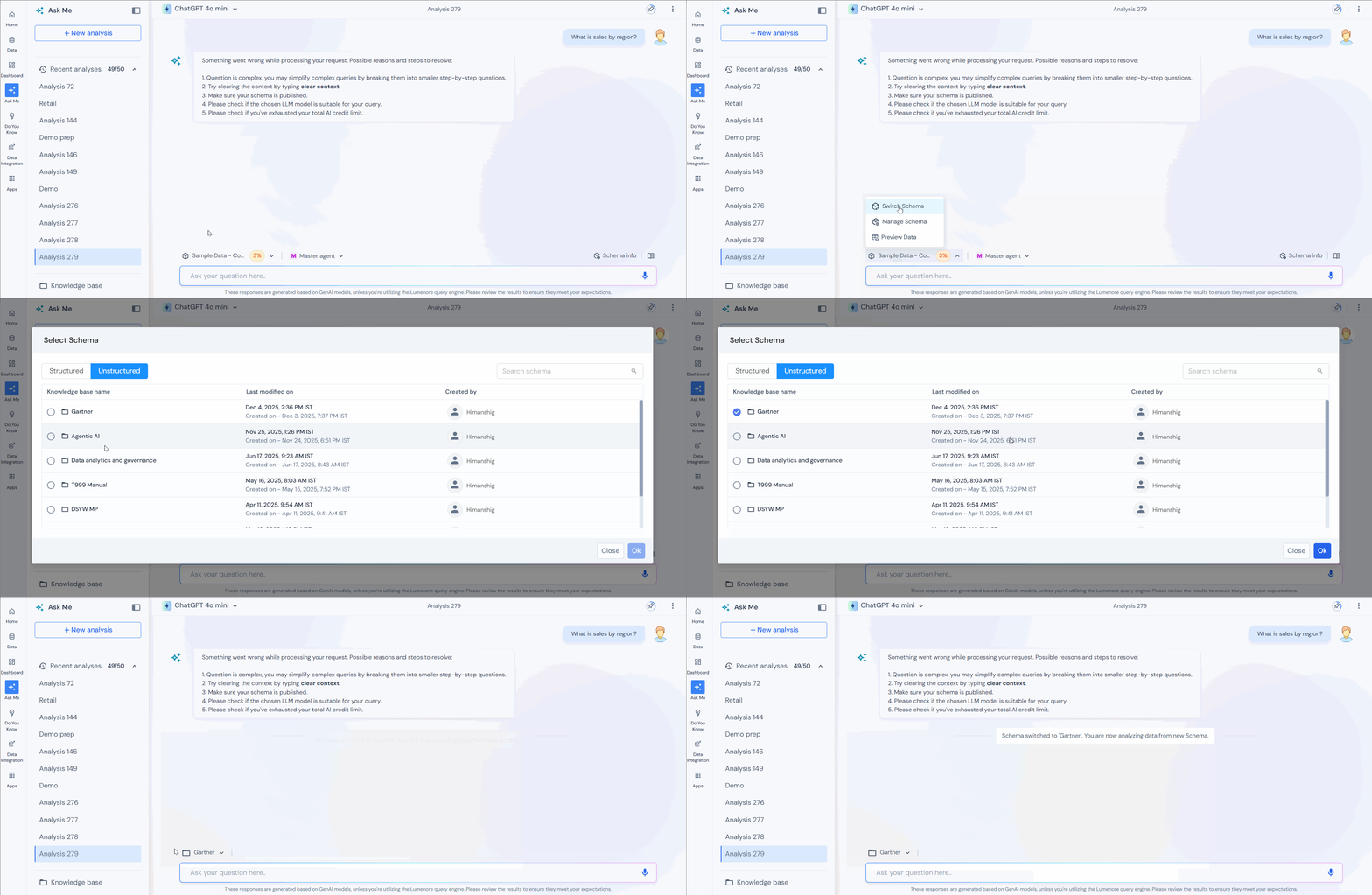
You can also view uploaded folders by clicking Switch Schema, selecting Unstructured, and then choosing the desired folder from the list.