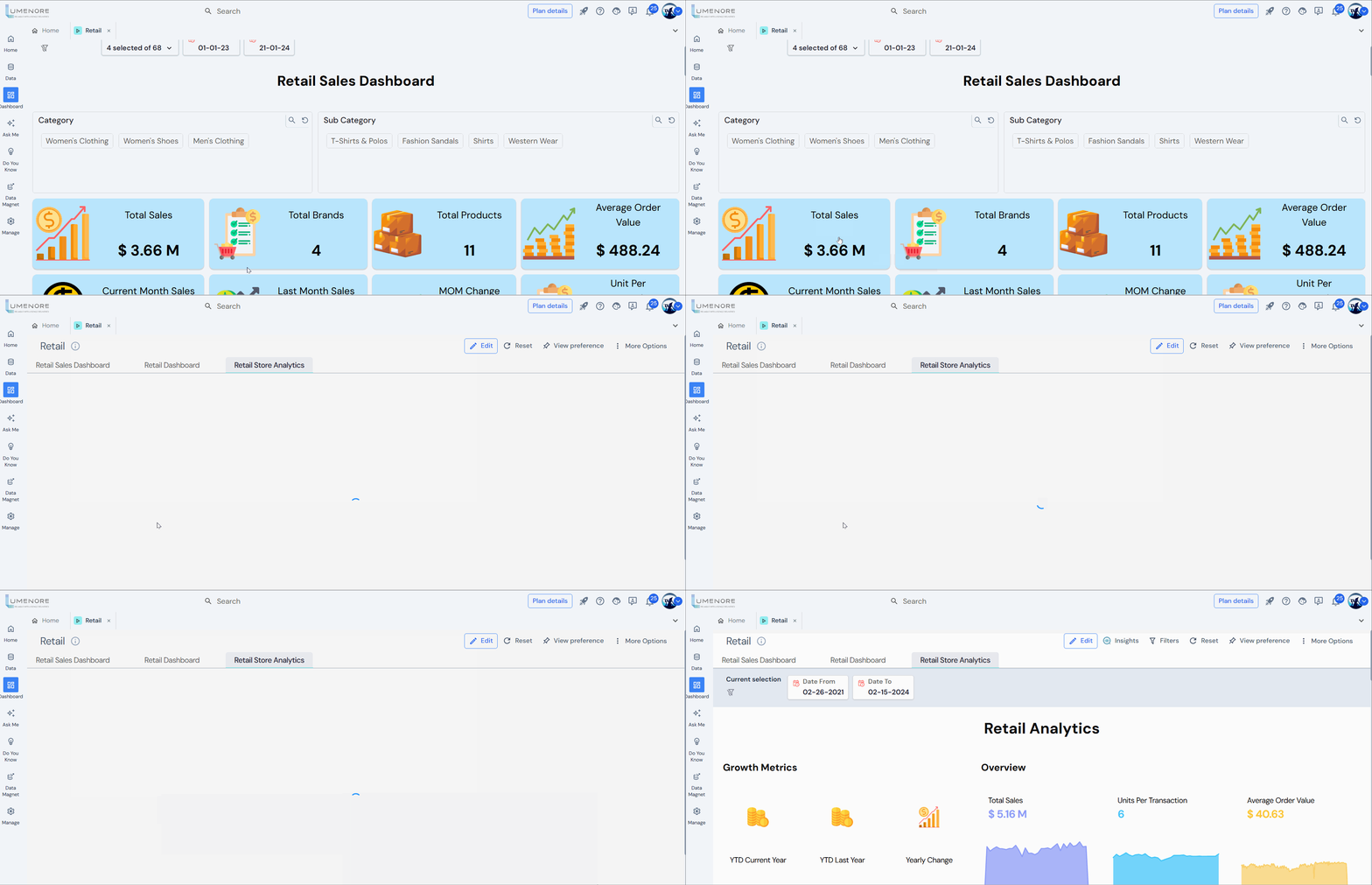
Creating storyboard
Storyboard
The term “storyboard” originates from multimedia design, where animations are initially developed through sketches outlining scene sequences and significant action shifts.
In the context of Lumenore, a storyboard is a graphical representation of multiple data dashboards in a single view. Multiple slides comprising different dashboards can be combined into a single storyboard. An interactive storyboard comprehensively visualizes the entire story in a single window, often used to showcase performance or convey insights to executives and stakeholders.
Storyboard Functionality:
In Lumenore, you can link cards from one dashboard to another, seamlessly connecting multiple dashboards to create a cohesive storyboard. This interlinking capability extends across various data sources, simplifying correlation during analysis and enhancing data-driven storytelling. Explore Filter Mapper functionality to learn more.
Creating a Storyboard:
Step 1: Launch Lumenore and navigate to the Dashboard section. Click on “Create Storyboard.”
Step 2: Enter Storyboard Details
Provide a name for the storyboard.
Select the dashboard to be added and specify the tab name. Click “Add.”

Step 3: Add Another Dashboard
Click “Add New” to insert additional dashboards.
Repeat the process: select a dashboard, assign a tab name, and click “Add.”
Step 4: Insert Dashboards into the Storyboard
Selected dashboards will be added to the storyboard. Click “Add.”

Step 5: Customize Storyboard
Change the storyboard name if needed and select the workspace for publication. Click “Publish.”
Step 6: Publish Storyboard
A confirmation message will appear. Click “View Storyboard.”
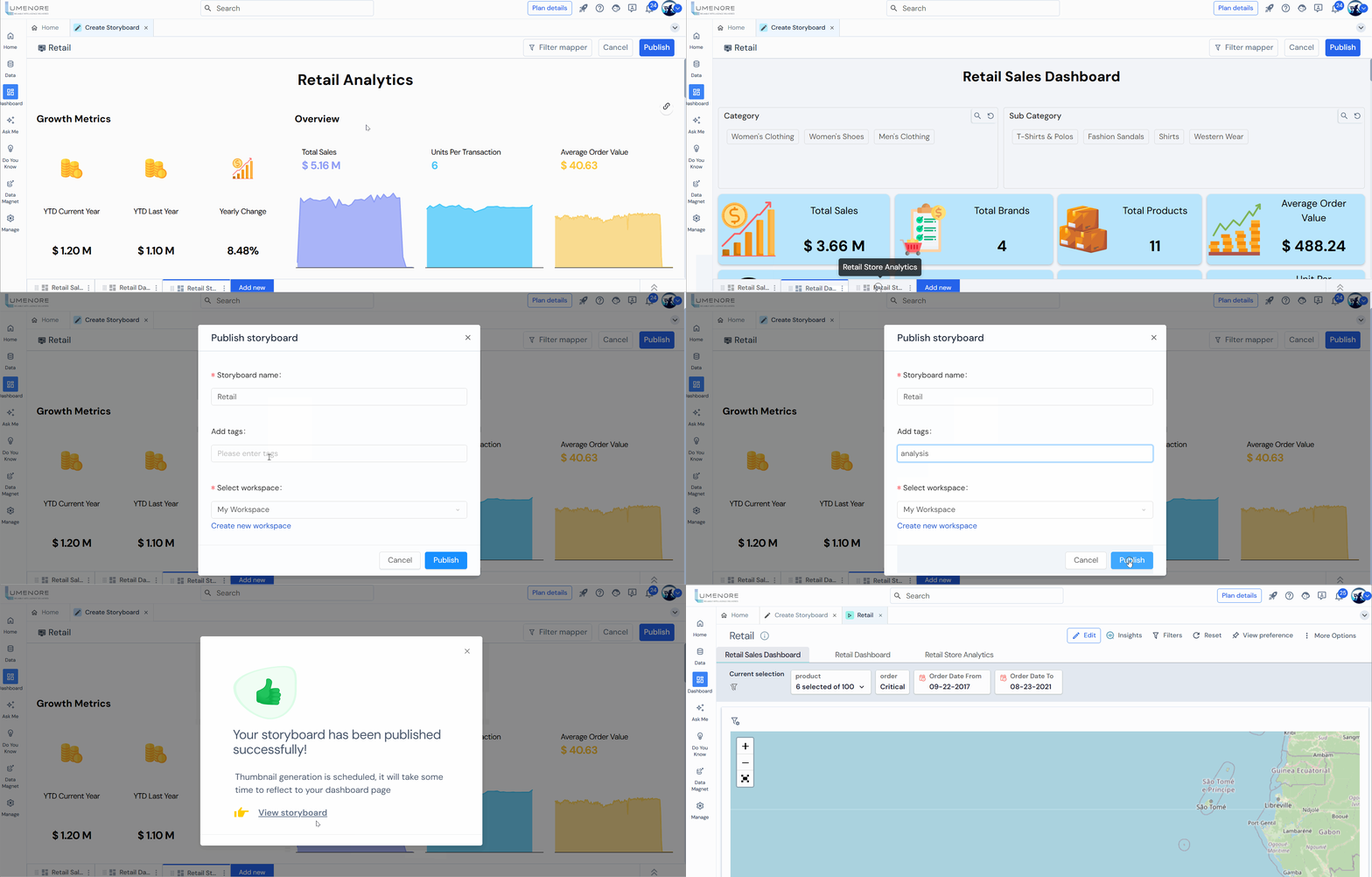
Step 7: View and Interact
The published storyboard displays added dashboards. Users can edit, fit width, refresh, embed, export, and apply filters.
Step 8: Widget Linking
Users can link widgets across various tabs, allowing them to pass parameters directly. This enables the data on the linked tab to be filtered by the specified parameters upon clicking on the widgets.Top of Form
- Click “Add New” and select the dashboard to link to the widget. Additionally, provide the tab name.
- Click the widget link icon and choose the tab name you want to link.
- After selecting the tab name, click the “Link” tab.
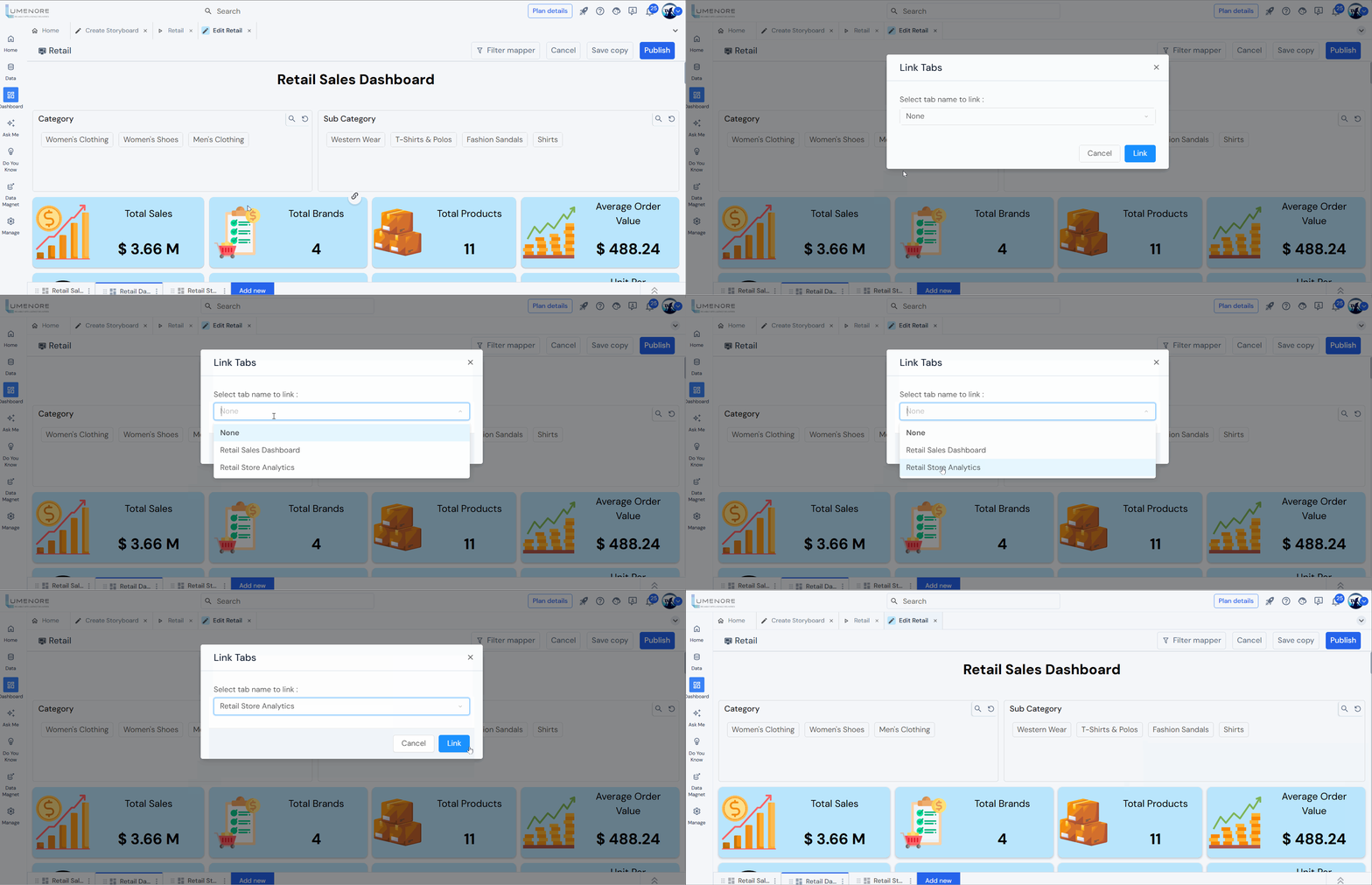
- Publish the storyboard, then open it to view. Now, click on the widget where you have applied the dashboard link.