Schedule
Dashboard Scheduling
The Scheduler in the Lumenore dashboard is a powerful tool that enables you to automate the data update process at specified time intervals. By setting up a schedule, you can ensure that your dashboard always displays the most current and accurate information without the need for manual updates. Whether you need data refreshed daily, weekly, or at any custom frequency, the Scheduling system handles it seamlessly. This feature ensures that whenever you access your dashboard, you have access to the latest insights and updates, helping you confidently make informed decisions.
Here’s how you can schedule data update:
- Click on “Schedule.”
- Give the scheduler a name for easy identification.
- Choose the desired file type, either PDF or PPT.
- Select the number of pages, whether it’s a single page or multiple pages.
- Set the occurrence frequency: Daily, Weekly, Monthly, or Custom.
- If “Custom” is chosen, the user can specify the date range in the “Schedule Custom Date Range” section for custom scheduling.
- Pick a start date by clicking the field and using the calendar.
- Report scheduling time by clicking the field and selecting a time in a 24-hour military format.
- Add team members, who will receive the notification of dashboard data update.
- Click “Schedule.”
- You’ll receive a success message confirming the system scheduling.
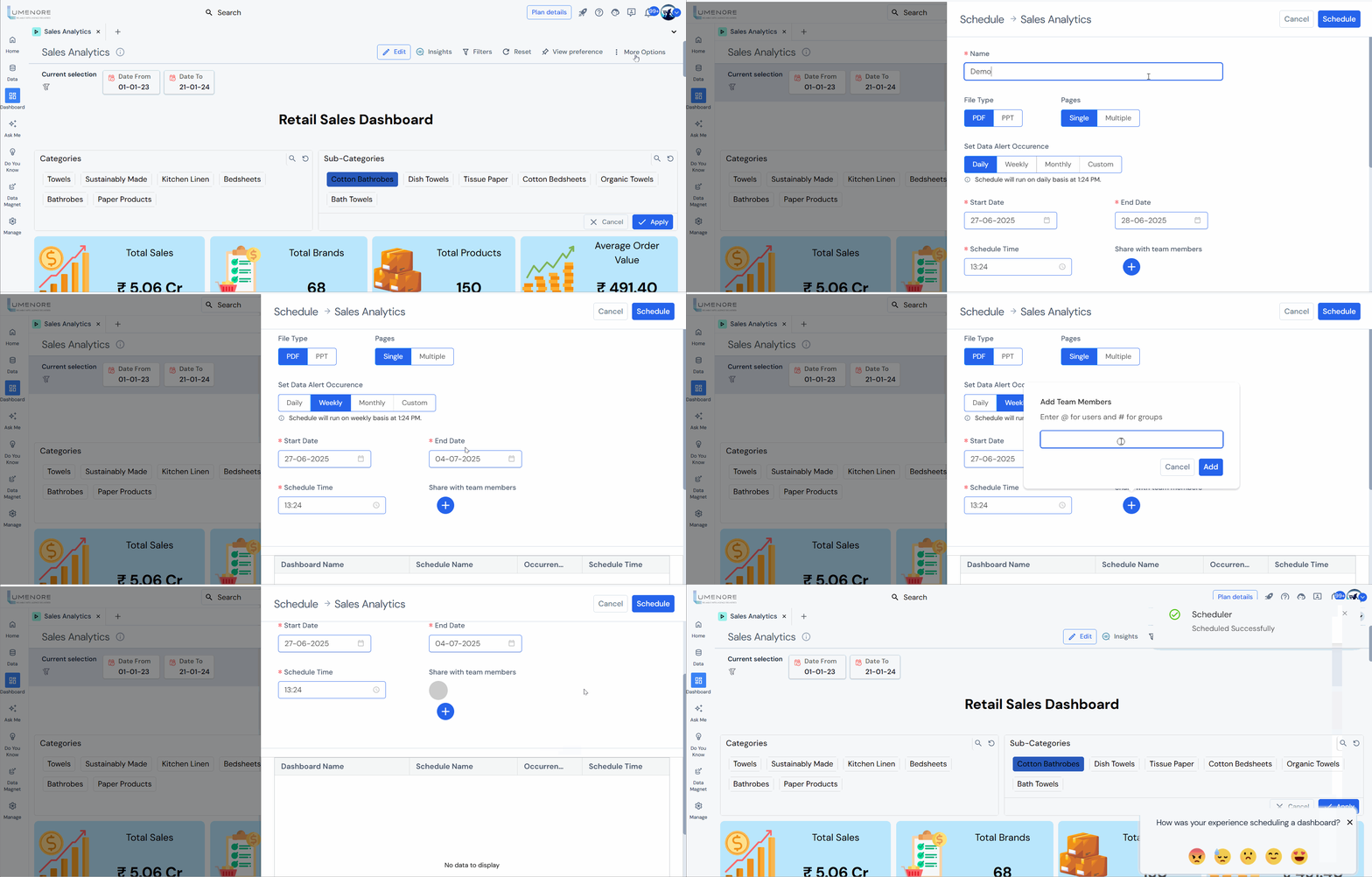
By following these steps, your dashboard will be updated with the most recent data based on your customised schedule.
