Dataset creation
Dataset
A Dataset is a systematically organized and formatted collection of data, typically curated for the purpose of analysis or machine learning. Data repository encompasses diverse types of information, ranging from numerical data and text to images and audio. Widely utilized across scientific research, business, and government institutions, datasets serve as foundational elements for informed decision-making.
Datasets can be stored in various formats, including CSV, JSON, and Excel, facilitating accessibility and analysis. Universal data connectivity, achieved through standards-based drivers, insulates users utilizing SQL interfaces.
A dataset’s effectiveness relies on its meticulous organization and structure, which ensures seamless accessibility and analysis for users.
Lumenore Connect empowers users to establish connections to extract information sets/datasets from various sources, including local files, databases, or live connections. With over 80 connectors available, users can seamlessly link their data to construct the schema and the dashboard.
The initial stage of dashboard creation involves the user generating or adding a dataset through a designated connector. The data entries are stored locally for further utilization upon creation or addition.
Steps for creating a Dataset:
Step 1: Log into your account, then select the “Data” tab from the left panel.
Step 2: Click “Create New Dataset” to add your data.
On the Lumenore Dataset Connector screen, you can select from various connectors to establish connections with your data source, depending on your requirements. For the demonstration, we are selecting an Excel connector.

Step 3: Select “Browse File” or import the file from cloud storage.
Step 4: Upon successful file upload, a message will appear. Proceed by clicking “Next.”
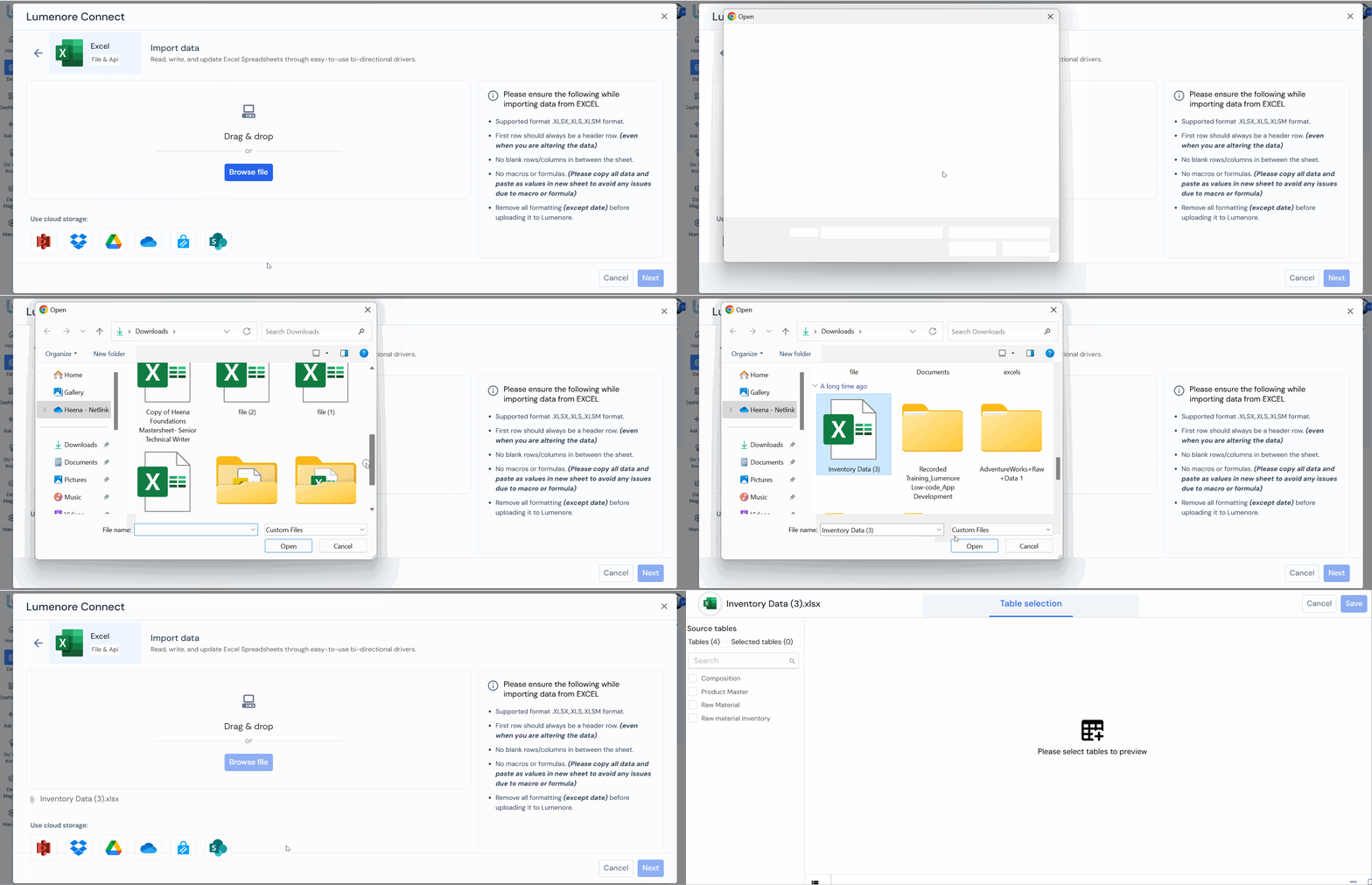
Step 5: Click the check box(es) to Select Data Tables and columns, then click “Preview”.
Step 6: The table preview allows users to filter or clean the data as needed. Subsequently, click on “Save.”
Step 7: Input the “Dataset name” and, if desired, provide a description. Afterward, click “OK.”
Step 8: The dialogue box confirming the successful upload of the dataset will appear.

After successfully creating the dataset, the user can proceed to create the schema. To learn how to create a schema, click here.
