Custom insights
Custom Insights
Custom insights are user-tailored analyses and visualizations that enable users to create personalized reports beyond standard offerings in data analytics platforms. They allow for the creation of specific metrics, custom visualizations, and targeted data segmentation. Users can design these insights to address unique business questions, uncover particular patterns, and create reports for various stakeholders.
AI Insights
AI insights are produced automatically by artificial intelligence algorithms that scrutinize large datasets to detect patterns, trends, and anomalies. Leveraging machine learning and various AI methods, these insights yield data-driven observations and forecasts that might not be obvious to human analysts. AI insights can reveal hidden opportunities and risks, enhancing the overall understanding of the data.
Guided RCA (Root Cause Analysis)
Guided Root Cause Analysis (RCA) is a systematic approach to identifying the root causes of problems within a system or process. It uses specific steps, methods, and tools to systematically explore possible causes, analyze data, and identify the main issue. In a guided RCA, software or an expert often helps by providing prompts, templates, and advice to ensure a thorough and efficient analysis. The goal is to identify the root causes of a problem so that effective solutions can be implemented to prevent recurrence.
Step 1: Click on “Custom Insights.”
Step 2:
Case 1: Choose an analysis from the available options.
- Select the desired date range, frequency, and the particular date column for the data analysis.
- Choose the analysis type that suits your requirements to generate insights. You have the option to select one or multiple analysis methods.
- Now click on “Run Analysis.“

- You can see the top insights derived from the KPI. To view specific insights, simply choose the desired insight type from the top, such as Change analysis, Trend analysis, or Outlier analysis.
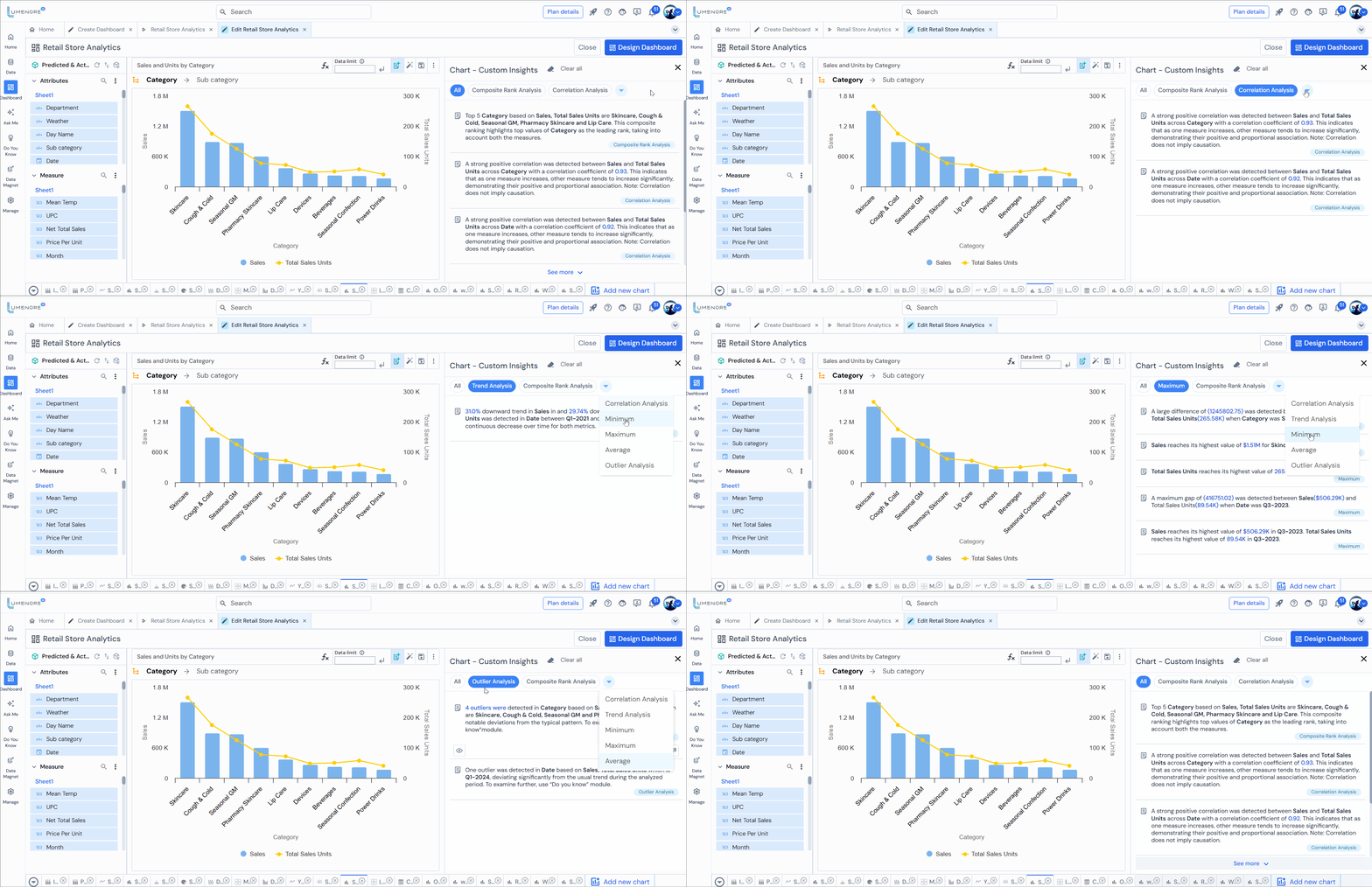
Case 2: To create custom analysis.
- Choose “Create analysis.”
- You can see predefined variables formed based on the KPI.
- You can also use the search bar to find specific functions or attributes.
- Now drag and drop the variables to the custom analysis template on the right or double-click in the provided space to write the function.
- After providing the template, click on “Validate” to check if the provided variables are valid.
- Provide the analysis name and save the condition by clicking “Save analysis.”

- Additionally, you can also apply filter conditions, as shown in the screenshot below:

- The user can add, edit, or delete analyses.
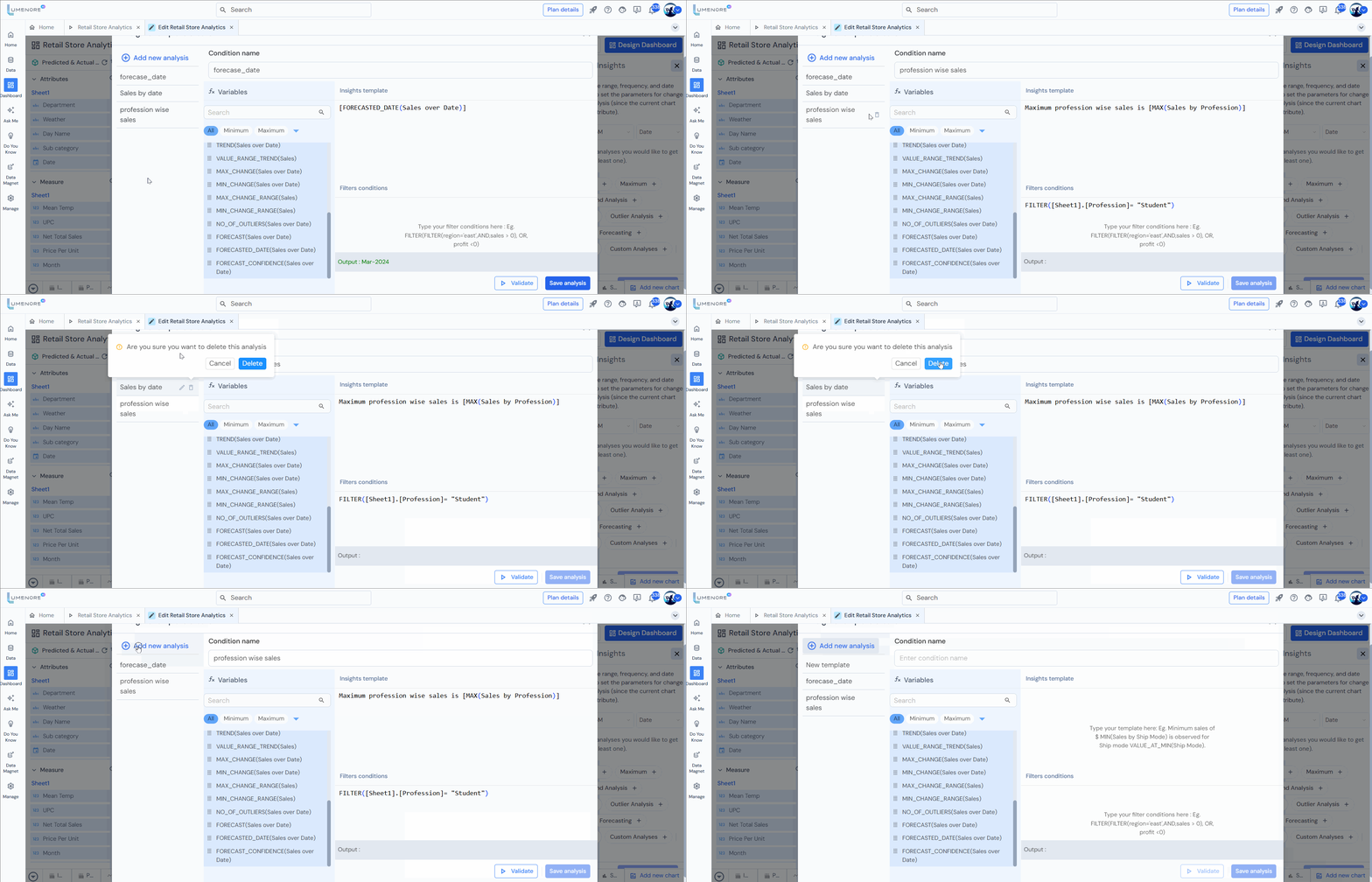
- Your custom analysis is created based on your input for the specified KPI. Now, click “Run analysis.”
- Here, you can view the analysis you have created.

Note: You can create as many analyses as you want. You can also select other available analyses along with custom analyses.
Step 3: To conceal any analysis, click on the “eye icon” located below the specific analysis you wish to hide.
To reveal it, click on the “eye icon” again.
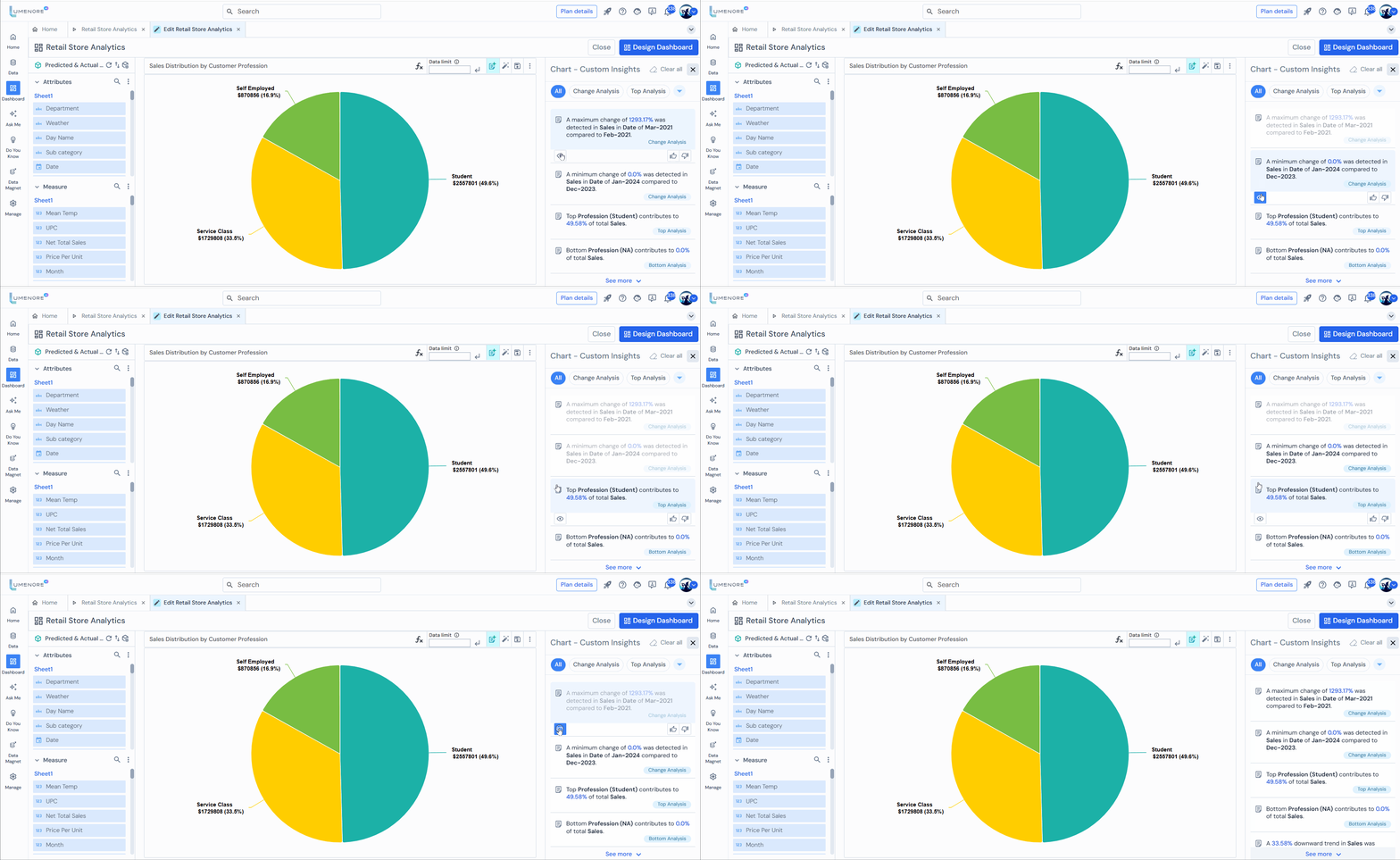
Step 4: Each insight includes a feedback feature with a thumbs-up and thumbs-down icon. Upon selecting a response, a message will appear on the screen confirming the successful feedback submission, and your chosen response will be highlighted.
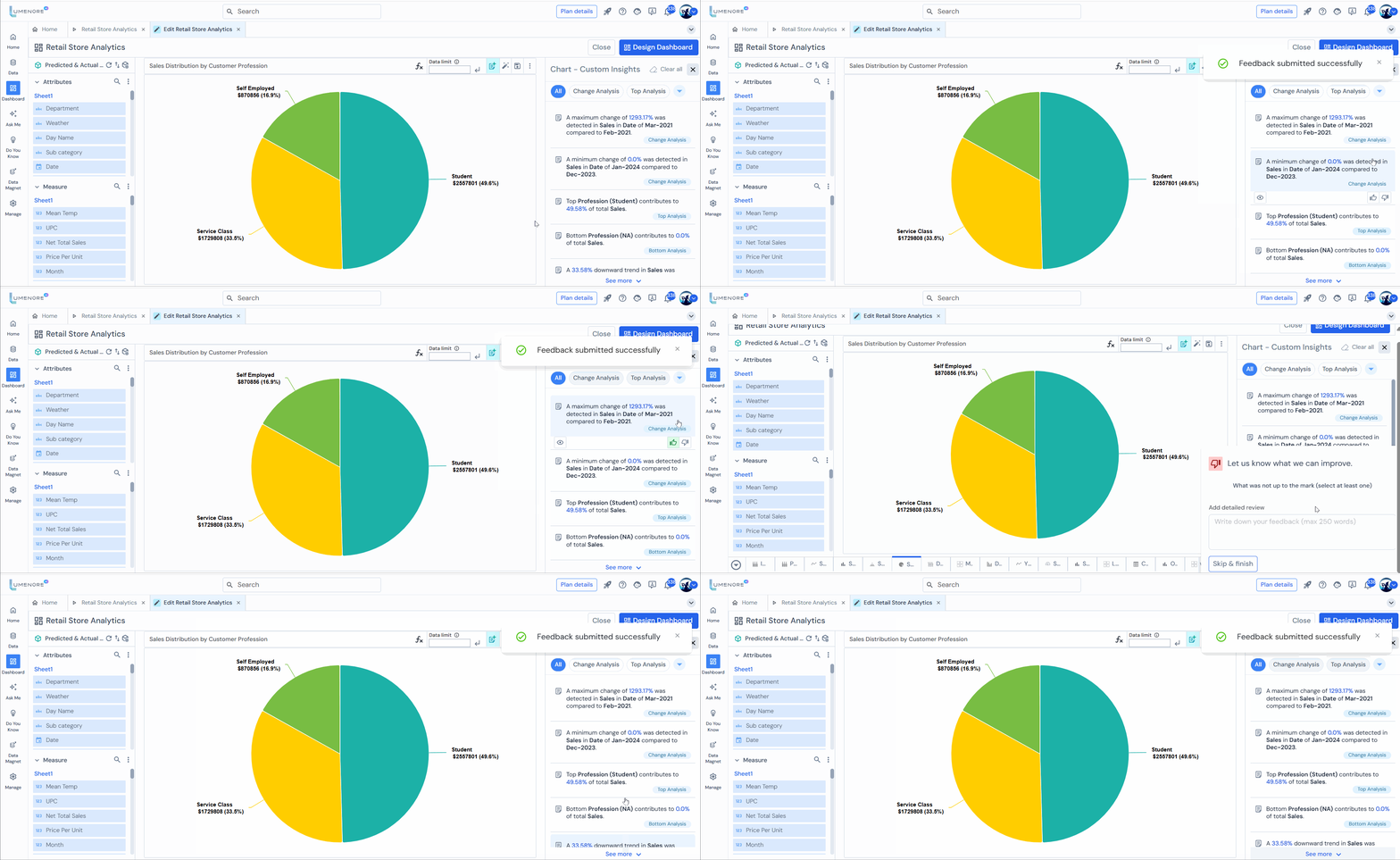
Note: Selecting the thumbs-down icon asked to write a detailed review, the suggestion for improvement. Alternatively, you can choose to skip this step and continue without providing feedback.
Step 5: To remove all selections made for creating the insight, click on “Clear all.” This action will reset you to step 2.
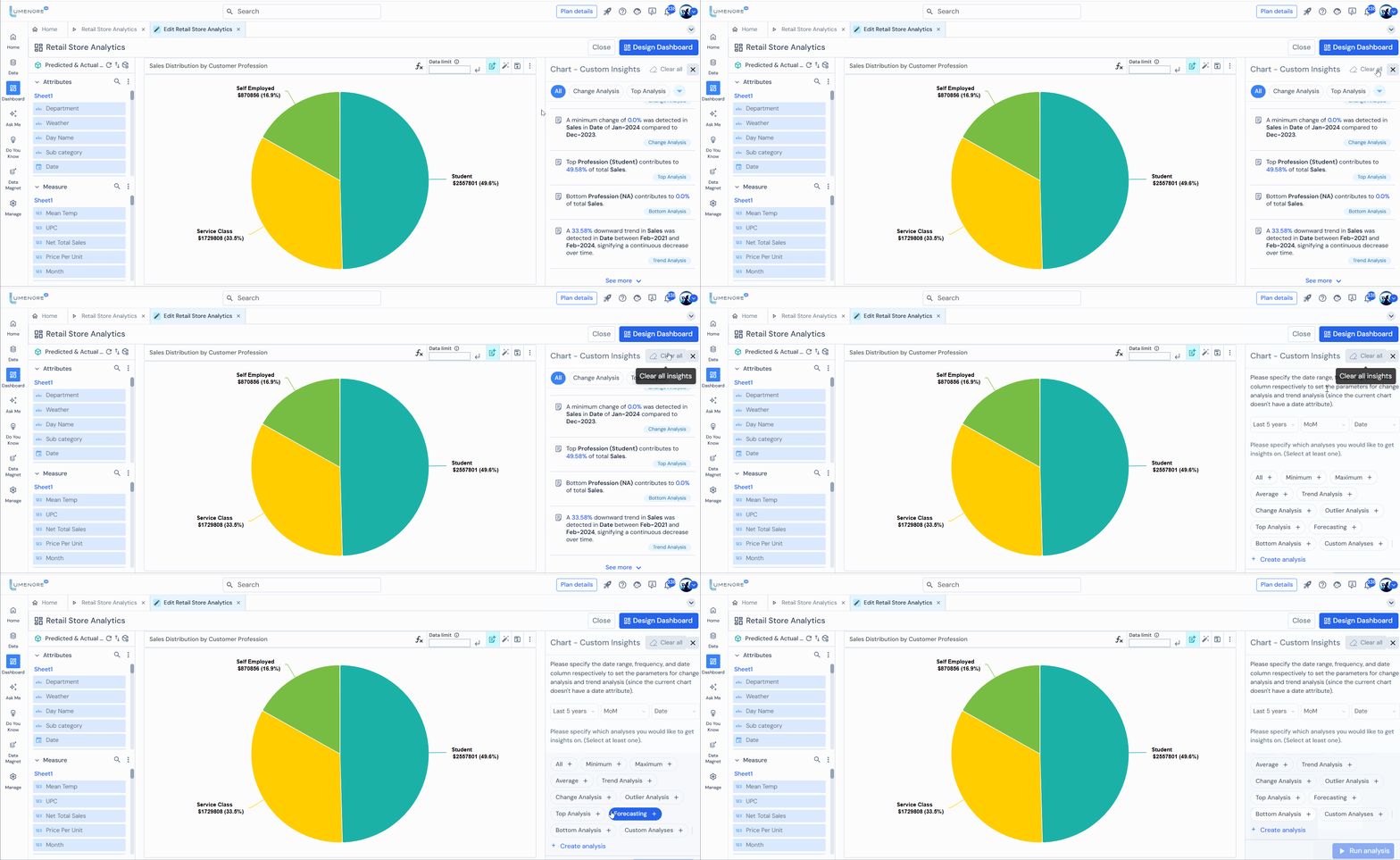
Step 6: Click “Design Dashboard” to move forward.
Step 7: The KPI designer page also lets you view the generated insights.
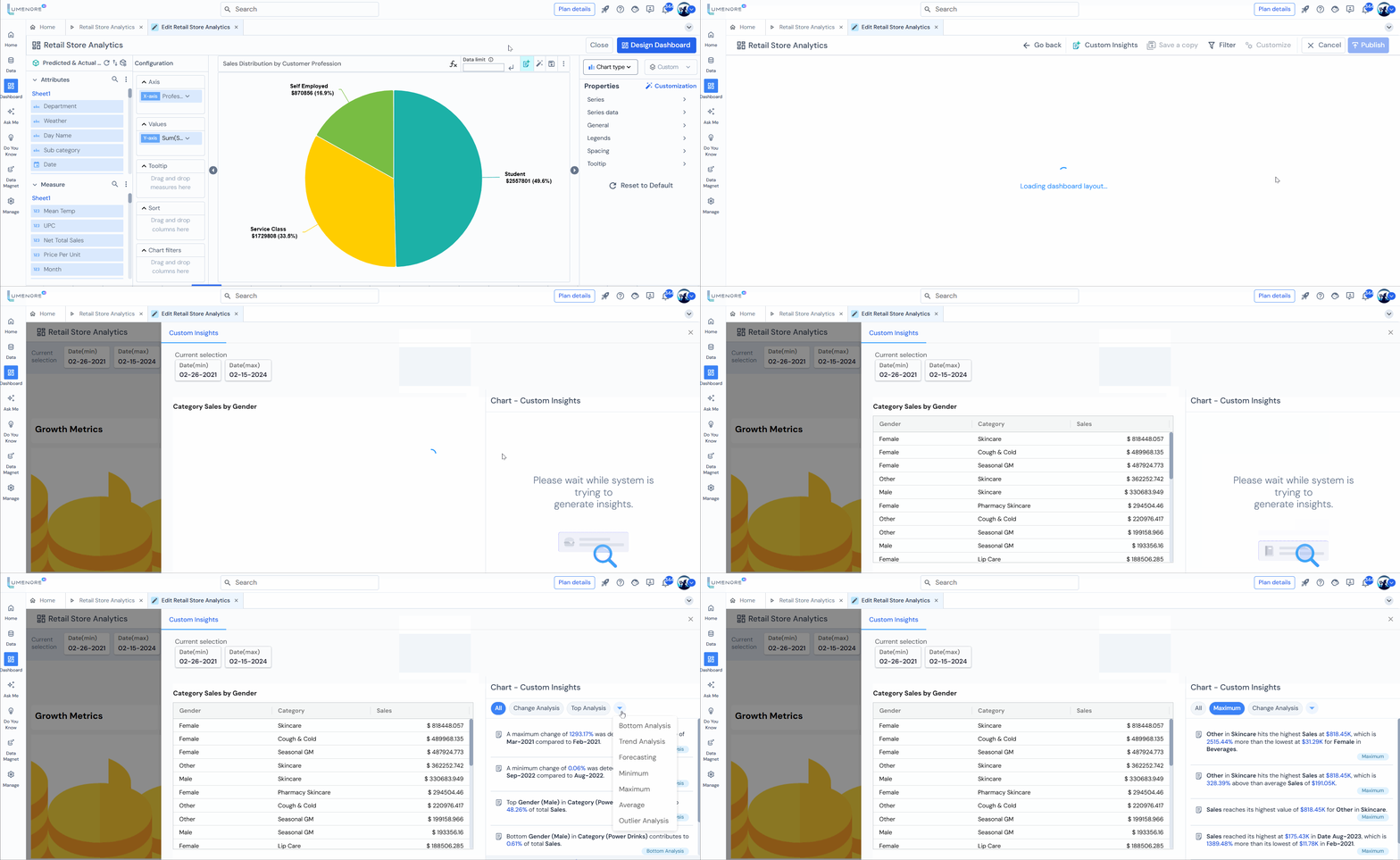
Step 8: Enter the dashboard name and select the workspace. Then, click on “Publish.” Now open the saved dashboard.
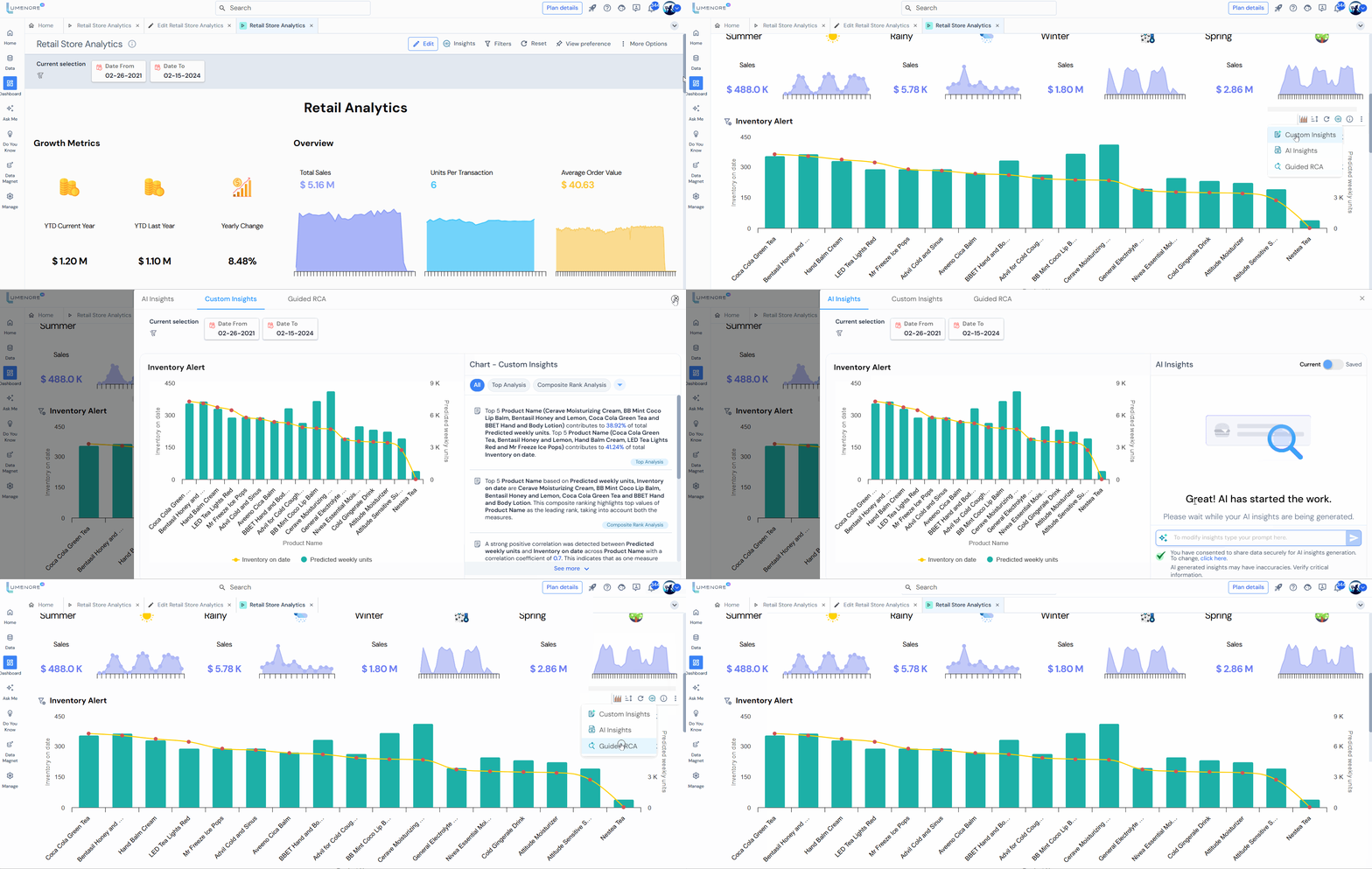
Here, you have two options under Insights: Custom Insights and AI Insights. Clicking custom insights displays all insights generated before the dashboard was published. On the other hand, selecting AI insights lets you generate new insights.

On choosing “Custom Insights.” The user can view insights generated only during dashboard creation.
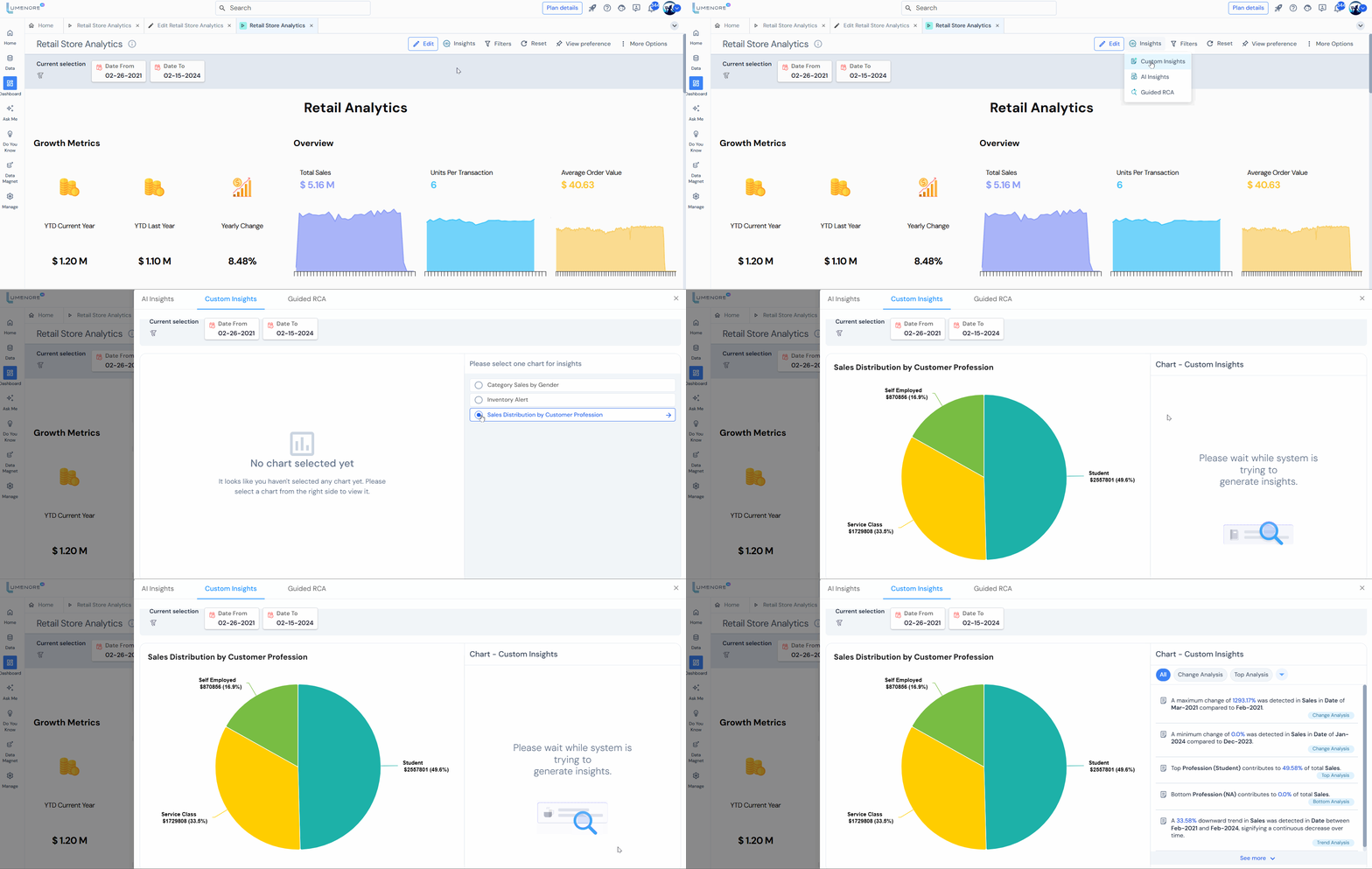
On choosing “AI Insights.”

Note: You can refine your insights by entering a prompt in the designated area.
Users can generate insights for specific KPIs by clicking on the insight option located at the top of the KPI. This feature allows the creation of custom insights, AI-generated insights, or guided Root Cause Analysis (RCA).
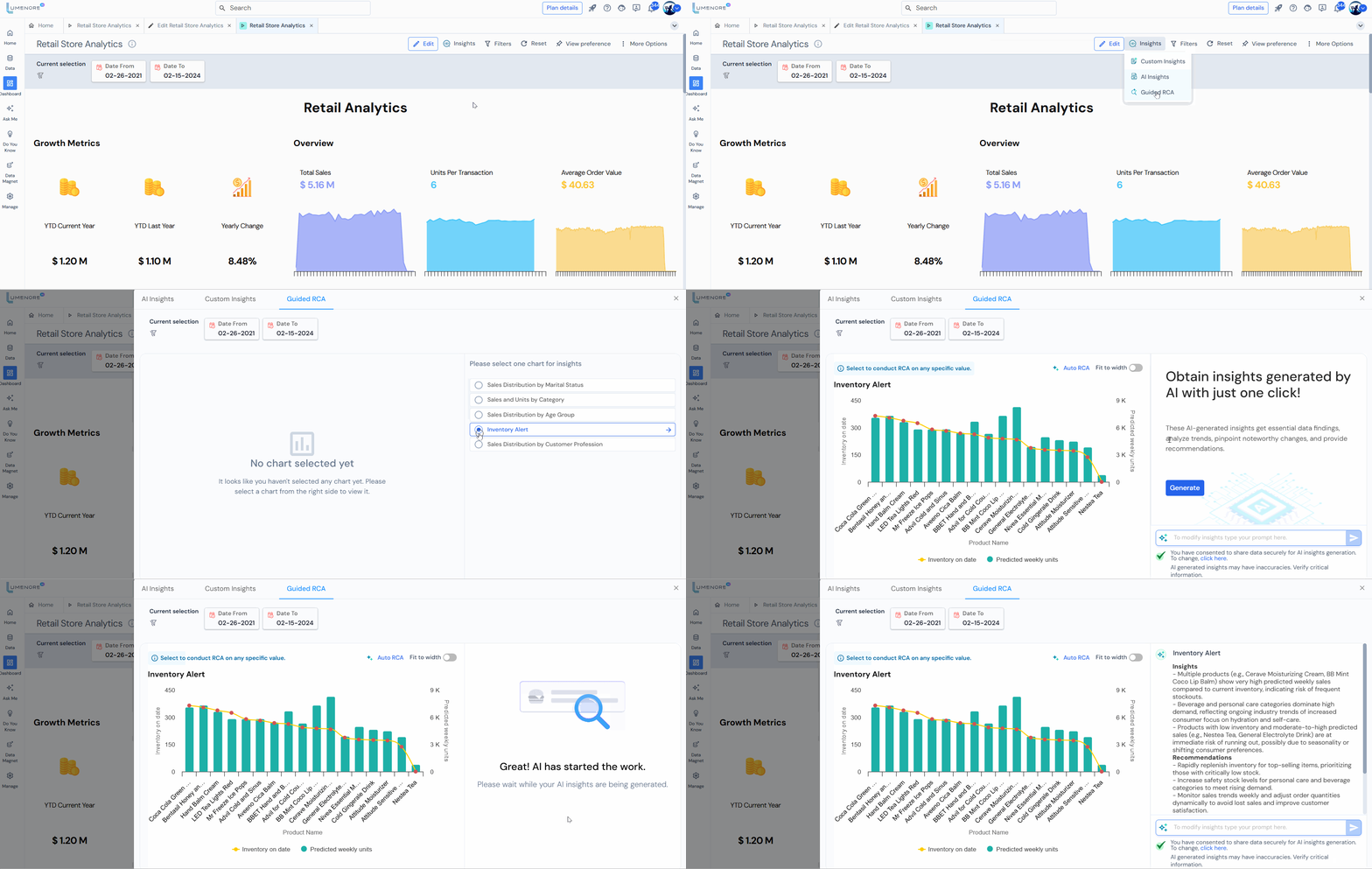
Similarly, the user can generate insights for individual charts as well.