Filter mapper
The Storyboard Filters Syncing feature in the Lumenore BI tool is designed to synchronize filters across various dashboards within a storyboard. This functionality enhances user experience by ensuring consistency and interactivity while analyzing data. It enables a more streamlined process, fostering better insights and informed decision-making.
The Lumenore BI tool users often encounter difficulties maintaining uniformity and efficiency across multiple dashboards within a single storyboard. Manually applying identical filters across different dashboards proves time-consuming and susceptible to errors.
It links dashboards together, making filters work the same across all connected dashboards. So, changing a filter on one dashboard instantly changes the same filter on all other linked dashboards, saving you the effort of manually changing filters on each dashboard.
Below are the steps to utilize a filter mapper:
Step 1: Once you’ve created a storyboard with dashboards, click the “Filter mapper” function.
Step 2: Select the dashboards wherein you want to synchronize the filters. You can also choose which dashboard to set as the primary one.
Click on “Next.”

Note: The primary dashboard is like the main controller that syncs filters to other dashboards. All the filters you set in the primary dashboard can be matched with those in other dashboards.
To sync the filter, ensure the following conditions:
- Same schema used.
- Matching column names.
- Identical filter names.
- Consistent filter types.
Step 4: You’re provided with two mapping options: automatic and manual mapping.
- In the automatic mapping mode, the secondary dashboard is automatically linked with the primary dashboard.
- The green tick indicates that columns are mapped completely.
- For the unmapped column, you can select “none” or any column name available in the mapping options or leave it blank if you don’t want to map the filter.
- The “Save” option is currently disabled because it requires validation of the selection made for the unmapped column, which can be done by clicking on “validate.”
- The “Valid” tab is now highlighted in green, signaling that our selection has been successfully mapped, and the “Save” option is now enabled.
- Select “Save” to apply and save the changes made.

- For the manual mapping, remove all the mapping by clicking “Remove mapping from all.”
- Manually select the columns for both the primary and secondary dashboards to establish mapping.
- Upon making your selections, click “validate” to confirm that you have chosen the correct columns for mapping.
- The green-colored “Valid” tab signifies that the columns have been successfully mapped.

Other available functions:
Reset: To revert to the previously saved state, select the “Reset” option.

Disable mapping: This feature disables previously established mapping between the dashboards but saves the mapping. Consequently, filters applied in one dashboard will no longer affect others.

Change & add dashboard: This feature allows you to adjust dashboard selections by adding or removing dashboards for mapping. Additionally, you can change the primary dashboard as needed.

Step 5: Once the mapping is finalized, publish the dashboard.

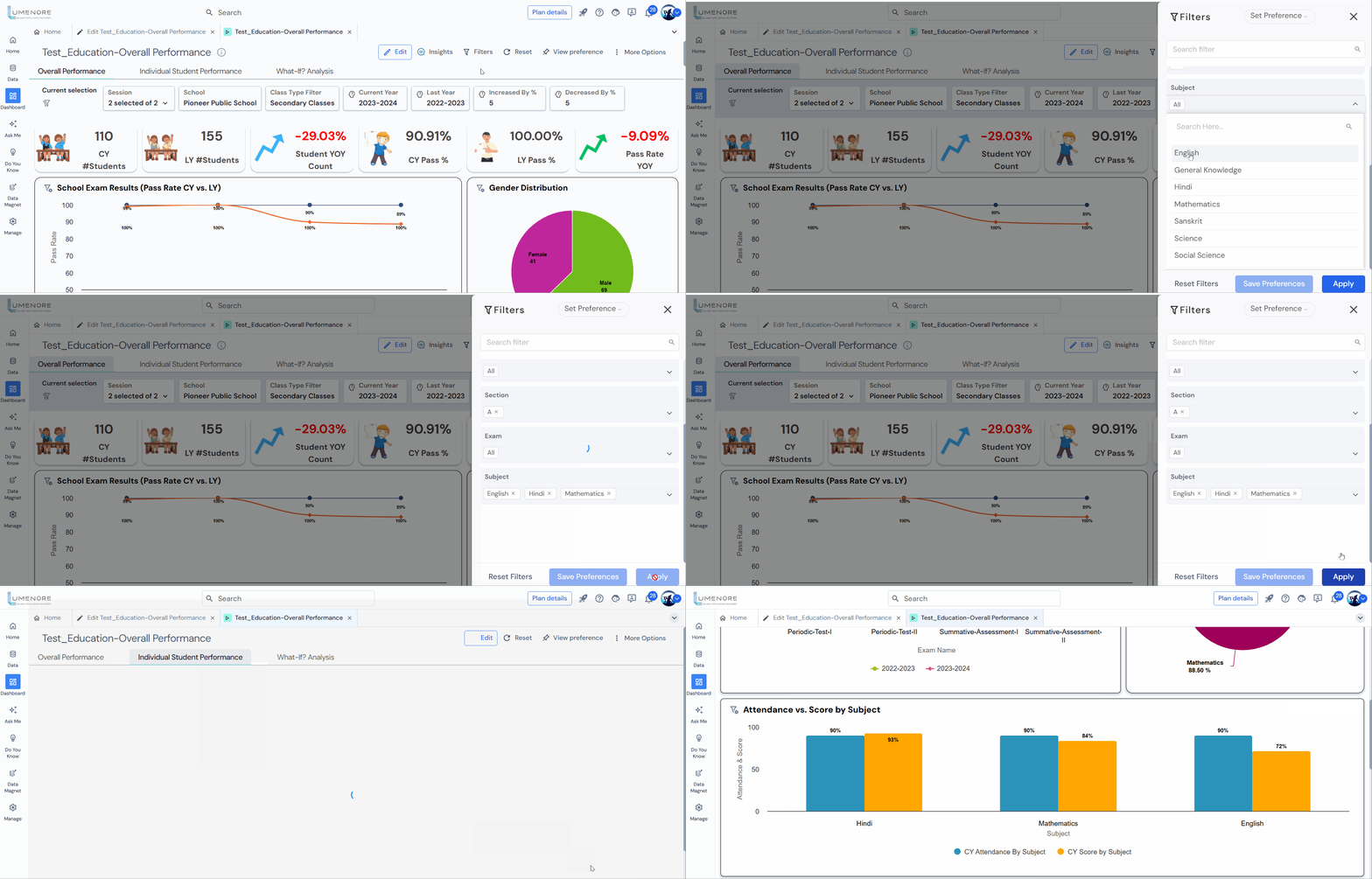
Step 6: Simply apply the filter as needed in any of the dashboards, and you’ll notice it reflecting across the other mapped dashboards.
For example, if you select “Bold Bazar” and “Luxe Corner” as the state filter in one dashboard, this same filter is applied in the other dashboards.