Asana
The Asana Connector in Lumenore enables users to import and analyze project management data directly from Asana for collaboration and performance tracking. It connects Asana data through secure, standards-based drivers, allowing information such as tasks, projects, timelines, assignees, and status updates to flow seamlessly into Lumenore.
Steps to connect:
Step 1: Navigate to Home > Connect Data > Select Asana.

Step 2: Click Create New Connection to set up a new connection or select an existing connection to proceed.

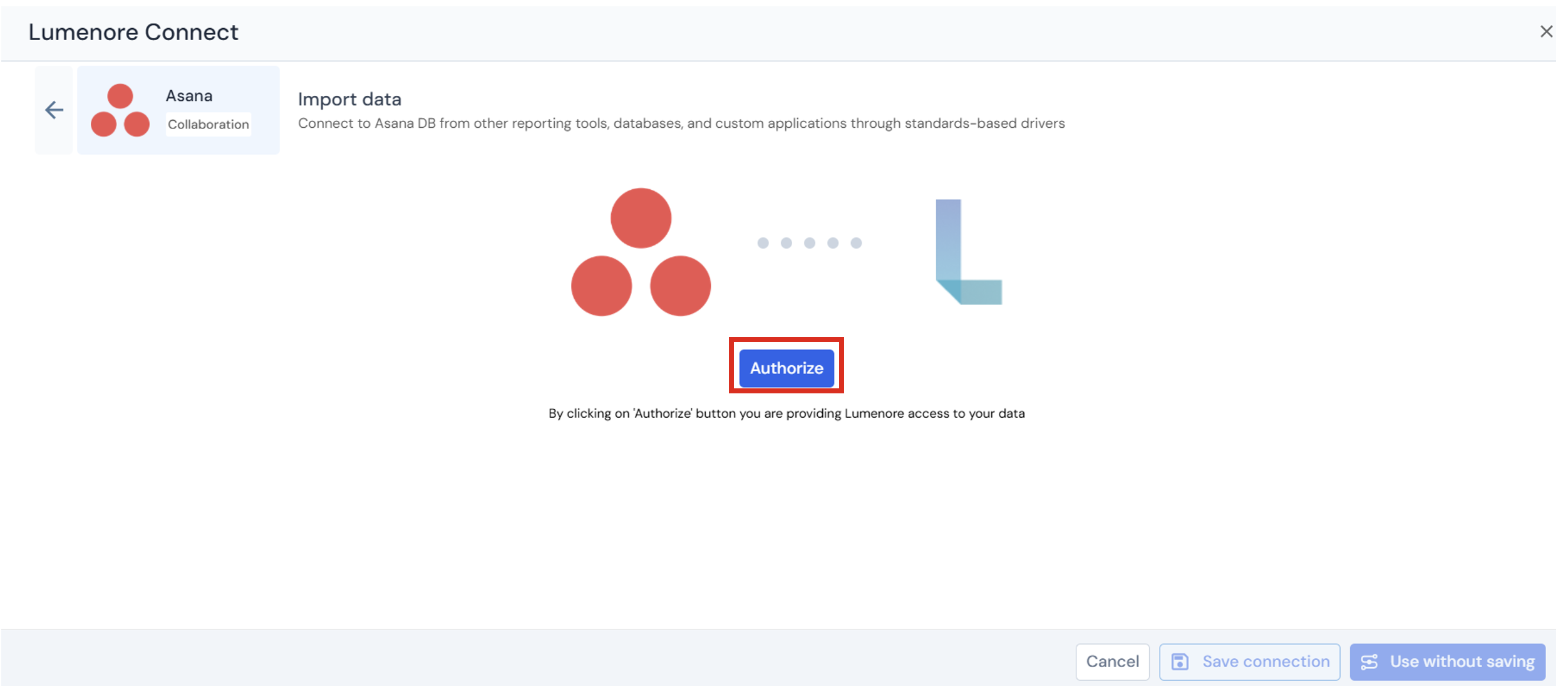
Step 3: Click Authorize.
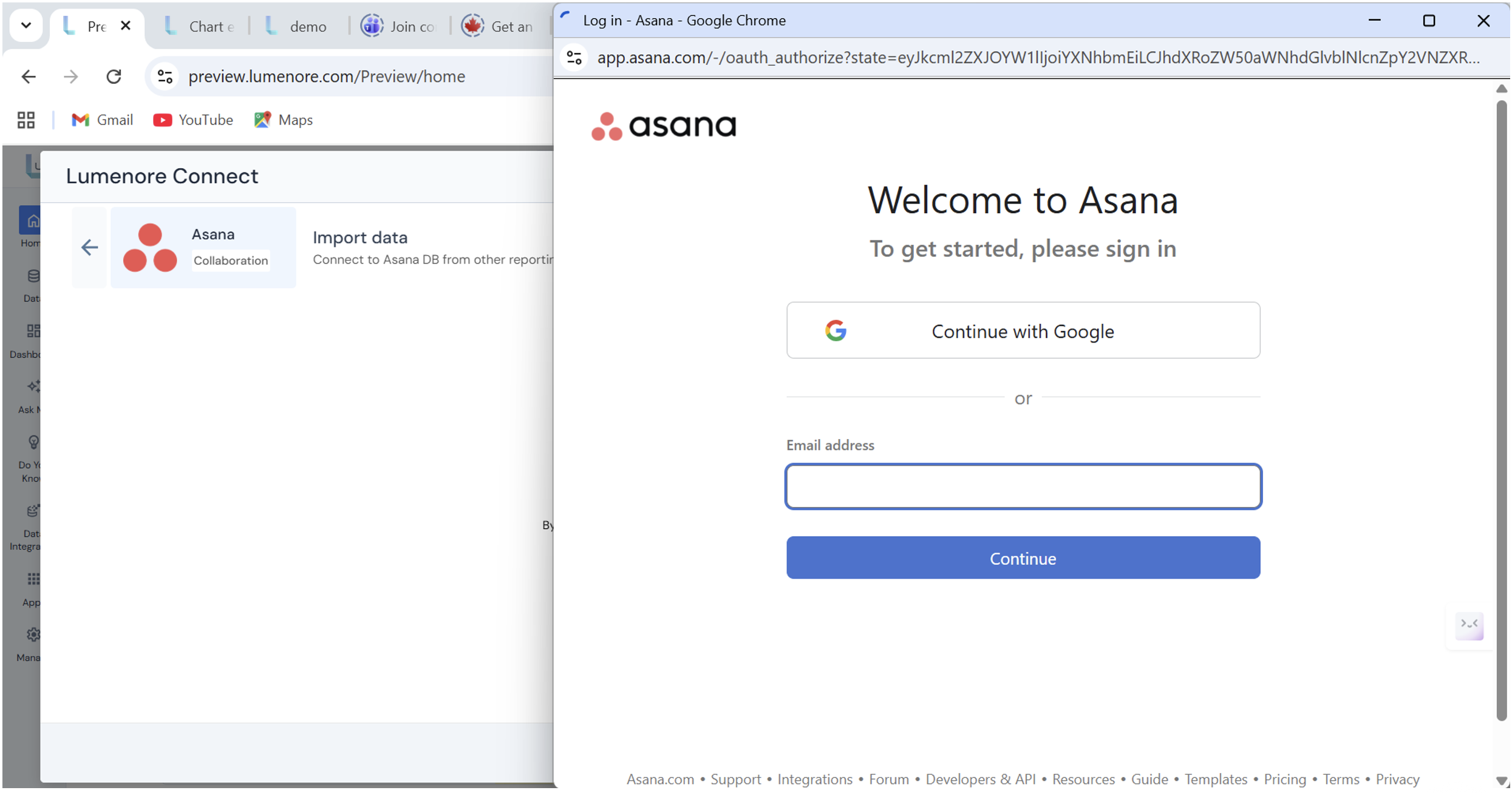
Step 4: Provide account credentials.
Step 6: Once the account is selected or created, a success message confirms the authorization. Provide a connection name, then continue using the connection with or without saving it.
Step 7: After saving, the connection appears in the existing connections list.
Note: When the user clicks the three dots under the Action column, the options Use This Connection, Modify, or Delete are displayed. To start using a connection, select it and click Next.
Step 8: Select the connection and click Next.
Step 9: Select the table you want to export to the Lumenore database. You can also view the data by clicking the Preview tab.
- Preview table data:
Preview table data lets you quickly view a sample of records from the selected table before proceeding.
- Filter data:
The Filter data section allows you to restrict the rows loaded from the selected table based on specific conditions.
- Transform data:
The Transform Data tab below provides options for cleaning and enriching your data before loading it into the database.
Step 10: Click “Save Dataset” to complete data ingestion.
Step 11: Provide the Dataset name and description (optional). Click Ok.
Step 12: A “Dataset saved successfully” message is displayed. After this, the user can cancel and start using the dataset or create a schema by clicking the Create Schema option.
