Onboarding

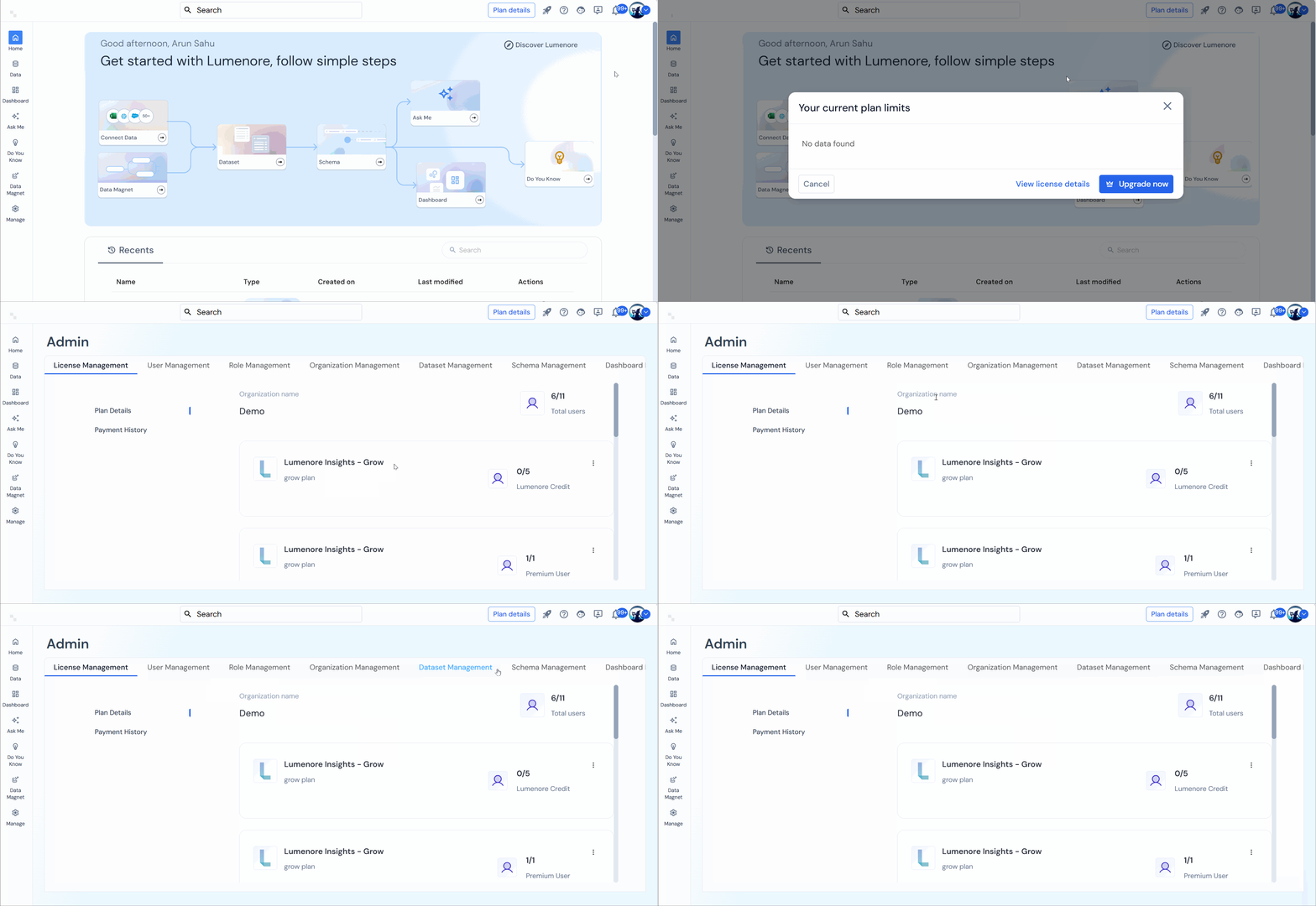
Plan Details
Opens a page showing the user’s current subscription plan, usage limits, and upgrade options.
Getting Started
When hovering over the rocket icon in the top navigation bar, the tooltip message “You can always go back to Get Started from here ” appears. This icon is a quick link to the onboarding or setup flow, allowing users to easily return to the guided steps for connecting data and building insights in Lumenore.
Lumenore offers a friendly and guided introduction with multiple options for first-time or returning users:
- New to Lumenore? Start Here!
Watch an intro video to understand the platform basics and how to get started. - Discover Sample Dashboards
Explore ready-made dashboards to see how data is visualized and what insights can be derived. - Discover the Power of AI Analysis
Learn to use Lumenore’s AI-powered “Ask Me” feature to analyze data using natural language queries. - Explore Lumenore Your Way
Choose your path to explore features freely based on your needs and interests.
At the bottom, additional quick-access options are available:
- Watch more videos
- Ask the community for help
- Explore a sample dataset
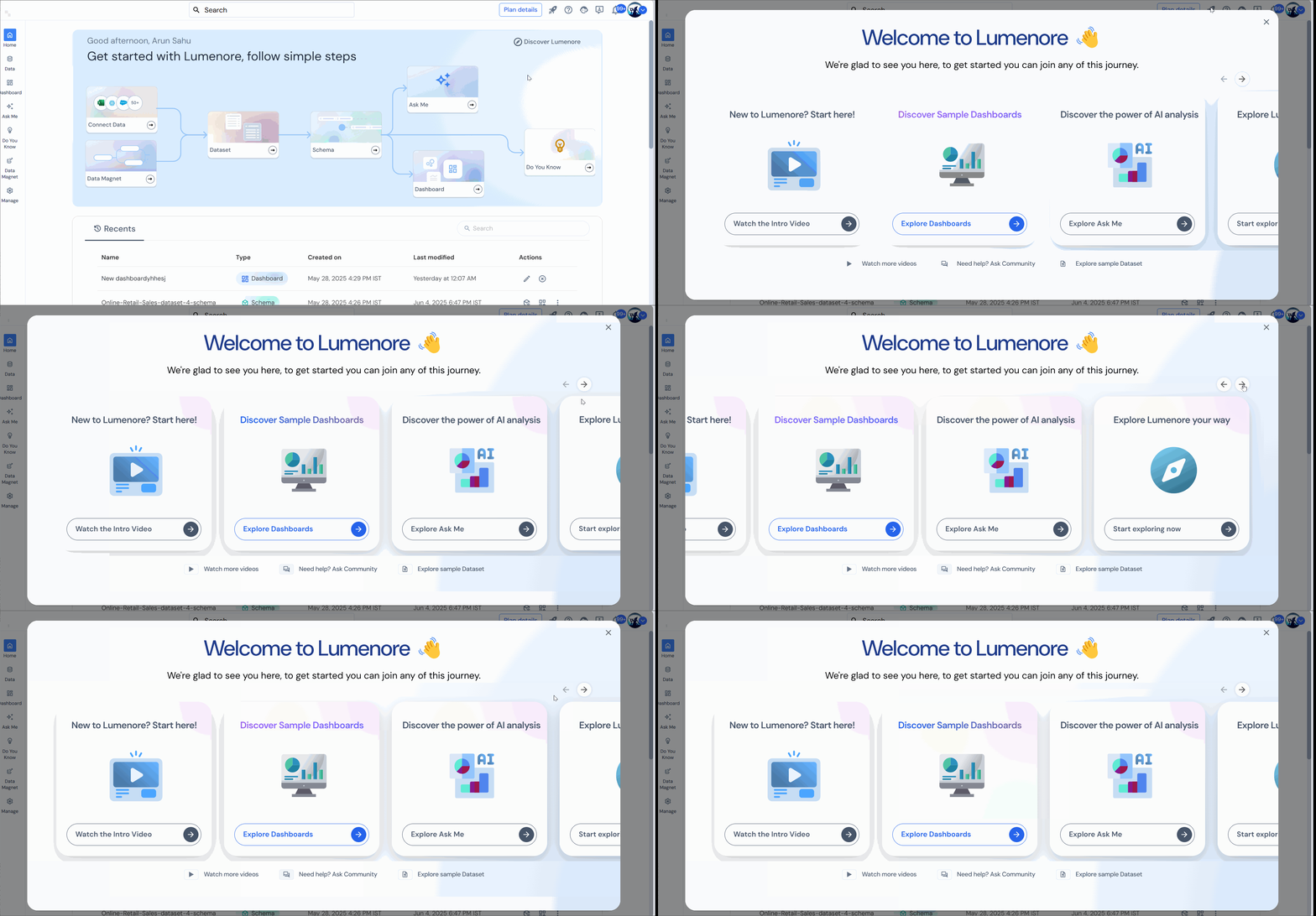
To complete onboarding simply click on topic which you want to explore and view its interactive video explanation. After viewing all the onboarding videos your onboarding journey will be completed.

Users can explore other available options from the same page such as customize theme, access sample dataset, raise their concerns on Lumenore community and raising a ticket in case of any trouble.
Help
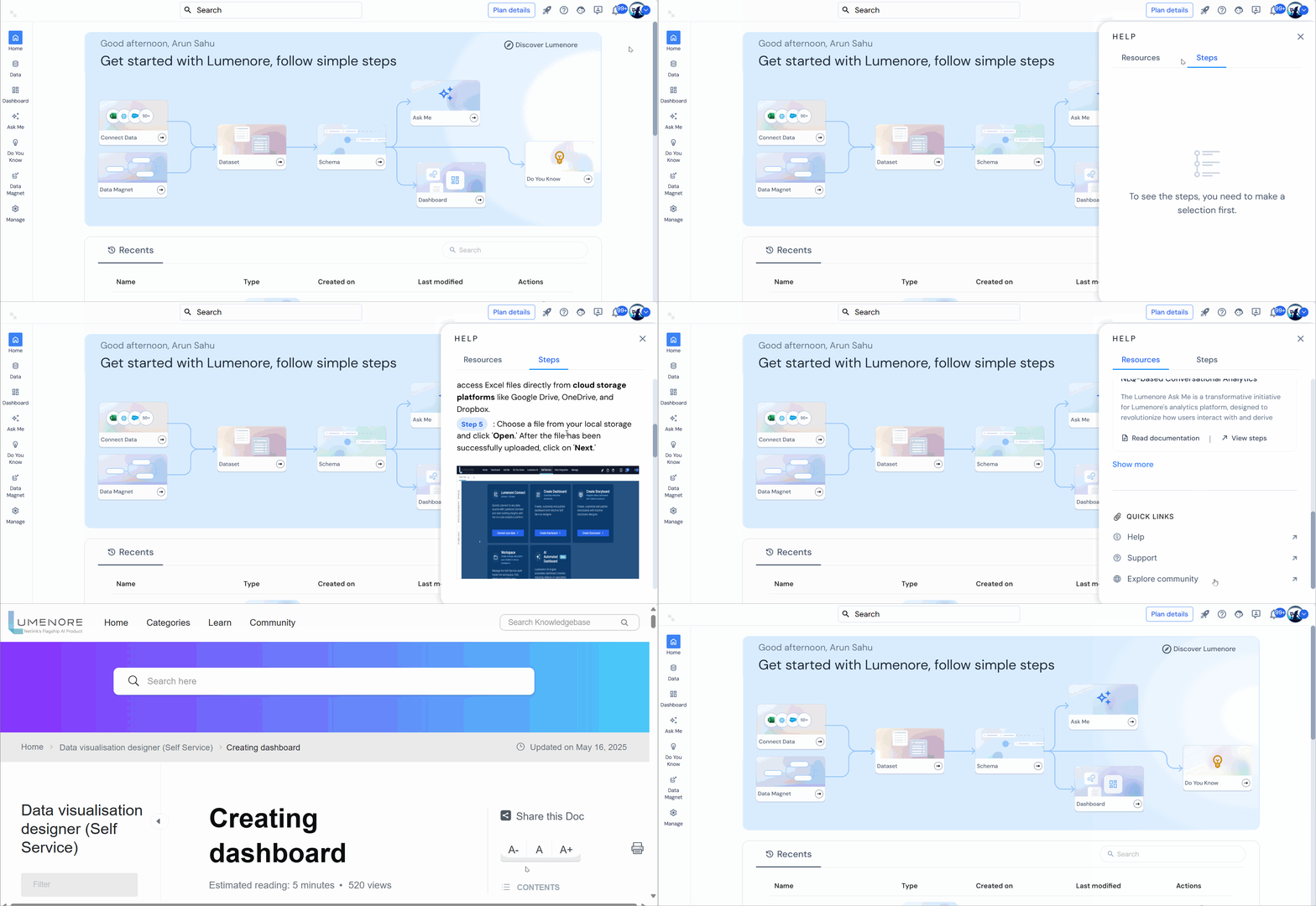
This panel provides quick access to documentation and guided steps for core features. It is designed to help users find support materials without leaving their workspace, making it easier to learn and act simultaneously.
Support
The Support tab is a central place for users to find help and resolve their issues efficiently.
- Access to Help Resources
Provides links to documentation, FAQs, and how-to guides to help users understand features and troubleshoot problems on their own. - Submit Support Tickets
Allows users to report issues, bugs, or raise queries by creating support tickets that are handled by the customer service team. - Track Ticket Status
Lets users view the progress of their submitted tickets, including open, in-progress, on-hold, or resolved cases. - Live Chat or Contact Options
Offers real-time chat with a support agent or displays contact methods like email and phone numbers. - Community or Forum Access
Sometimes includes access to a user community where people can ask questions, share tips, and help each other.

Feedback
The Submit Feedback form provides users with a direct way to share their thoughts, suggestions, or issues regarding the platform. It allows users to input a title, select the relevant module, rate their experience, and describe their feedback in detail. Additionally, users can upload an optional image to support their input. This feature helps the product team understand user needs and improve the platform based on real-world experiences and insights.

Notifications
Notifications are real-time alerts that keep users informed about important updates, actions, or issues, helping them stay on top of tasks without needing to check manually.

Profile
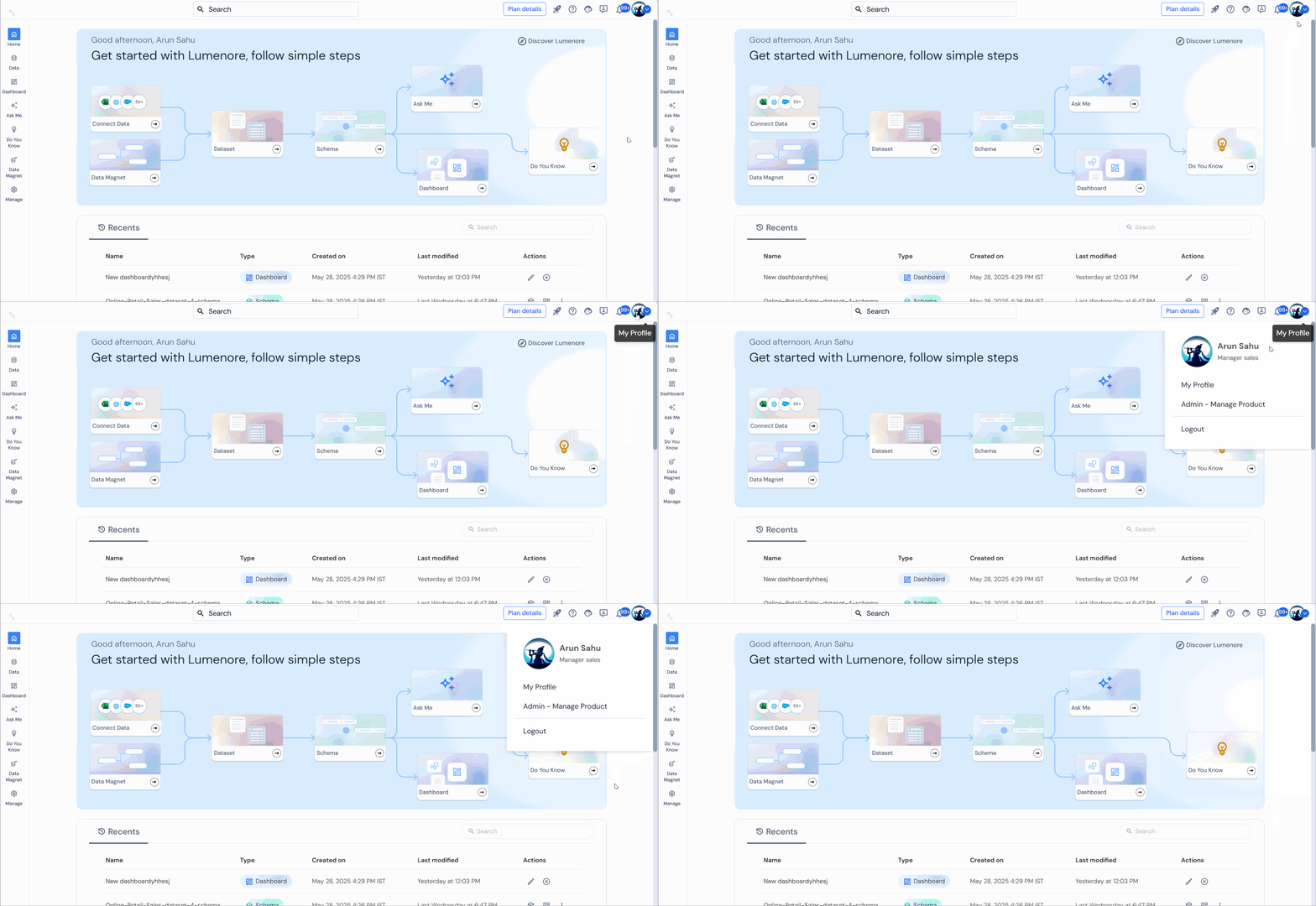
This is the user profile menu in Lumenore. It shows the logged-in user’s name and role and provides quick access to profile settings, product management (for admins), and a logout option.