Data unpivot
The Data Unpivot function does the opposite of a data pivot. While pivoting turns rows into columns, unpivoting converts columns back into rows.
It’s helpful when you need to restructure large datasets into a more flexible, row-based format—often required for analysis, filtering, or exporting.
Example:
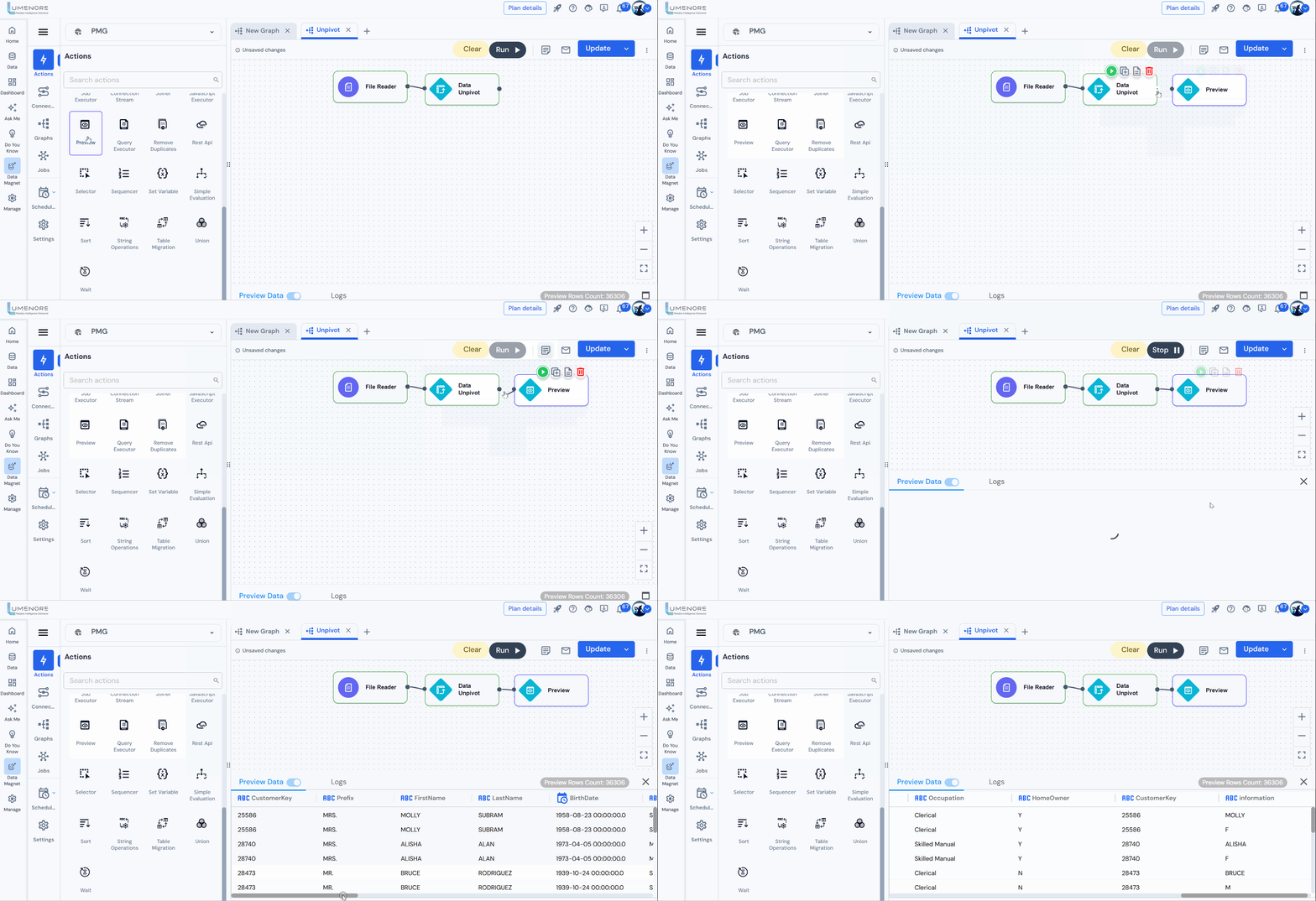
Before Unpivot:

After Unpivot:

This transformation is beneficial when reversing a pivot operation or preparing data for further processing.
How to use Data Unpivot?
How to use Data Unpivot?
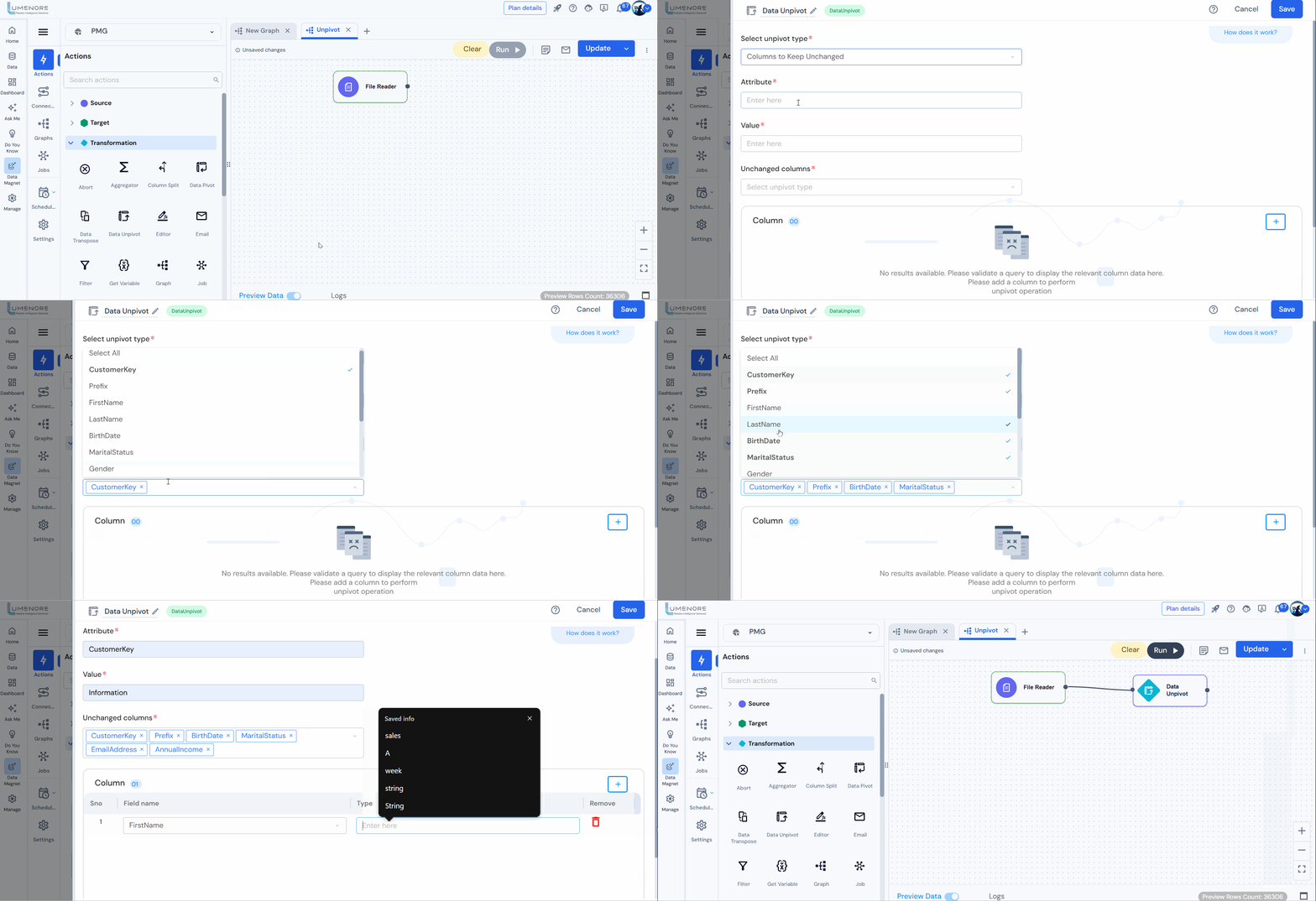
Step 1: Join the Data Unpivot component to the step.
Step 2: Open the component and select unpivot type.
Options in the Dropdown:
- Columns to Keep Unchanged
- You select which columns should stay the same (e.g., ID, Name, Date).
- All other columns will be unpivoted, their column names become values in one column, and their data becomes values in another.
- Columns for Unpivot
- You explicitly select the columns you want to unpivot.
- All non-selected columns remain unchanged.
Step 3: Attribute (Required)
- This is where you enter the name of the property or label (e.g., Color, Region, Category).
Step 4: Value (Required)
- This is where you enter the corresponding value for the attribute.
Step 5: Unchanged Columns
- These columns act as identifiers or reference fields and won’t be affected by the unpivoting process.
Step 6: Add Column
Each row represents a field to unpivot, with:
- Field name: The name of the column in the original dataset.
- Type: A value assigned (likely a label or key) used in the unpivot result.
The trash icons let you remove rows.
The plus (+) icon allows you to add more fields to be unpivoted.
For Example:
- Under “Select Unpivot Type,” choose an option from the dropdown. For this example, select “Columns to Keep Unchanged.”
- Set the “Attribute” field to “CustomerKey” and the “Value” field to “Information.”
- In the “Unchanged Columns” section, select the columns you want to remain untouched during the unpivot operation.
- Next, use the “Add Columns” option to specify the fields you want to unpivot. For each, provide a “Field Name” and a corresponding “”
Preview