String operation
The String Operations function lets you apply different text functions to a selected column. These functions help you clean, format, or extract specific parts of the text.
Some common functions include:
- InitCap() – Capitalizes the first letter of each word
- UPPER() – Converts all text to uppercase
- LOWER() – Converts all text to lowercase
- Digits Only – Keeps only the numbers from the text
- String Only – Keeps only the letters, removing numbers and symbols
You can select one or more options using checkboxes, depending on what changes you want to apply to the column.
How to use String Operations?
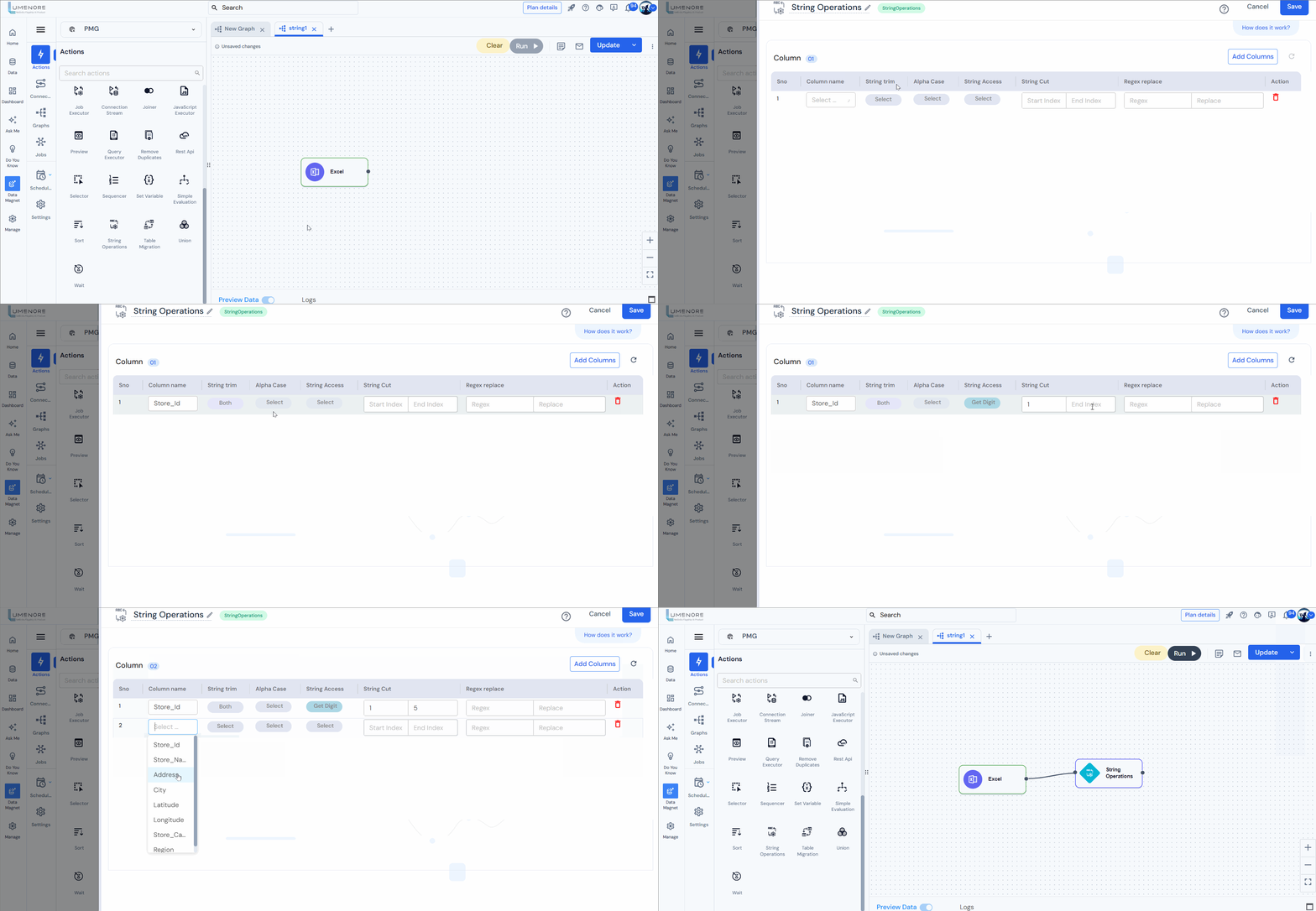
Step 1: Join the string operation component to the step.
Step 2: By clicking on “Get Column” and “Add Column,” the user can select the column that contains string data and add it to the step.
Step 3: By clicking on “Get Column” and “Add Column,” the user can select the column that contains string data and add it to the step.
Step 4: Select the column from the drop-down menu and string trim.
- String trim: Available options are left trim, right trim, and both.
- Upper case: Converts all letters in the string to uppercase.
- Lower case: Converts all letters in the string to uppercase.
- Get digit: Retrieve only the numerical digits present in the string.
- Get string: Retrieve only the string present in the string.
- Init cap: The initial letter of the string will be capitalized.
- String cut: When the user enables the “String Cut” option, provide the start and end indexes to specify which portion of the string the user wants to include.
- Regex: After selecting the regex option, input the specific letter or word the user wishes to replace.
Step 5: Click “Save.”
For example:
- Click on “Add Columns” and choose the “Column Name”: “Store_Id.”
- Under “String Trim,” select “Both” to trim spaces from both ends of the string.
- Set “String Access” to “Get Digit”.
- Define the “String Cut” with values for “Start Index” as 1 and “End Index” as 5.
- Add another column named “Address”.
- For “Alpha Case,” choose “Upper Case” to convert the text to uppercase.
Preview

