Configure your Teams channel
Find your webhook URL of Teams channel
- Go to Microsoft Teams
- Click on the “Teams Icon.”

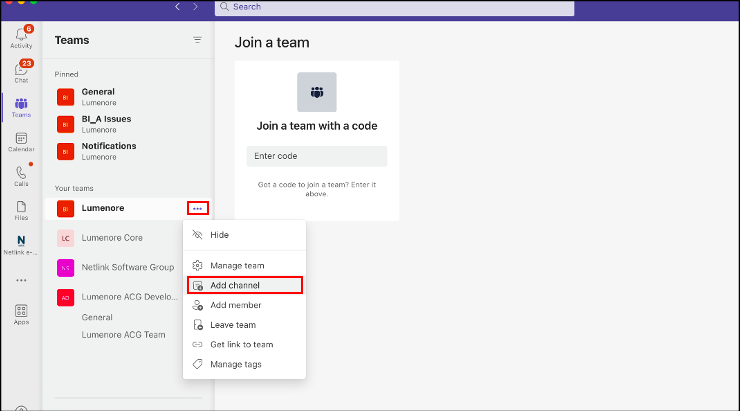
- Now click on “Meatballs Icon” of your teams section and click on add channel.
- Provide the name and other details of the channel and click on “Add.”

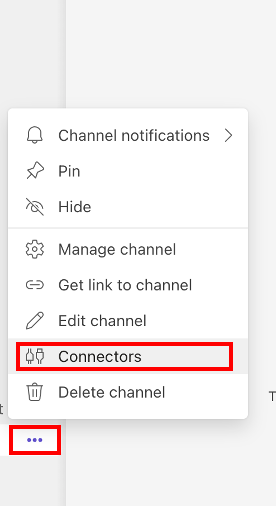
- Go to “Teams” and find newly created channel in “Your Teams” section, click on the Meatball icon and go to connectors.
- Now click on the “configure” button of incoming webhook

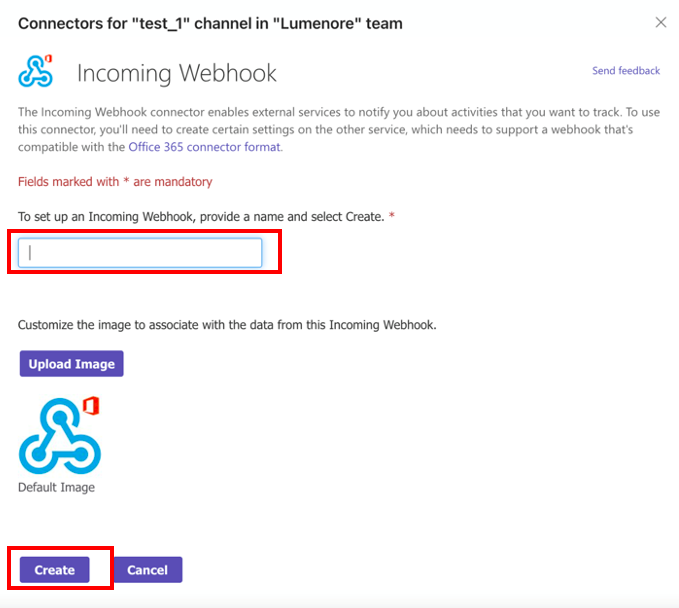
- Once in the configuration page, provide the name of the webhook and click on the create button.
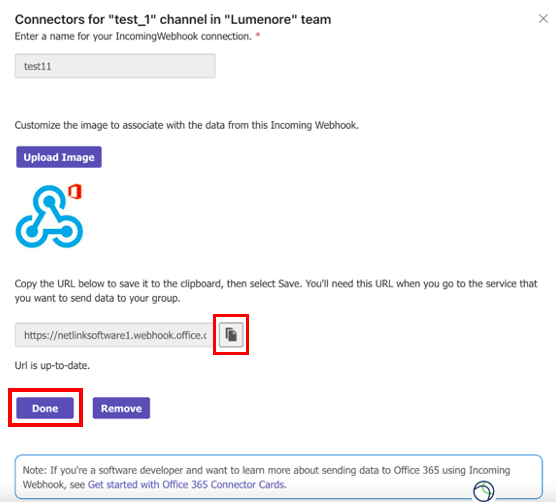
- Copy the webhook URL provided by the Teams and click on “Done.”