Chart options before publishing
Edit
The “Edit Chart” option on the dashboard allows users to change the chart’s configuration. When users click Edit, they are taken to a page where they can modify various chart parameters, such as the axis values, measures, sorting, and chart types.
This allows users to:
- Change chart parameters such as which metrics (like total sales, quantity, etc.) are being analyzed.
- Modify the chart’s data source, adjusting it according to the needs of the analysis.
- Customize the visual representation by choosing different chart types, colors, and other styling options.
Once the changes are made, users can save their edits or reset the chart back to its default configuration.

Add description
The KPI Description Editor is a tool within the dashboard that allows users to add or edit the description of a Key Performance Indicator (KPI). The editor has options for formatting the description text.

Filter Scope
The “Associativity & Drilldown Scope” settings control how charts respond to user interactions and filters, allowing you to balance independent chart behavior and interconnected analysis across the dashboard.
- Associativity Filter:
This feature enables filters applied to one chart to affect other charts that share related data. This promotes interactive filtering across charts, maintaining contextual relevance throughout the dashboard. - Dashboard Filter:
It applies only the global filters set at the dashboard level, not from individual chart interactions. It ensures that the chart respects any changes in the dashboard filters (like date range or product category). - Self Drill-Down:
Allows drill-down functionality within the same chart, enabling users to click on a data point (e.g., a category) and view more detailed data for that selection (e.g., sub-categories). - Parameter Passing on Drill-Down:
It allows values selected during drill-down in one chart can be passed as parameters to other charts. It supports contextual filtering across multiple charts based on one chart’s drill-down action. - Slicer Selection:
Applies filters only from specific slicers (like dropdowns or buttons) chosen by the user. You can click Customize to select which slicers to apply to this chart, offering fine-grained control over filter behavior.

Change KPI
Using the Change KPI option, users can switch to an existing KPI from the list of already created KPIs or create a new KPI as needed. This allows for flexible tracking and customization of key metrics within the dashboard.

Customization
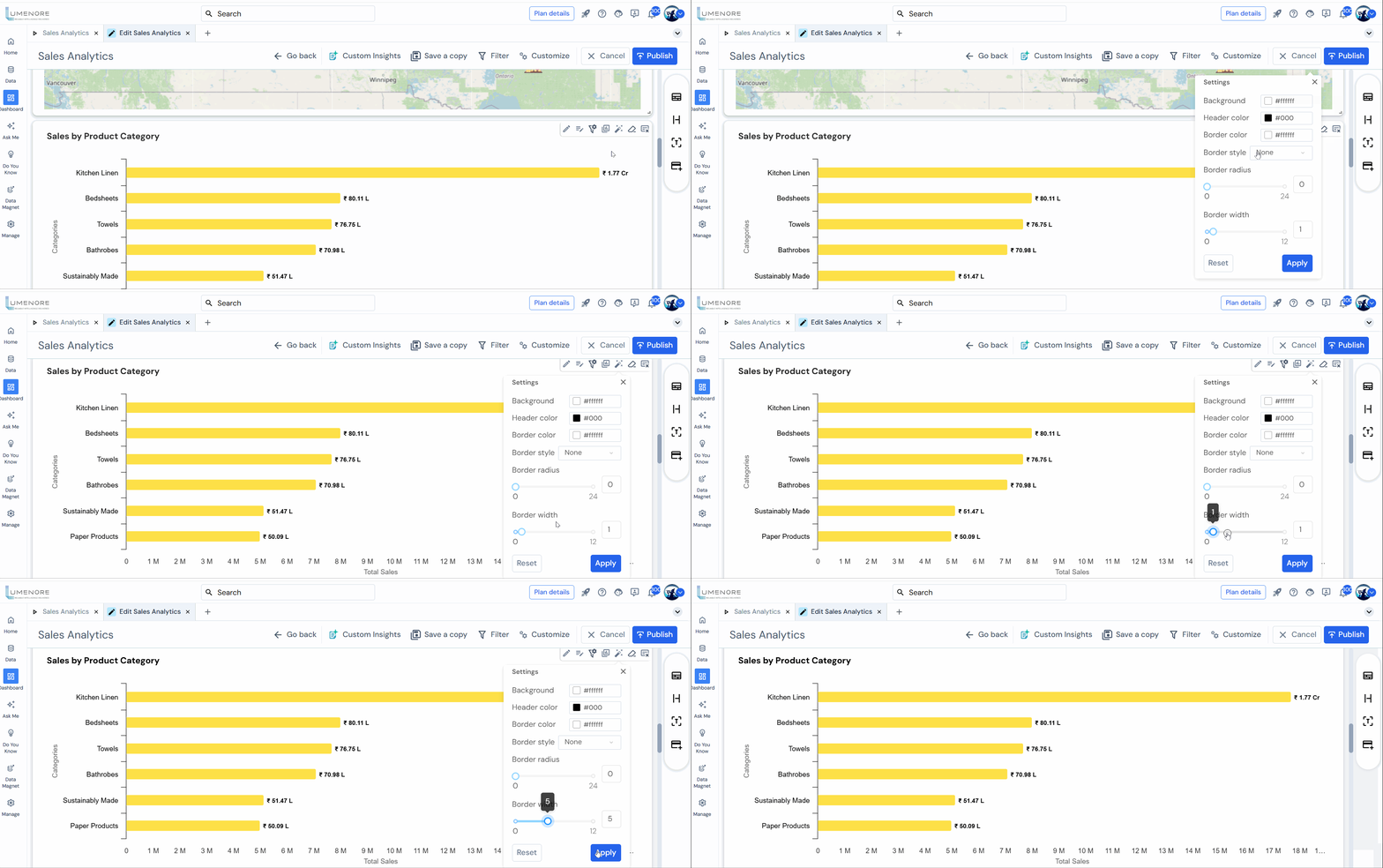
The Customization Settings panel enables users to tailor the visual appearance of dashboard elements like KPI cards, charts, and tiles. These options support consistency with branding guidelines or individual preferences, enhancing both visual appeal and clarity. Below is a breakdown of each available setting:
- Background: Sets the component’s background color using a hex color code (e.g., #ffffff for white).
- Header Color: Defines the color of the component’s header text or area (e.g., #000 for black).
- Border Color: Specifies the color of the border around the component.
- Border Style: Allows you to choose the border style—options typically include none, solid, dashed, etc.
- Border Radius: Controls the roundness of the component’s corners. A higher value makes the corners more curved.
- Border Width: Sets the thickness of the component’s border. You can adjust this using the slider or the numeric input.
- Reset: Restores all settings to default values.
- Apply: Saves and applies the selected customizations.
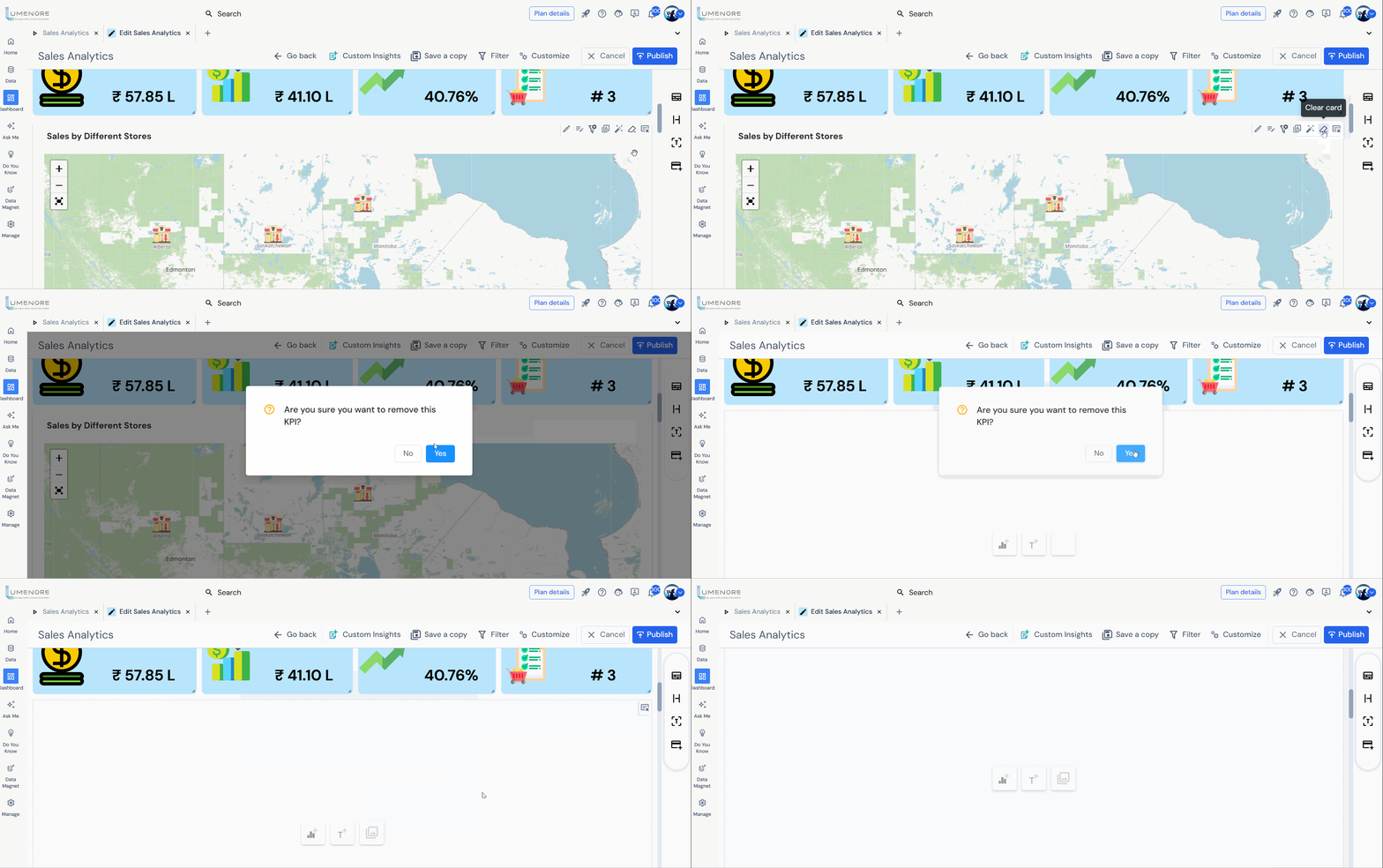
Clear Card
The Clear Card feature removes all content from the card, leaving it blank and ready for new configuration.
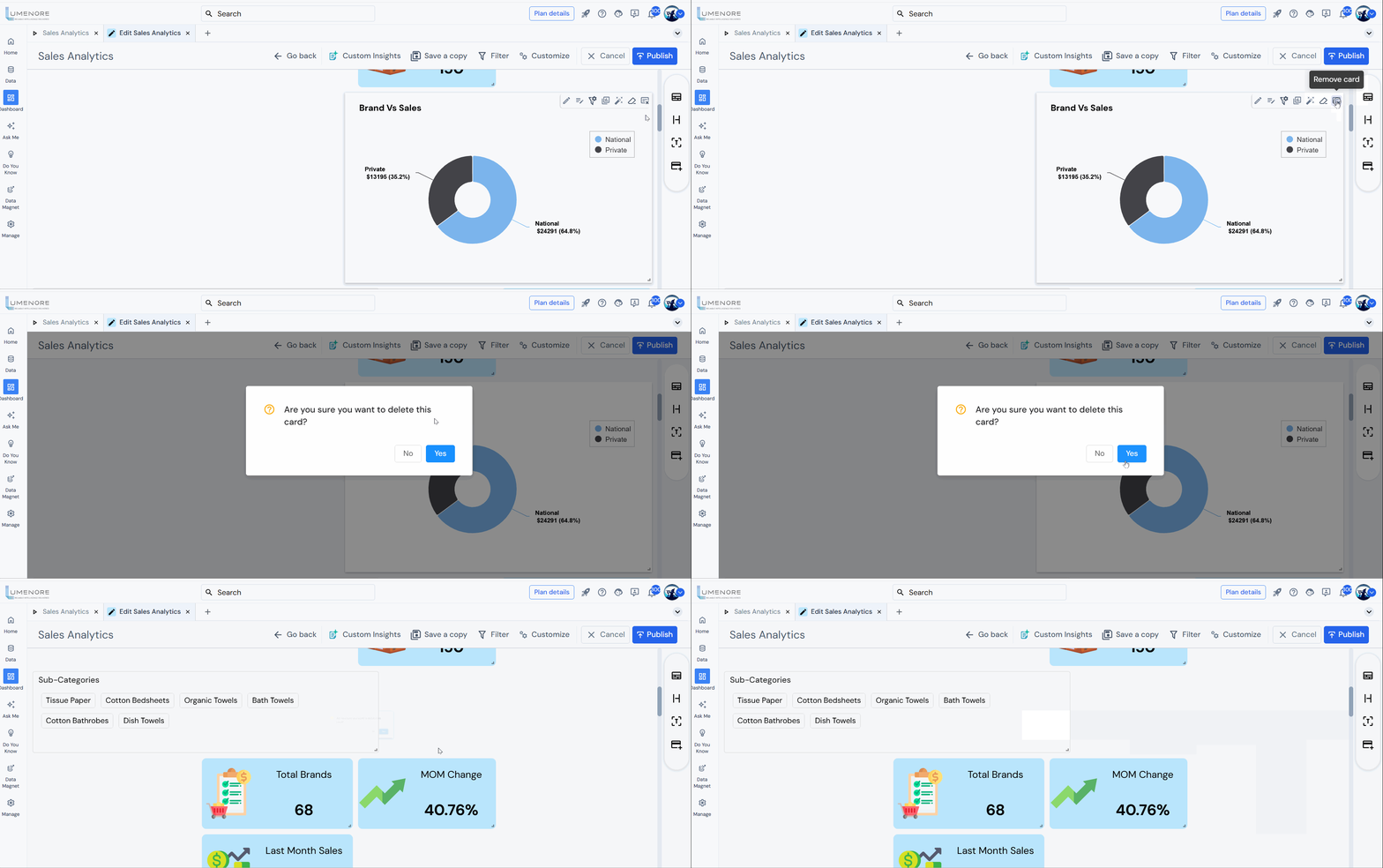
Remove Card
The Remove Card feature permanently deletes the selected card from the dashboard layout. Unlike Clear Card, which empties the card’s content, Remove Card eliminates the entire card element from the dashboard, freeing up space and simplifying the layout.