Oracle
The Oracle connector allows Lumenore to securely connect to Oracle databases and ingest data for analytics and reporting. It supports both Extract and Live connection modes, enabling users to either load data into Lumenore for faster analysis or query the Oracle database in real time. The connector uses standard Oracle JDBC connectivity and authentication, allowing users to select schemas and tables, apply filters, enable Change Data Capture (CDC), and keep datasets synchronized with the source system.
Steps to connect:
Step 1: Navigate to Home > Connect Data > Select Oracle.

Step 2: Click Create New Connection to set up a new connection or select an existing connection to proceed.

Step 3: Provide all the required details to establish the connection.
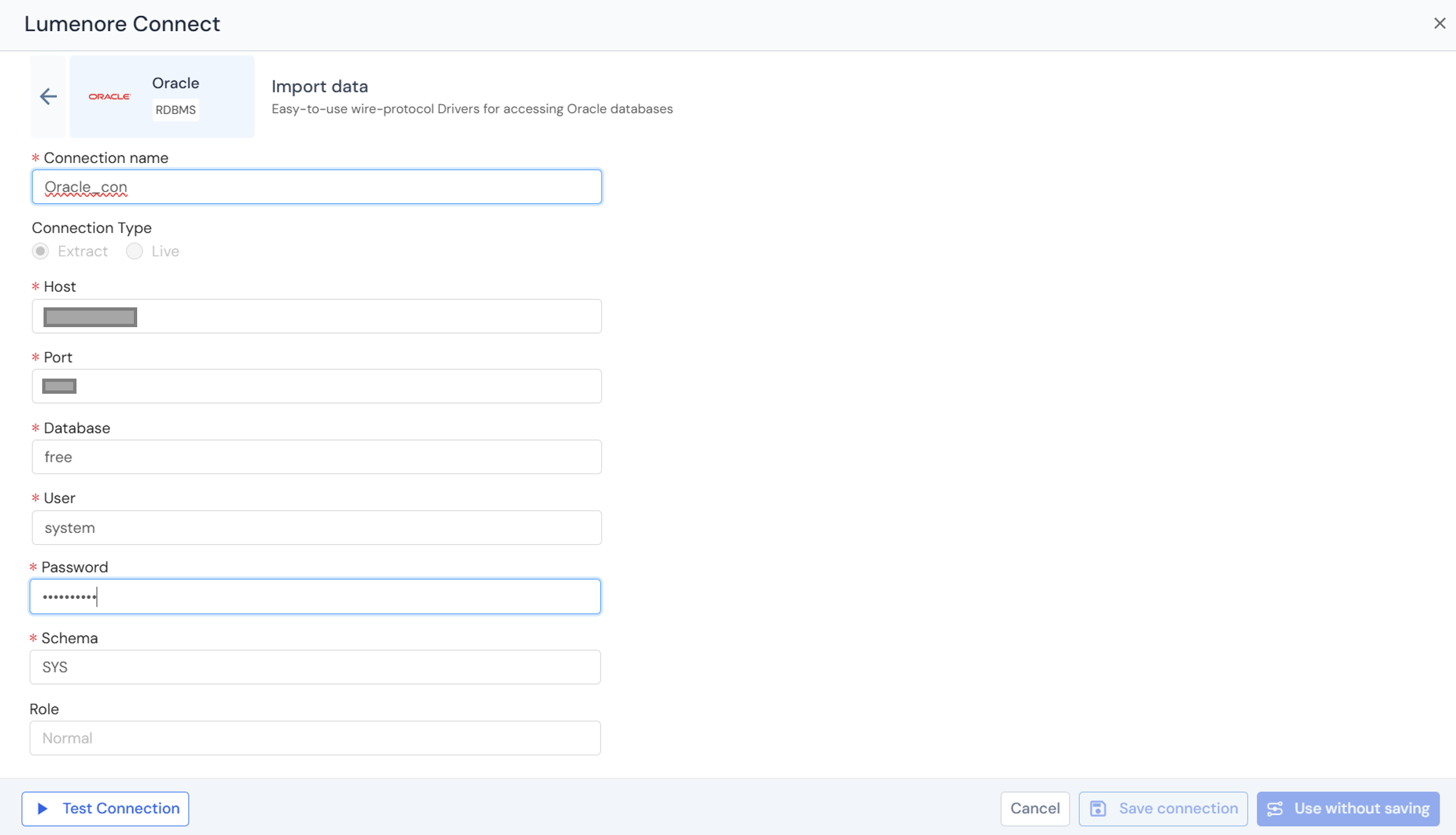
Step 4: After providing the details, click Test Connection. If the connection succeeds, a confirmation message indicates that the “Connection details are valid”; otherwise, an “Invalid connection details” message is displayed.

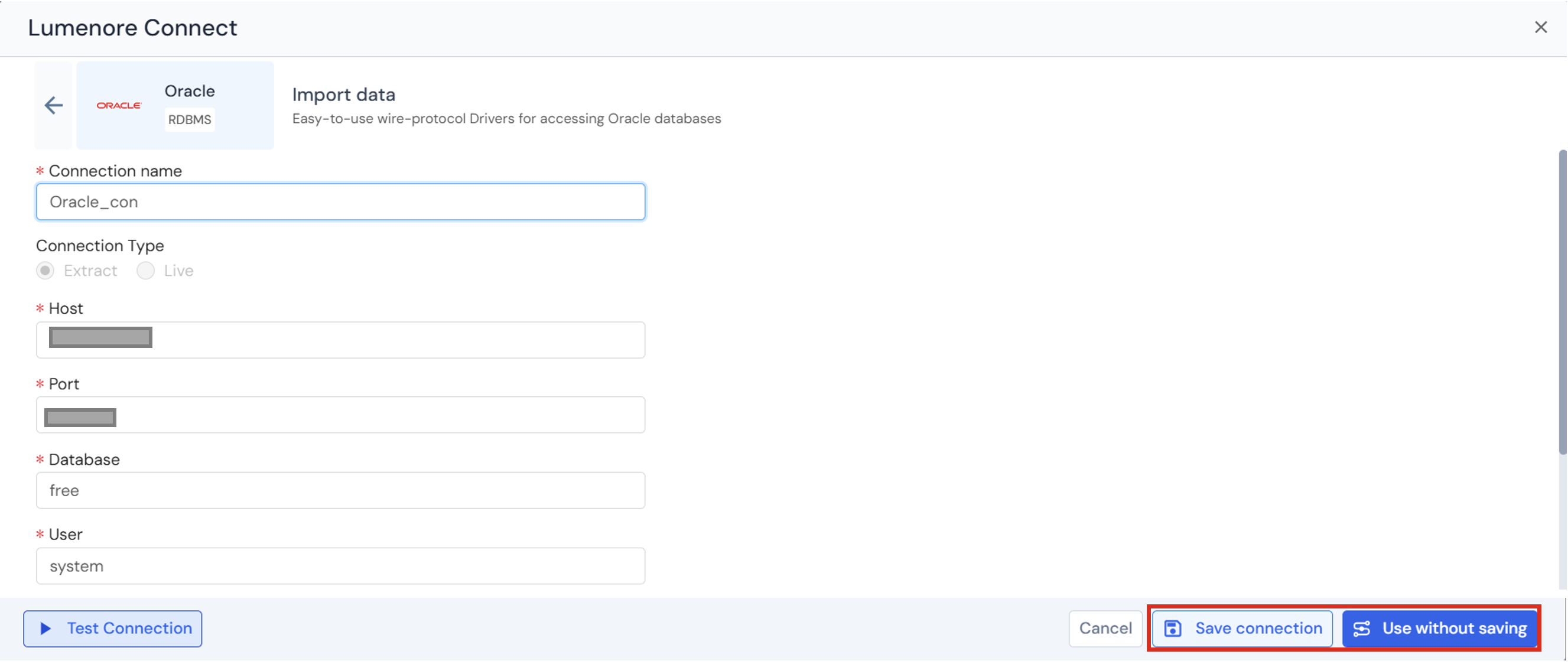
Step 5: The user can either save the connection or use it without saving.
Step 6: Once saved, the connection is added to the existing connections list and can be reused later.
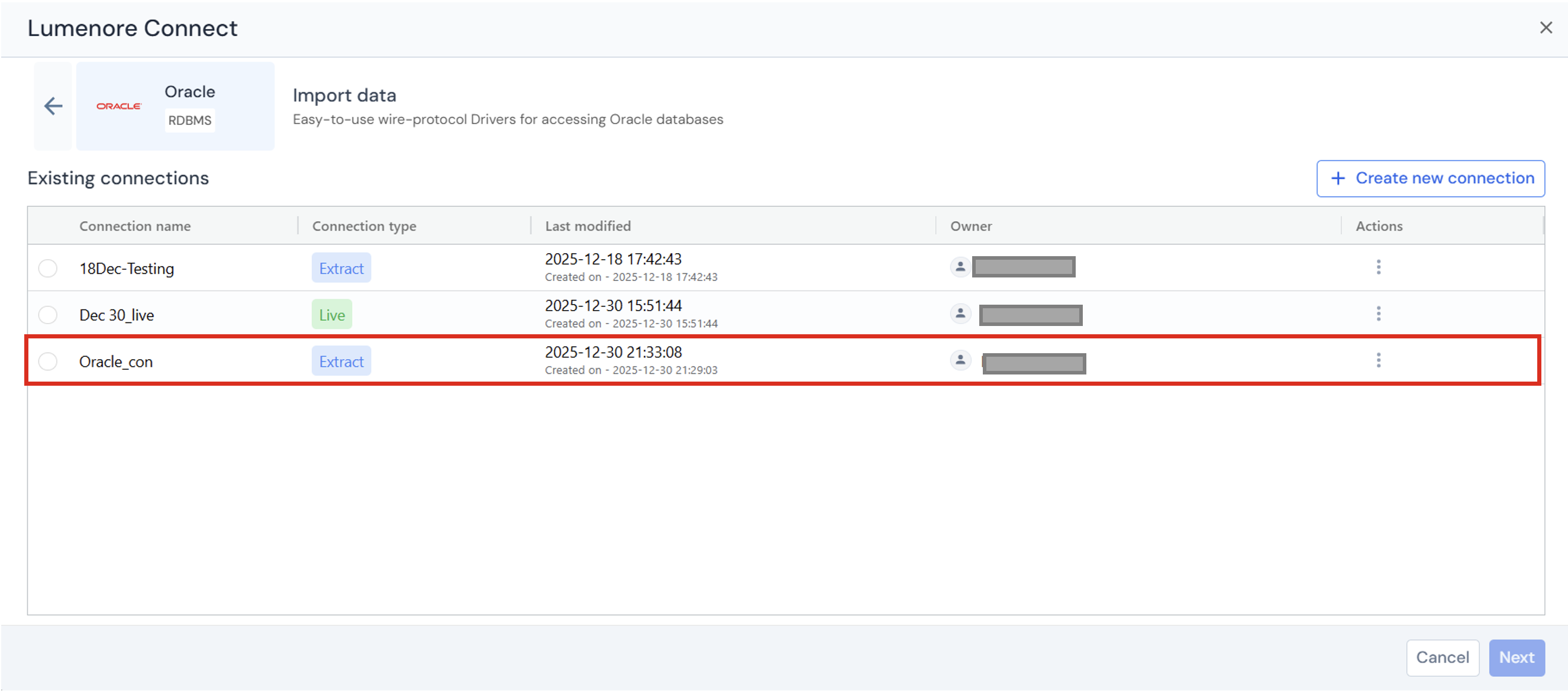
Actions:
- When the user clicks the three dots under the Action column, the options Use This Connection, Modify, or Delete are displayed.
- Use Connection: Takes you to the next step to select a table.
- Modify: Allows you to edit the connection details.
- Delete: Removes the connection from the existing connections list.
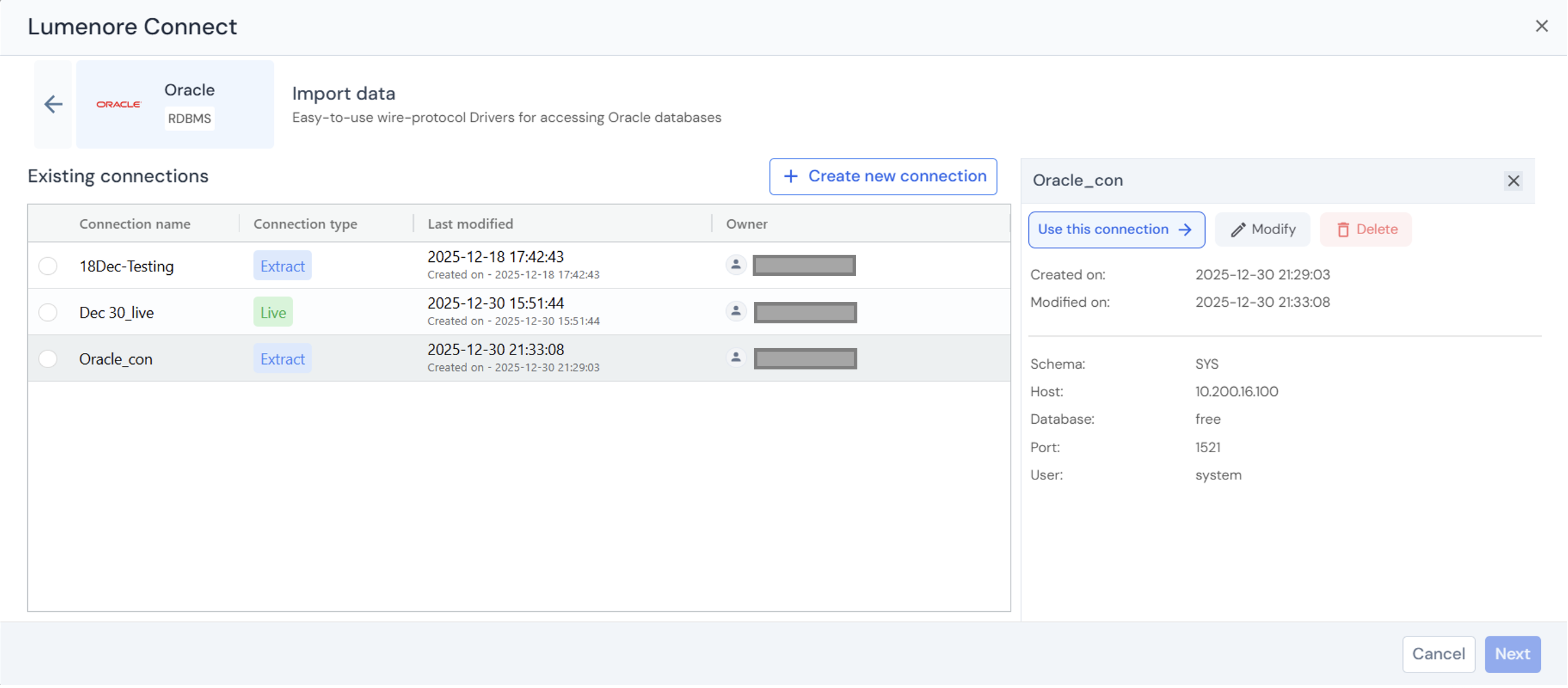
Step 7: To use a connection from the existing connections list, select it and click Next.

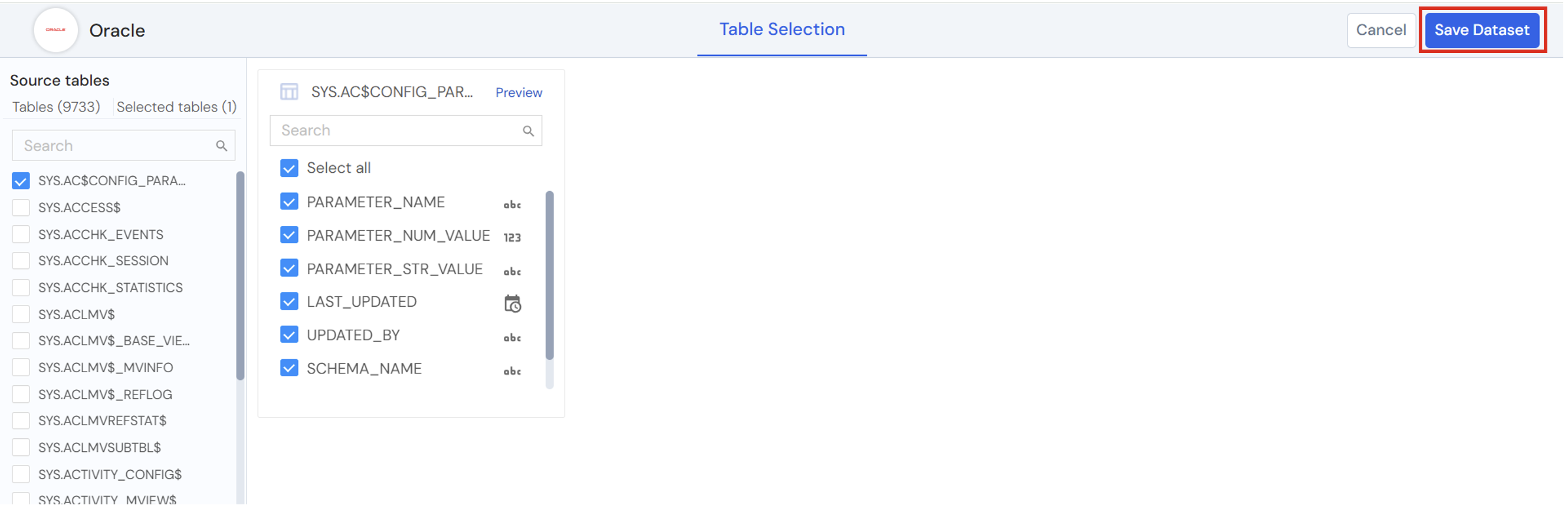
Step 8: Select the table you want to export to the Lumenore database. You can also view the data by clicking the Preview tab.

The Preview tab allows you to preview the table data, apply filters, change data capture, and perform transformations.
- Preview table data:
Preview table data lets you quickly view a sample of records from the selected table before proceeding.
- Filter data:
The Filter data section allows you to restrict the rows loaded from the selected table based on specific conditions.
- Transform data:
The Transform Data tab below provides options for cleaning and enriching your data before loading it into the database.
- Change data capture (CDC):
It is a technique for identifying and capturing only the data that has changed (new, updated, or deleted records) in a source system since the last data load.

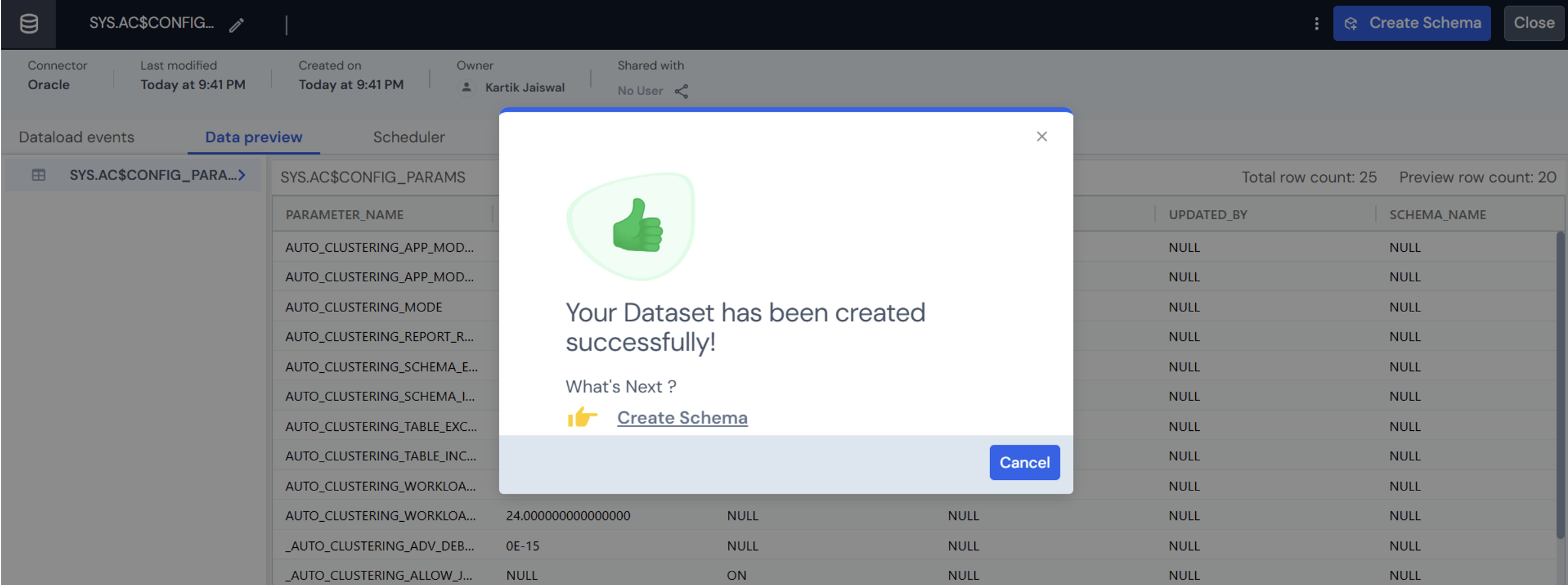
Step 9: Click “Save Dataset” to complete data ingestion.
Step 10: Provide the Dataset name and description (optional). Click Ok.
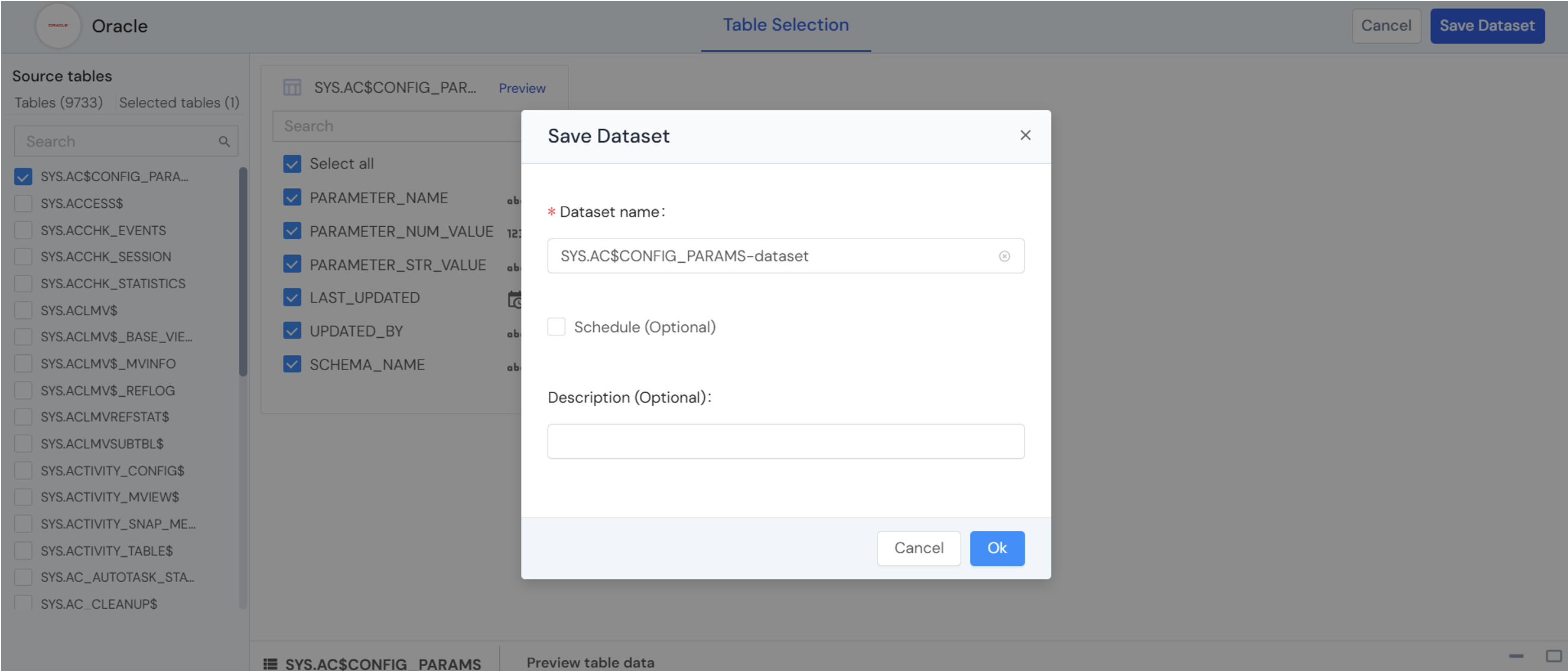
Step 11: A “Dataset saved successfully” message is displayed. After this, the user can cancel and start using the dataset or create a schema by clicking the Create Schema option.