Key functions
The right panel of the Data Magnet window provides several user-friendly options to help the user manage, monitor, and refine their data workflows.
Save
Click the Save button (top-right) to save your current workflow or graph:
- Once saved, the graph will appear under the Graphs section in the left panel.
- The user can reopen any saved graph from the list to review or continue editing later.
- This helps users preserve their progress and reuse existing workflows when needed.

Run
The Run button executes the currently active workflow (graph or job).
- If the user hasn’t saved the graph, they will be prompted to save it before running.
- This ensures no unsaved changes are lost and provides a consistent execution record.
Output: After running a graph:
- You’ll see a preview of the output data.
- Execution logs are also generated to help you troubleshoot or validate what happened during the run.

Use the email option to send automated job execution reports to yourself or others.
Fields and Settings:
- To (required):
Enter one or more email addresses where the report should be sent. - CC / BCC (optional):
Add additional recipients if needed. CC shows recipients to all, BCC hides them. - Attach Sample Rows:
Optionally include a small sample of the output data in the email. - Mail On:
Choose when the email should be sent: - Start: When the job begins
- Success: After successful completion
- Failure: Only if the job fails
- Subject:
Customize the email subject for each condition (Start, Success, Failure) for easier identification.
Action Buttons:
- OK: Save the email settings and close the dialog.
- Detach Email: Remove the configured email settings from the workflow.
- Cancel: Close the window without applying changes.

Update
If the graph has already been saved, the Update section offers three options:
- Reset Graph:
Reverts all changes made since the last save. - Save as New Draft:
Allows the user to save their current progress as a draft, helping prevent data loss and enabling easy resumption later. - Save as New Graph:
Creates a copy of the current graph under a different name. Ideal for testing changes without affecting the original workflow.

Clear
This option clears the entire editor, giving users a fresh workspace to start a new workflow or job.

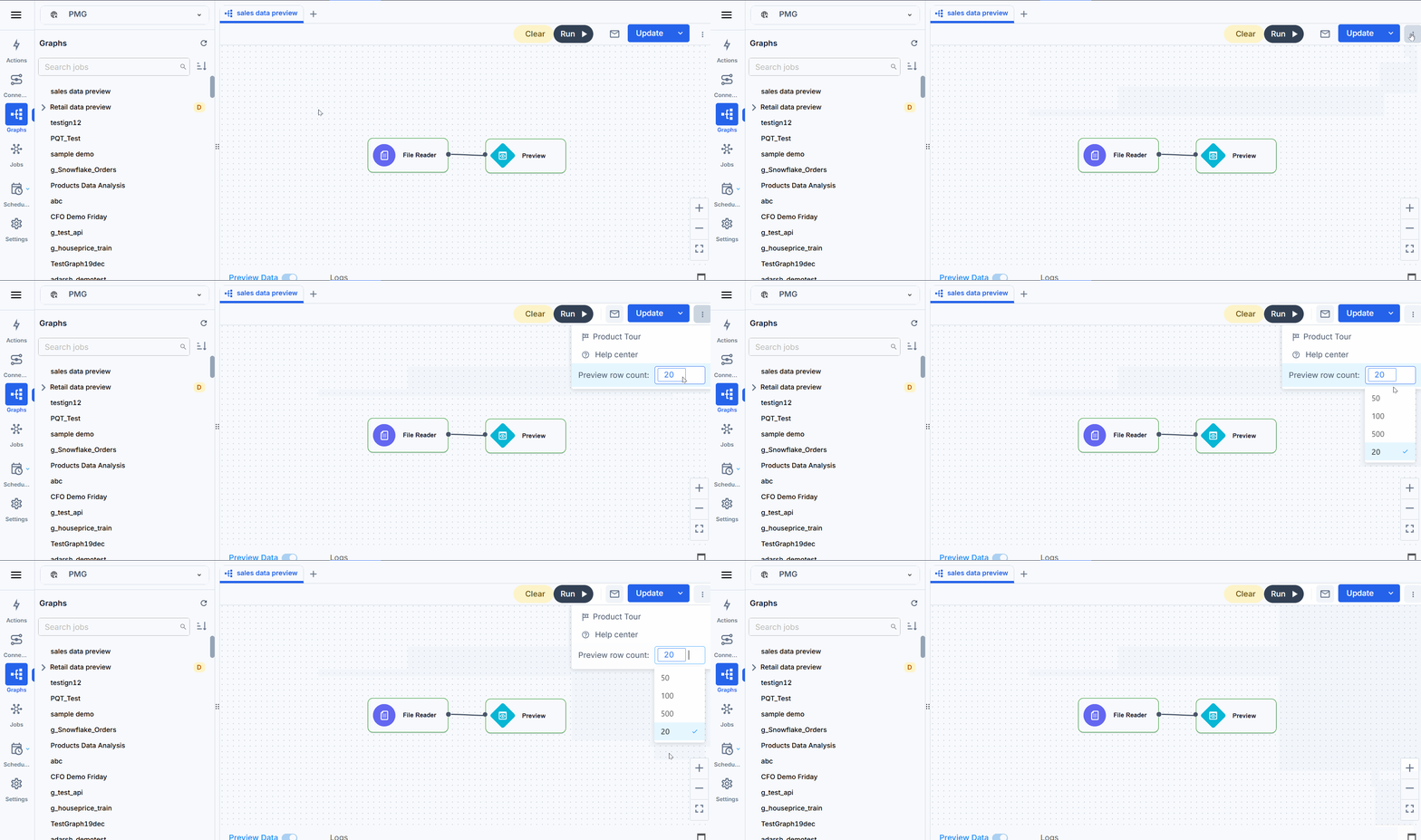
Preview row count
Here, the user can define how many rows of data they want to preview after a job runs. The user can either enter a custom number or select from pre-defined options.
Product Tour
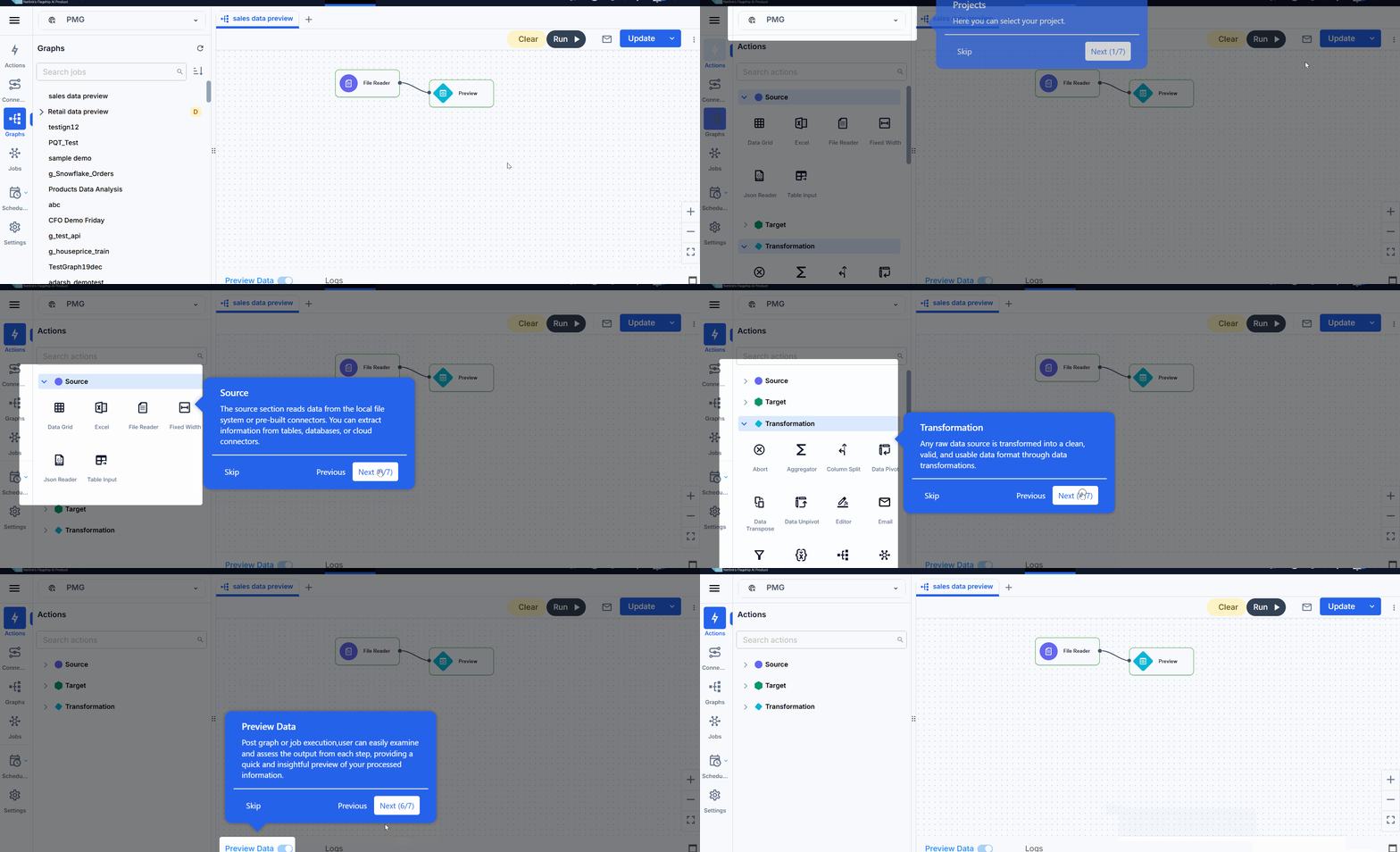
The Guided Product Tour introduces new users to key features through a step-by-step walkthrough.
It simplifies onboarding and helps new and returning users quickly understand and explore the platform.
Help Center
Clicking on Help Center will take the user to Lumenore’s knowledge base, where they can find detailed guides and documentation on effectively using each component and feature.

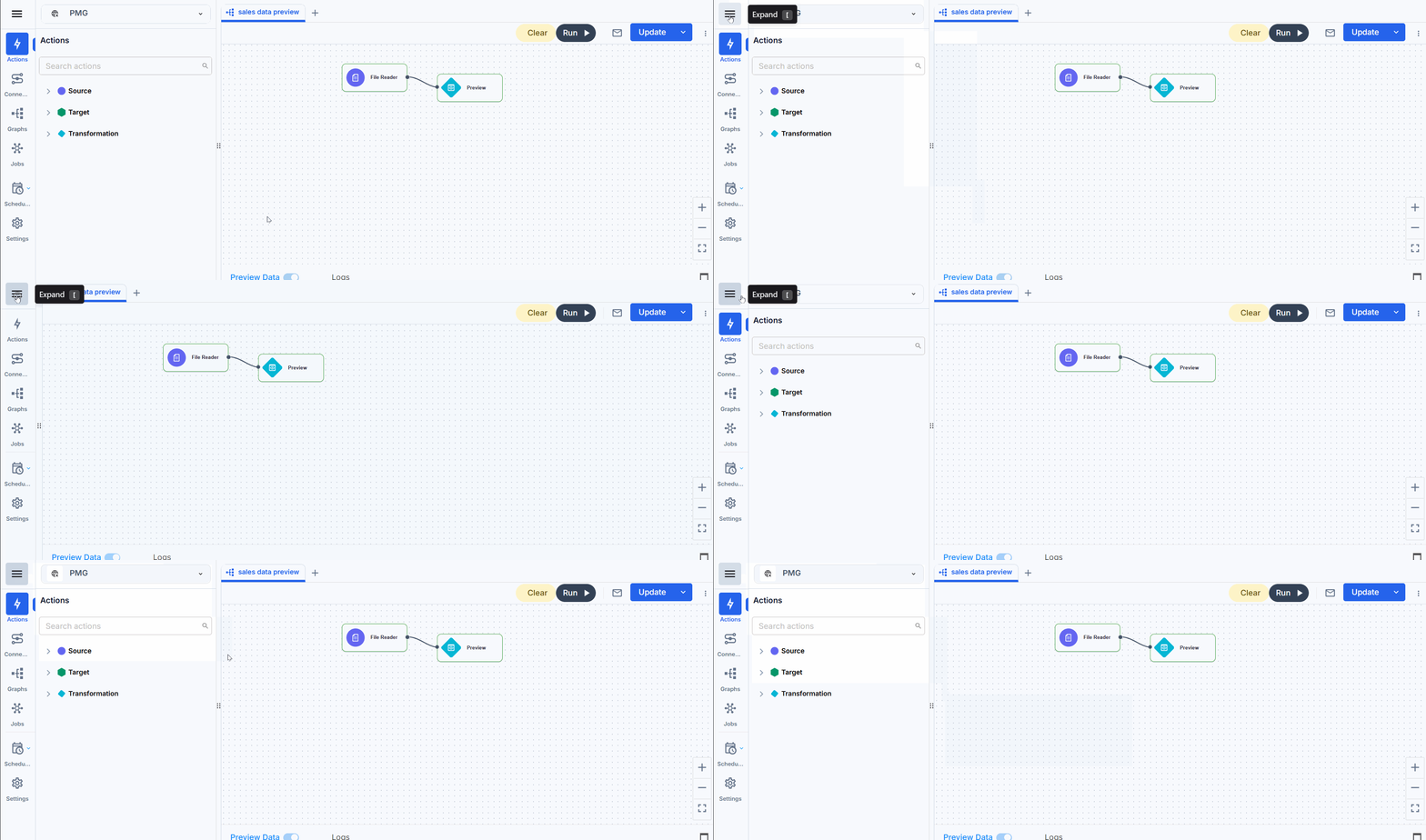
Expand
Clicking Expand will open or close the tray (right panel), allowing the user to toggle the workspace for better focus or visibility.