Tally
Tally ERP 9 is preferred by millions of businesses as accounting software. It dynamically adapts to the way you operate your business and helps in simplifying the business operation. The software provides its users with exceptional capabilities that simplify the way they manage all the critical aspects of their business that including accounting, sales and purchase, inventory, manufacturing, taxation, payroll and MIS reporting.
We’ve found that ~90% of Tally users don’t have real-time access to MIS. You can create a spreadsheet for your MIS needs but that can take up to a week each month. That’s why we are extremely excited to bring you Lumenore for Tally.
A ready connector is available for Tally which can import the entire data from Tally at a pre-defined interval. When importing data from Tally into SQL Server, Lumenore has developed a product called the Lumenore Tally Connector. With Lumenore you get a “one-click solution” that allows you to visualize your Tally data and share critical insights in real-time.
Lumenore allows you to create analytical insights in seconds without relying on your accounting or finance team. With tailored, predictive analytics and conversational intelligence, Lumenore for Tally helps you make insights-informed decisions.
How is Lumenore Tally Connector useful?
- The Lumenore Tally Connector developed by Lumenore helps in importing Data from Tally with a single click on a tab.
- The imported data are based on API, Auto-Scheduler and files. The entire platform is based on an open database format that can be modified and accessed as per the requirements of the user.
- The Lumenore Tally Connector tool developed by Lumenore ensures error-free mechanisms that are used for uninterrupted import of database in a form so that it can be imported Lumenore.
- The process of importing data is quite simple.
Few points to ensure before using the tally connector
- Make sure that Tally is running on localhost and port 9000.
- Good internet connectivity.
- Tally.ERP 9 should be opened.
- Load and select a company for which you want to fetch and upload data.
- It is highly recommended to restart Tally.ERP 9 before fetching data.
- Do not exit or close the connector till the whole process gets completed.
Connect to Tally
Configure Tally for Lumenore Tally Connector
Step1: Open Tally ERP.9. Click on “Configure” in the bottom right corner or press F12.
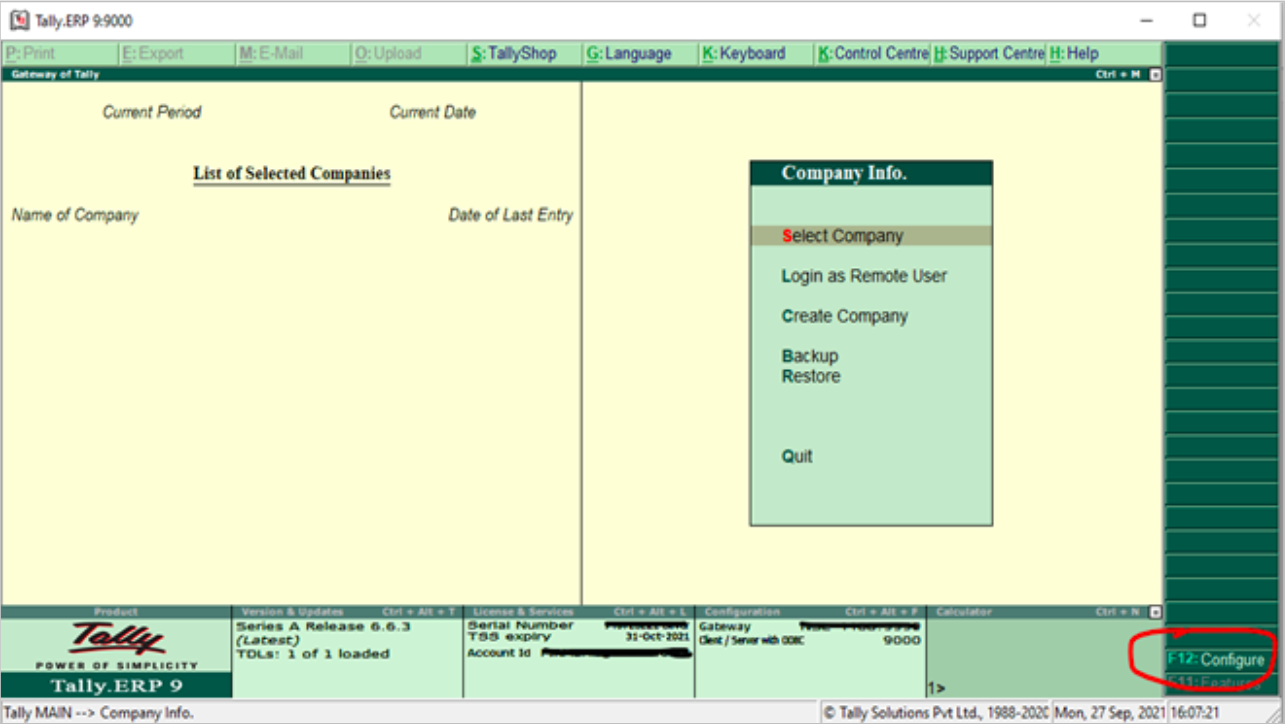
Step2: Now Click on Advanced Configuration.

Step3: Make sure that Tally ERP.9 is acting as Both, Enable ODBC server: Yes and “Port: 9000.” (Please refer to the image below and make necessary changes).

Step4: After making the changes, press enters again and again until you reach the end of the page and see the “Accept” message box.

Step5: Click on “Yes.” Tally ERP.9 setup is completed.
Step6: Now load and select a company in Tally for which you want to fetch data.
Installing the Lumenore Tally Connector
Step 1: Open the folder where the Lumenore Tally ERP 9 Connector setup file is located, usually called “Lumenore Tally Connector.exe.”
Step 2: Run the setup file to start the installation.
Step 3: Click on install
Step 4: Then, Click on the finish
Fetch and Upload data with a single click
Step 1: Click on the Start button at the bottom right corner and scroll to find the “Lumenore Tally Connector” app and open it.
Step 2: Login with Lumenore credentials
Step 3: Now, there are few points to keep in mind before using the “Lumenore Tally Connector.”
- Make sure that Tally ERP 9 is running on localhost and port 9000.
- And Company is Selected for which you want to fetch and upload data.
Step 4: After confirming click on Fetch & Upload
- Wait for a while
- Do not exit or close the connector till the whole process gets completed
Step 5: After installation, it will automatically close.
Visualize Tally Data in Lumenore
Step 1: Open Lumenore
Step 2: Use the credentials to login
Step 3: Once Logged In, click on the Dashboard tab
Step 4: Look through several or just do a quick search
Step 5: Click on your data dashboard
Step 6: you can see and toggle through all the dashboards to visualize your data
Note: Once you have chosen the tables needed to calculate the KPI for analysis requirements and saved the dataset, you can create the business model and dashboard. Instructions are available in the Self-Service section of the Lumenore User Manual.
