Alter Data
The Alter Data option allows users to modify or update the structure and content of an existing dataset after it has been created. This helps users keep datasets current and aligned with changing business requirements without creating a new dataset from scratch.
Steps to Alter Data:
Step 1: Navigate to Home > Data. Then click the three dots next to the dataset you want to alter.

Step 2: Click Alter Data, then browse and select the required file.

Step 3: After the file is uploaded successfully, click Next, select the required sheet, and then click Next again.
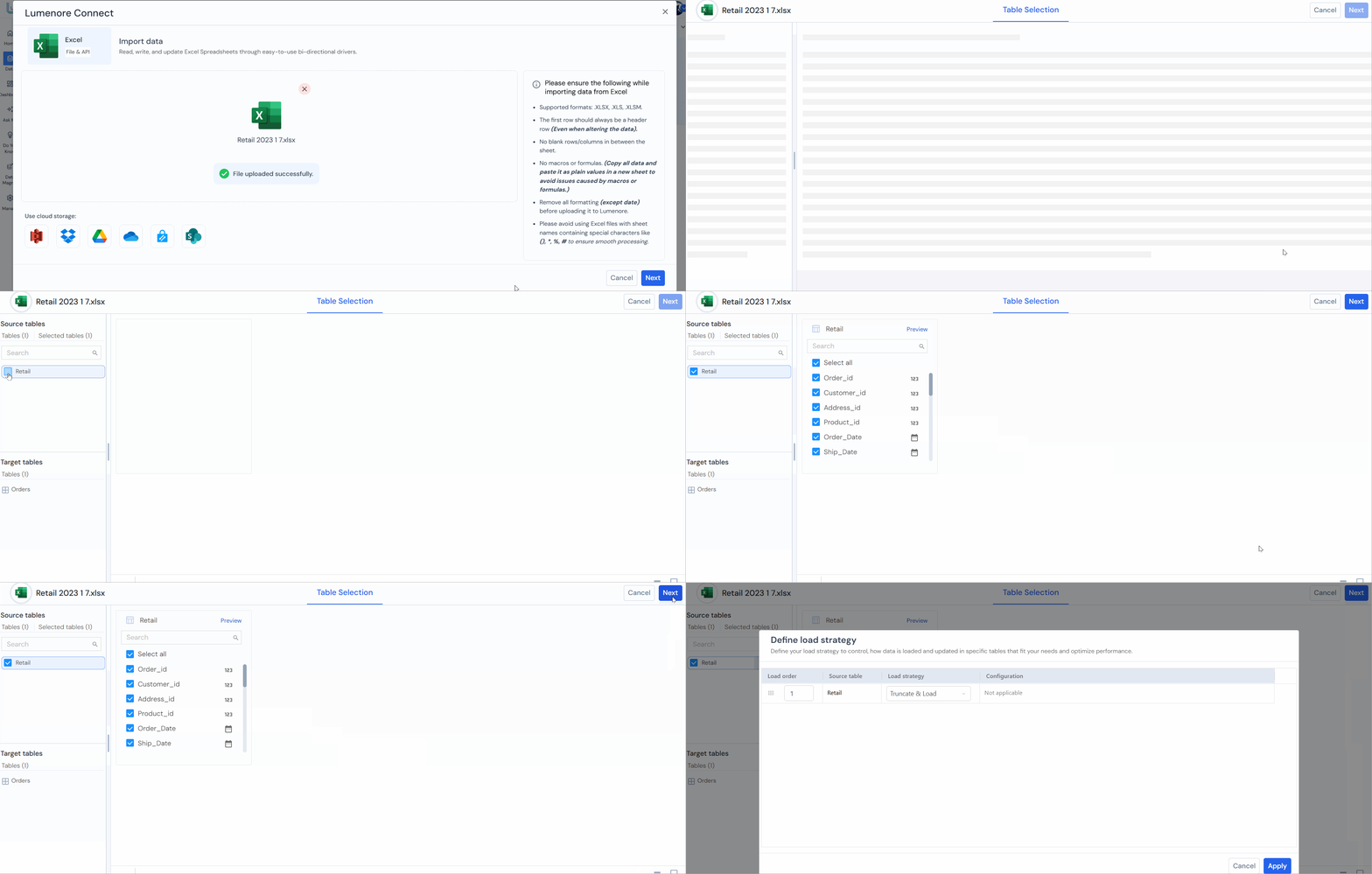
Step 4: The Load Strategy allows users to choose how new data should be loaded into an existing dataset or table. This helps control how records are updated, replaced, or added during the data upload process.
It ensures the data load matches your business requirements while optimizing performance and data accuracy.
Sections
- Load Order: Defines the sequence in which tables or sheets are loaded.
- Source Table: Displays the selected sheet or table from the uploaded file (for example: Sheet1).
- Load Strategy: Let users choose how the incoming data should be handled.
- Configuration: Shows additional settings if required for the selected strategy.
Load Strategies
- Truncate & Load: Deletes all existing records in the target table and loads the new data from the source file.
Best case: Full dataset replacement with fresh data. - Append to Existing: Adds new records to the existing table without deleting current data.
Best case: Incremental data additions such as monthly or daily uploads. - Update & Insert: Updates match existing records and inserts new records that do not already exist.
Best case: Maintaining master data or transaction tables with changed and new records. - Delete & Insert: Deletes matching records first, then inserts the new version of those records.
Best case: Replacing specific rows while keeping the rest of the data unchanged.
Map Columns – Key Columns Selection
The Map Columns window allows users to define which columns should be treated as Key Columns during data loading or update operations. Key columns uniquely identify records and help the system match incoming data to existing records.
Sections
- Search Map Columns: The search box at the top allows users to quickly find specific columns from the list when working with large datasets.
- Columns List: The available columns from the source table are displayed here.
- Key Columns: Users can select one or more columns as Key Columns by checking the corresponding box.
Key columns are used to:- Identify matching records between source and target tables
- Support Update & Insert load strategies
- Prevent duplicate records
- Ensure accurate row-level updates
 Step 5: Table & Column Mapping
The Table & Column Mapping allows users to map columns from the uploaded source file to an existing target table or create a new table. This step ensures that incoming data is correctly aligned with the destination structure before saving the dataset.
Sections
- Source Table: The left side displays the uploaded file sheet or source table (for example: Sheet1) along with available columns.
- Map Target Column: For each source column, users can choose the corresponding destination column in the target table.
- Data Type: Displays or allows selection of the expected data type for each column.
Examples:- String → Text values
- Double → Decimal numeric values
- Target Table Section
On the right side, users can:- Select Target Table: Choose an existing table from the dropdown list where data should be loaded.
- Create New Table: If no target table exists, click Create New Table to generate a new destination table.
- Auto Mapping Options
- Auto Map by Position: Automatically maps columns based on their order or sequence.
- Auto Map by Name: Automatically maps columns where source and target column names match.
- Alerts: The Alerts panel provides a quick validation summary during Table & Column Mapping. It helps users identify potential issues that may prevent successful dataset loading or cause data inconsistencies.
In this example, all alert counts are 0, which means no issues were detected.
Alert Types:- Missing Columns: Indicates columns expected in the target table but not found in the uploaded source file.
- Mismatched Data Type: Shows columns where the source data type does not match the target column data type.
Examples:- Text mapped to numeric field
- Date mapped to string field
- Missing Column Mapping: Indicates source columns that have not been mapped to a target column.
Case 1: Target Table
Click Select Target Table. You can then use Auto Map by Position or Auto Map by Name to map the columns automatically. After mapping, click Verify & Save Table. If any issues are found, they will appear in the Alerts section, where you can view the mismatch category and the number of mismatches.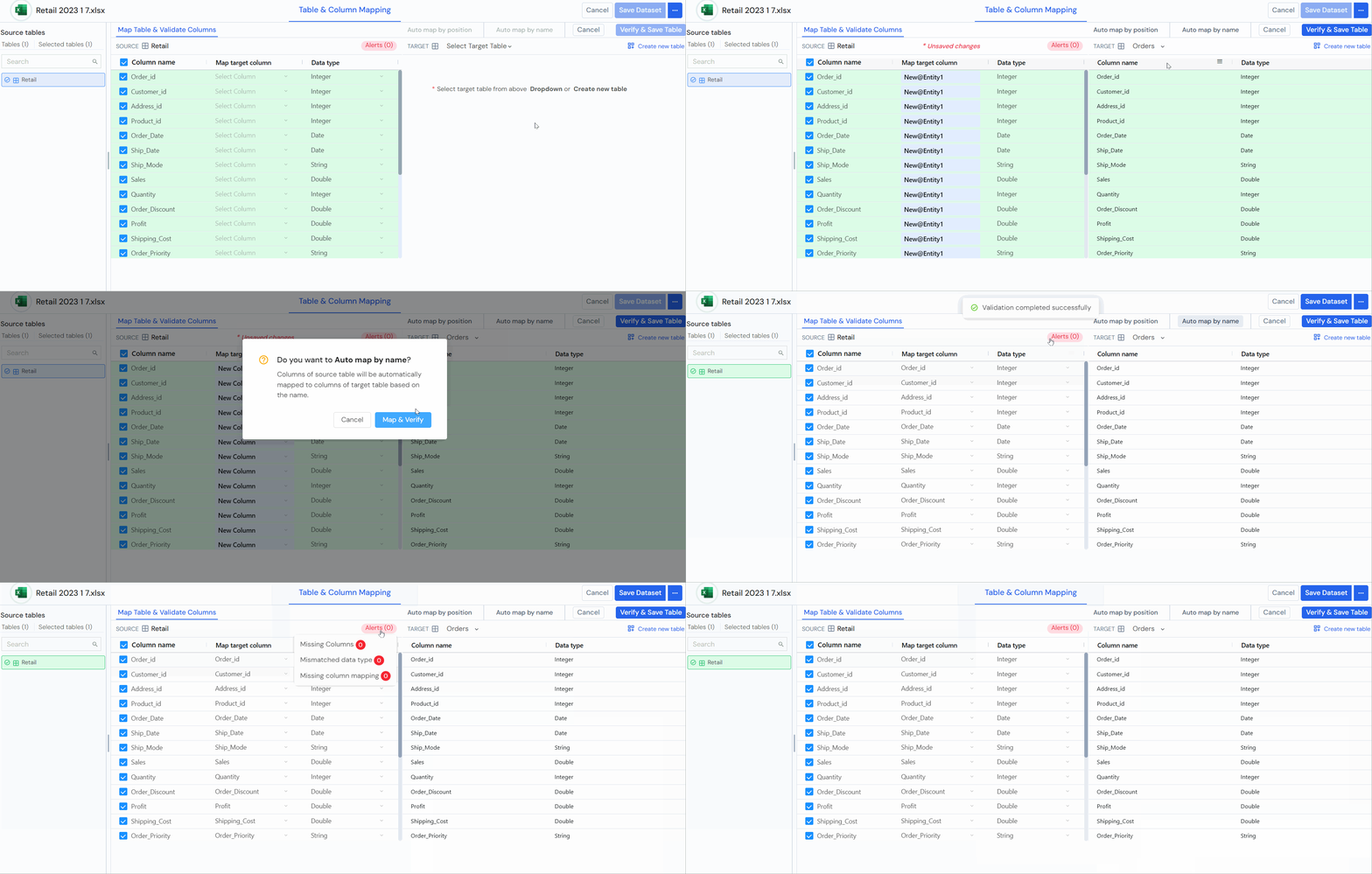 Case 2: Create New Table.
Click Create New Table, then select the required table from the New Table dropdown list. Next, use Auto Map by Name or Auto Map by Position to map the columns automatically. If any mismatches are detected, you can review them by clicking Alerts. To rectify the mismatch issues shown in Alerts, click the relevant mismatch category and provide the required details.
Case 3: Skip Mapping & Save Data
Users can also proceed without mapping the columns and save the data directly.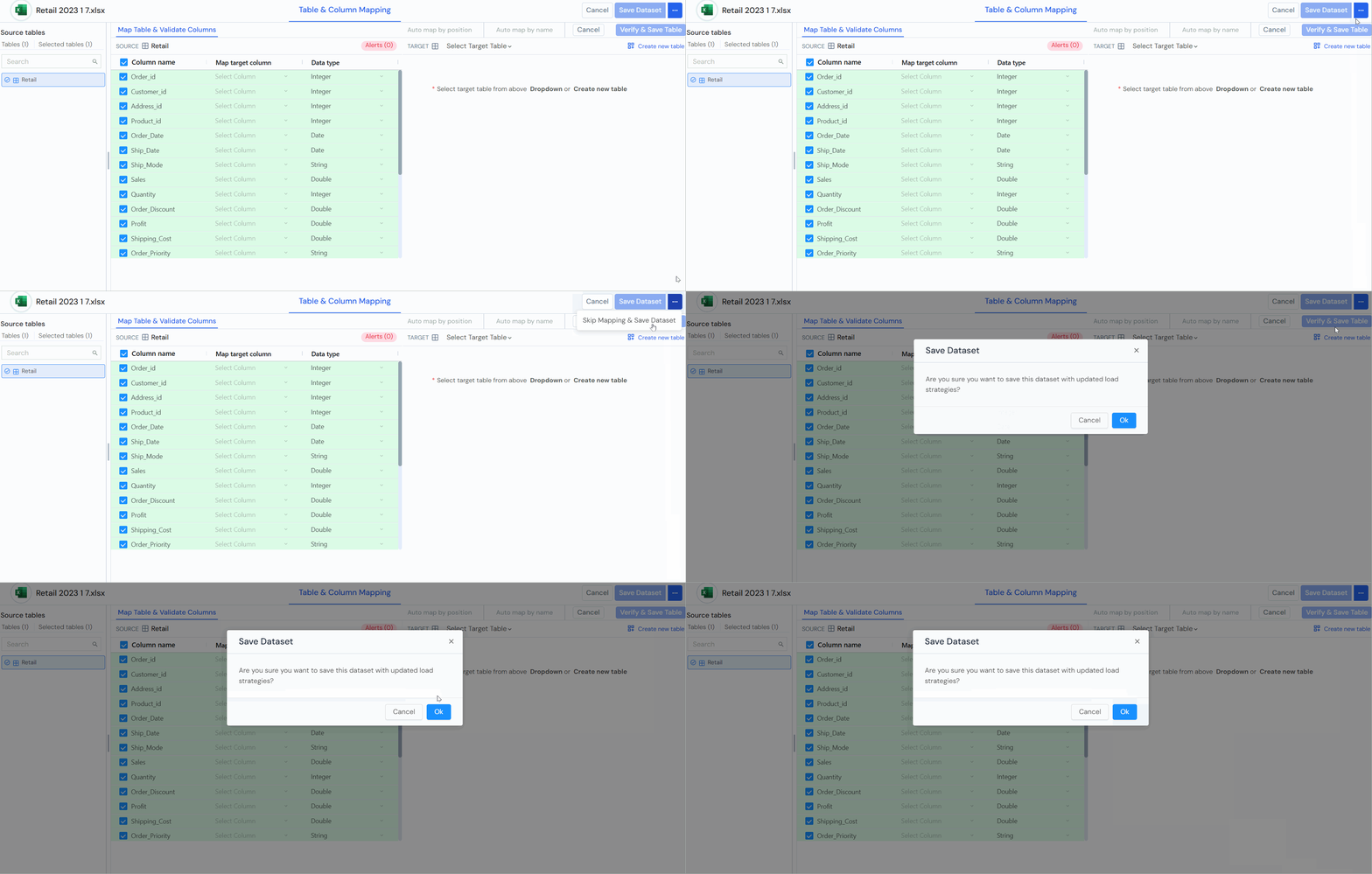
To fix alert issues:
Click Alerts. Here, users can view the alert categories along with the number of issues in each category. Then click the category showing issues.
Missing Columns
For example, if Missing Columns shows 23 errors, it means that 23 columns are missing.
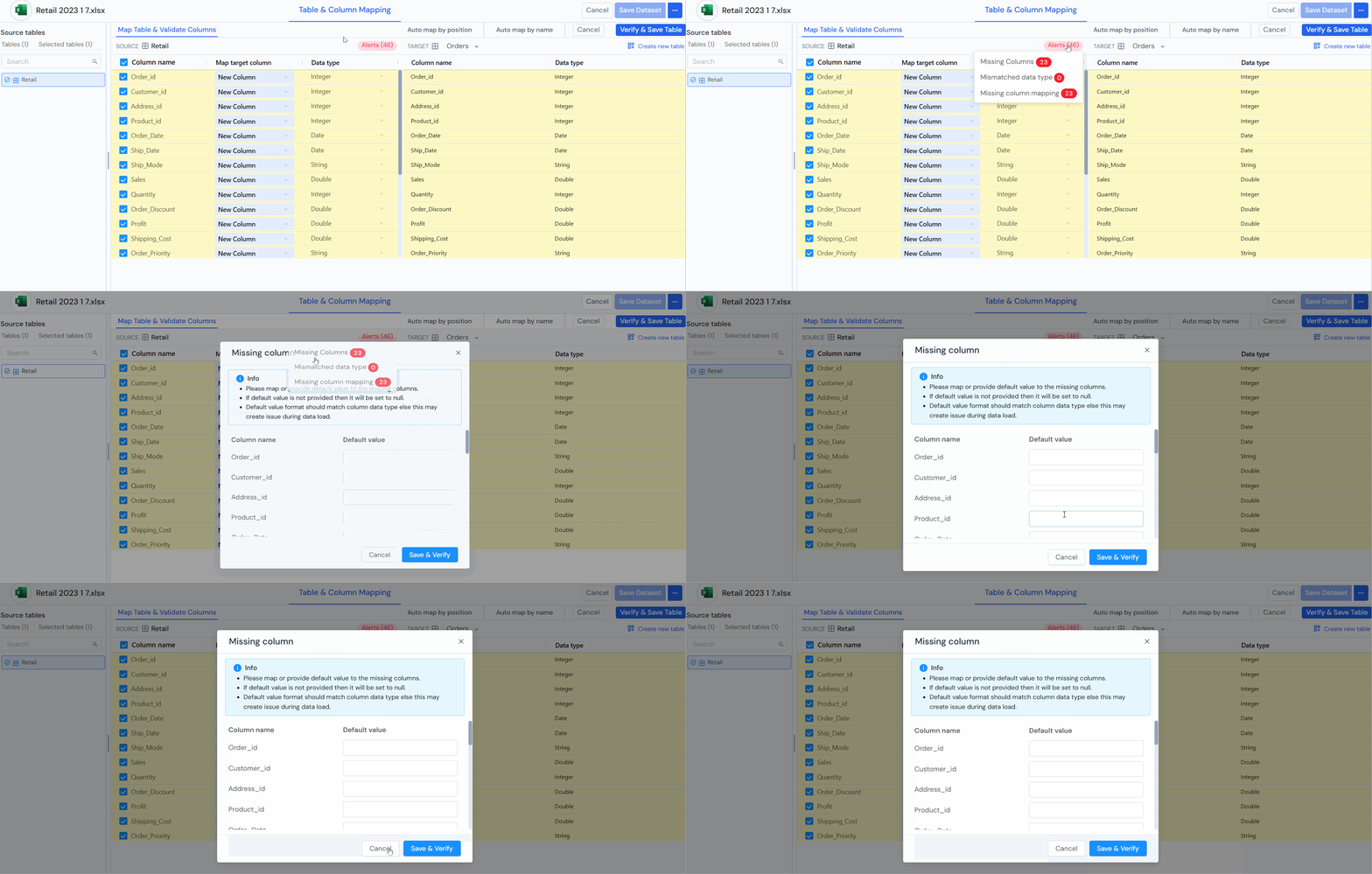 Provide a default value for each column.
 Missing Column Mapping
Map the columns by selecting the appropriate target columns from the drop-down menu.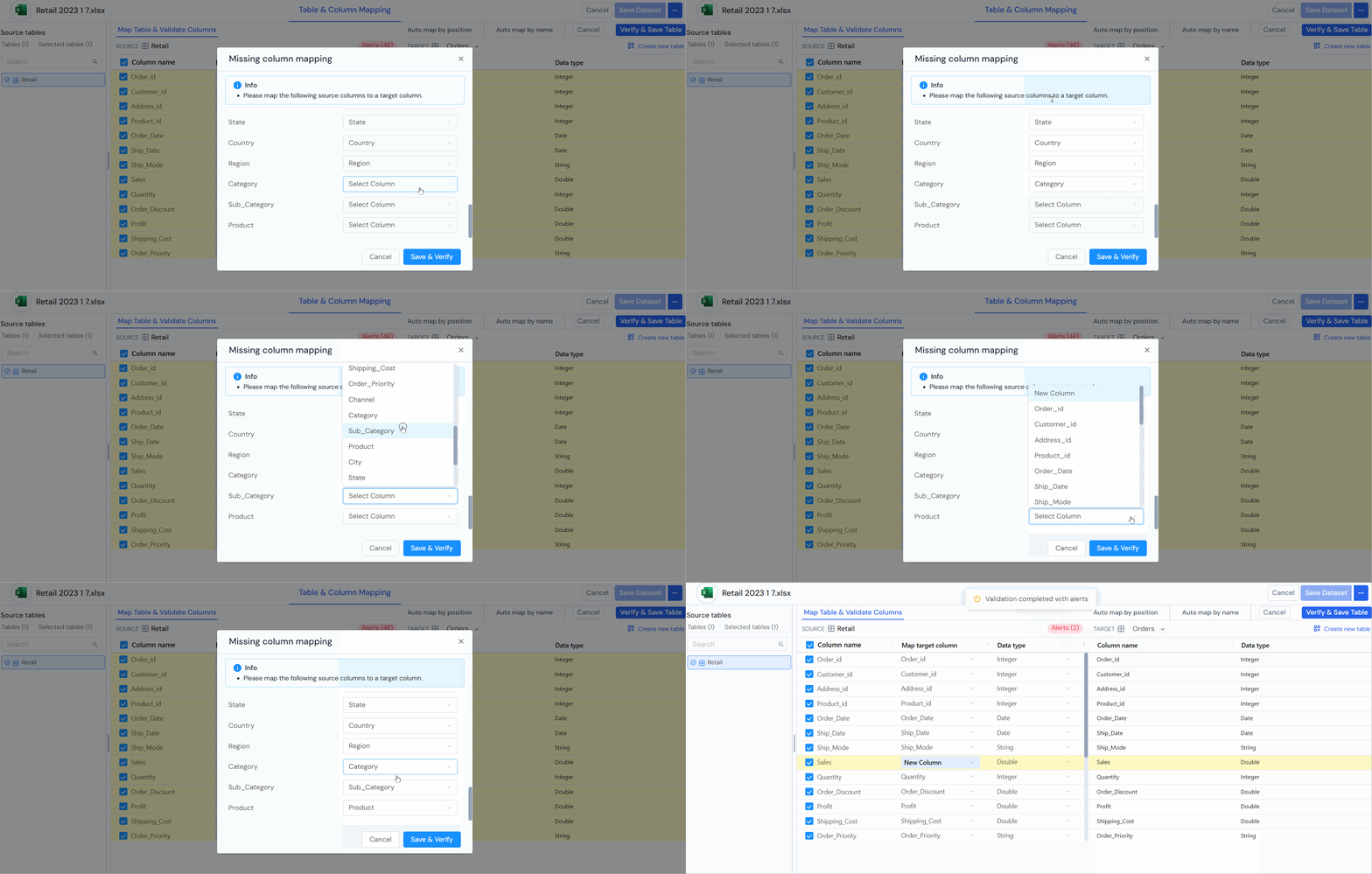 Step 6: After resolving all issues shown in Alerts, click Save Dataset and then click OK to proceed with the selected configurations. Under the Data Load Event tab, users can track the loading progress. Once the data is loaded successfully, the dataset preview will appear under the Data Preview tab. After this, users can either close the window and start using the dataset or create a schema using the updated dataset.
